Caption Styles
Closed Caption Creator supports three caption display styles defined by the EIA-608 and CEA-708 broadcast standards: Pop-On, Roll-Up, and Paint-On. The active caption style for an Event Group controls how captions are rendered on screen during playback and how they are encoded in supported export formats. Most projects use Pop-On, which is the viewer-preferred style and is supported by all export formats. Roll-Up and Paint-On may be required for specific broadcast deliverables and are supported by SCC, MCC, and Embed Captions exports.
Prerequisites
- A project is open with at least one Event Group.
- You are working with an Event Group intended for closed caption delivery (SCC or MCC export) if you plan to use Roll-Up or Paint-On styles.
- You are familiar with your broadcaster's delivery specification, as some deliverables mandate a specific caption style.
Navigation paths
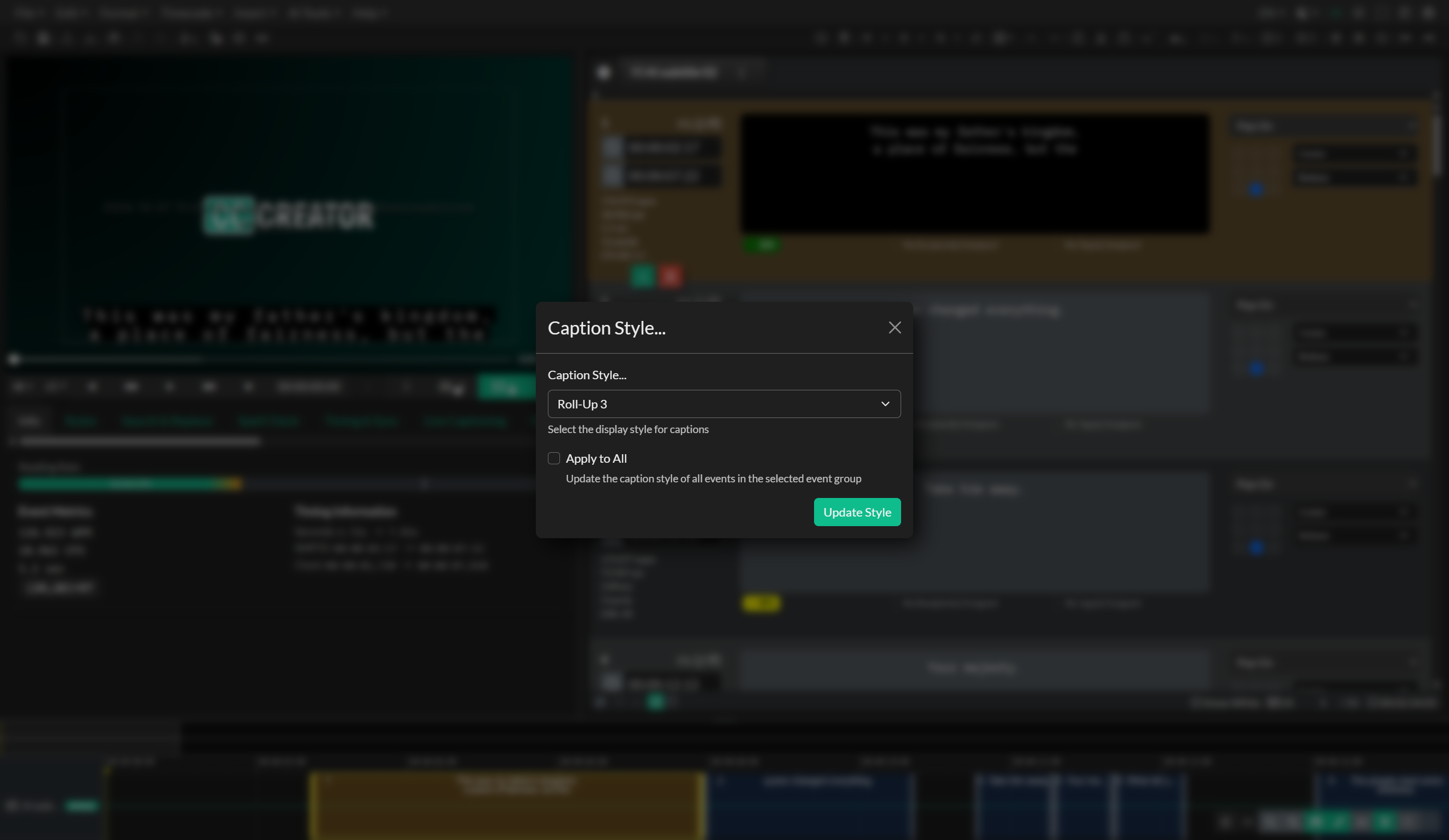
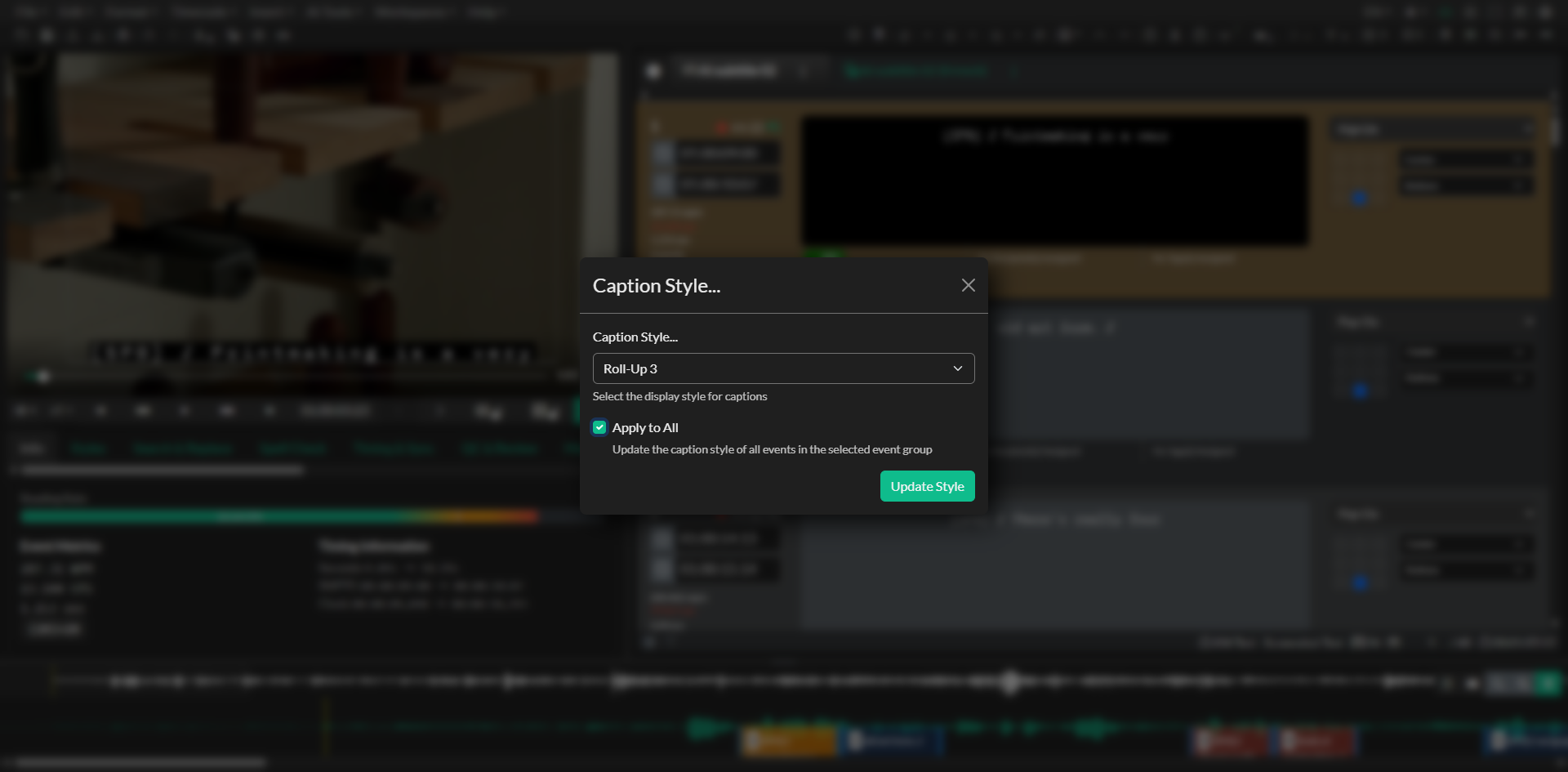
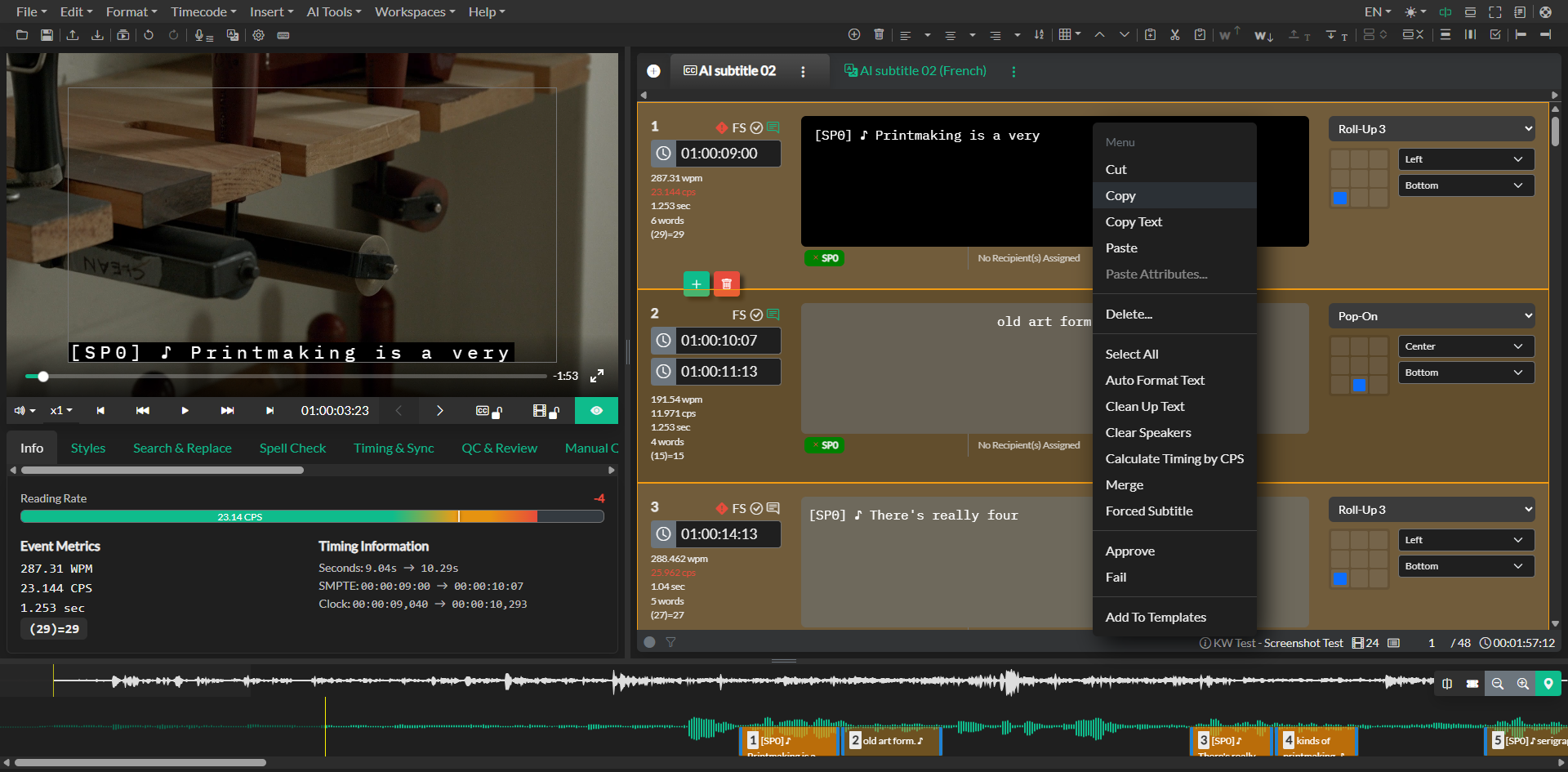
- Set caption style: the style dropdown on each subtitle event in List View,
Formatmenu → Caption Style → choose Pop-On, Roll-Up 2, Roll-Up 3, Roll-Up 4, or Paint-On, or the Style column in Table View. - Convert Roll-Up to Pop-On:
Formatmenu → Convert to Pop-On. - Compact List View icons: Edit > Options > Editor → Editor List → Collapse Position and Caption Style replaces the per-event style dropdown with a display-only icon (hover to read Pop-On, Paint-On, or Roll-Up).
Caption style overview
Pop-On
Pop-On is the standard caption display style and the recommended choice for the vast majority of projects. With Pop-On captioning, the complete text of an event is loaded into a non-displayed memory buffer and then appears on screen all at once at the event's in-timecode, remaining visible until the out-timecode at which point it disappears atomically. This atomic on/off behavior aligns naturally with subtitle spotting workflows and is the most comfortable reading experience for viewers.
Pop-On is the only style supported by Video Export (burned-in captions), and it is the fallback style used by all non-SCC/MCC export formats including SRT, VTT, and STL. When exporting to any of those formats, the caption style field is ignored and all events are treated as Pop-On regardless of the style set in the Event Group.
Roll-Up
Roll-Up captioning displays captions as continuously scrolling lines of text. As each new line is received, the display scrolls upward and the oldest line is pushed off the top of the visible area. The row count — 2, 3, or 4 — specifies how many lines are simultaneously visible on screen.
Roll-Up captioning is supported by SCC, MCC, and Embed Captions exports. If you export a Roll-Up Event Group to any other format, the output will be treated as Pop-On. Roll-Up is sometimes required for live and near-live broadcast workflows or for legacy broadcast systems that do not support Pop-On delivery.
Paint-On
Paint-On captioning reveals characters one at a time from left to right, simulating the appearance of text being typed onto the screen in real time. This style is used in live captioning workflows where the caption encoder is receiving a live feed of text as it is being produced.
Paint-On is supported by SCC, MCC, and Embed Captions exports. Like Roll-Up, it will be treated as Pop-On in all other export formats.
Authoring Roll-Up captions
When authoring Roll-Up captions, the on-screen display accumulates lines continuously — there is no implicit clear between events. To clear the screen between caption segments, you must insert a blank Roll-Up event at the point where you want the caption area to be cleared. A Roll-Up event with no text content is interpreted as a clear command and removes all visible lines from the display.
Forgetting to insert blank clear events is the most common Roll-Up authoring mistake. Without them, residual lines from the previous caption block remain on screen at the start of the next block, causing text to stack up across scene changes, speaker changes, or silent passages.
A blank Roll-Up event should be inserted:
- At scene transitions where there is a gap in dialogue.
- After the final line of a speech before a long silence.
- Wherever the on-screen caption area must be visually cleared before the next block of text begins.
Converting Roll-Up to Pop-On
If you receive a file authored in Roll-Up style and need to deliver it as Pop-On — for instance, when repurposing a broadcast-originated SCC file for a streaming platform — use Format → Convert to Pop-On. This operation converts all events in the active Event Group from Roll-Up to Pop-On style. Event timecodes and text content are preserved. Blank clear events are removed during conversion since they are no longer needed in the Pop-On display model. The conversion is added to the undo history and can be reversed with Ctrl+Z / Cmd+Z.
Export format restrictions
| Export format | Pop-On | Roll-Up (2/3/4) | Paint-On |
|---|---|---|---|
| SCC | ✓ | ✓ | ✓ |
| MCC | ✓ | ✓ | ✓ |
| Embed Captions (608/708 in video) | ✓ | ✓ | ✓ |
| Video Export (burned-in) | ✓ | — | — |
| SRT | ✓ (all styles exported as Pop-On) | — | — |
| VTT | ✓ (all styles exported as Pop-On) | — | — |
| STL | ✓ (all styles exported as Pop-On) | — | — |
Video Export renders captions directly onto the video frame using the Pop-On display model. Roll-Up and Paint-On events will be rendered as static Pop-On captions with their full text visible for the duration of the event. Embed Captions encodes the display style set on each event into the embedded 608/708 data stream, preserving Pop-On, Roll-Up, and Paint-On behavior for broadcast decoders.