Automatic Formatting
Automatic Formatting reshapes caption and subtitle events to conform to line length and line count constraints defined in your Event Group settings. It is one of the most powerful cleanup tools in the application and is most valuable after a transcript import or after significant content edits have left events in a state that no longer meets your style guide requirements. Because it retimes events as part of the process, a careful review pass after running it is strongly recommended.
Prerequisites
- A project is open with at least one Event Group containing events.
- The Event Group settings have been reviewed to confirm the target
maxLines,maxChars, andminDurationvalues reflect your delivery specification.
Navigation paths
Editmenu → Auto Format Custom — opens the Automatic Formatting dialog with configurable settings.- Auto Format button in the secondary toolbar — triggers the dialog with the same options.
Configuration settings
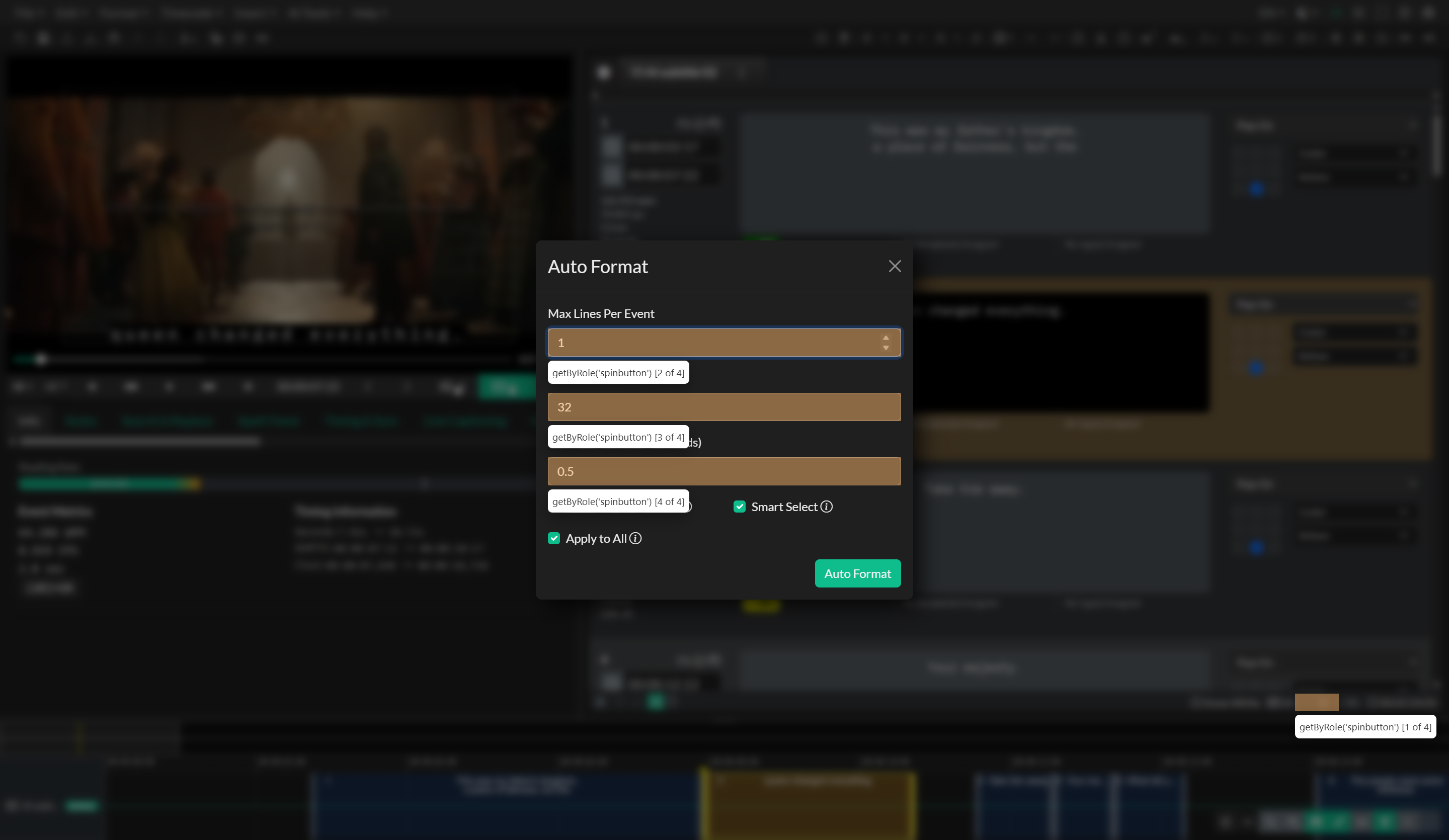
The Automatic Formatting dialog provides five settings that control its behavior.
Max Lines Per Event sets the maximum number of lines that any single event may contain after formatting. The default is typically two lines, matching the most common broadcast subtitle constraint. Events that exceed this limit will be split into multiple events.
Max Characters Per Line sets the character limit per individual line. When a line exceeds this value, the line-breaking algorithm will attempt to redistribute words to bring it within the limit. This works in conjunction with the Auto Break logic.
Minimum Duration sets the shortest permissible duration in seconds for any event after formatting. Events that would result in a duration shorter than this value after splitting will not be split further. This prevents the creation of events that are too brief to be read or that would cause timing problems in the output file.
Allow Orphan Words controls whether the line-breaking algorithm may leave a single short word alone on a line. When disabled, the algorithm avoids orphan words and produces more balanced lines. When enabled, stricter adherence to the character limit is prioritized over line balance. Enable this setting when working with very short character limits where avoiding orphan words would require rearranging too many words.
Smart Select (Selective Format) when enabled, the formatter first evaluates every event and only applies reformatting to those that currently fail the configured constraints. Events that already comply with the max lines and max chars settings are left untouched. This is the recommended mode for most workflows as it minimizes unintended changes to events that are already correctly formatted. When disabled, the formatter applies to all events without evaluation.
Apply to All determines which events are in scope. When enabled, every event in the Event Group is considered for reformatting (subject to the Smart Select filter if that is also enabled). When disabled, only the currently selected events are reformatted.
How the formatting process works
When formatting is applied, the process runs twice in succession. Running two passes allows events that were split in the first pass to be evaluated again in the second, catching cases where a freshly split event still exceeds a constraint. This double-pass behavior produces more thorough results than a single pass, particularly for long-form content.
After the main formatting passes complete, an overlap-fix pass runs automatically to resolve any timing conflicts introduced by the splitting process. This ensures that adjacent events do not overlap in the output.
The text content of each event is rebalanced using the Auto Break algorithm, which distributes words across lines to produce balanced output within the configured character limit.
Because Auto Format splits events by estimating proportional timing based on word count, the resulting event boundaries are approximations. The timing of split events should be reviewed against the audio to confirm that boundaries align with natural speech breaks.
Practical guidance
Automatic Formatting is most effective as a bulk cleanup operation after a transcript import, where many events may have been created with arbitrary line breaks or excessive length. Running it immediately after import — before beginning manual timing adjustments — produces a clean starting state that is faster to work from than raw transcript output.
For episodic or series work where the same constraints apply across every episode, the dialog remembers your settings between sessions. Confirm the correct values are populated before running, particularly if you work across projects with different style guide requirements.
Avoid running Automatic Formatting on a project that has already been manually timed to a high degree of precision, unless you are working with the Smart Select option enabled and are confident that the correctly timed events will not be reformatted. The splitting process recalculates timing proportionally, which will overwrite any hand-spotted timecodes on affected events.
Troubleshooting
Events are not being reformatted even though they exceed the limits
If Smart Select is enabled, the formatter only acts on events that fail the constraints. Verify that the Max Lines and Max Characters Per Line settings in the dialog match what you are testing against. If an event appears to exceed the character limit but is not being selected, the event may actually be within the limit when measured correctly — use the Event Metrics panel to confirm the actual character count.
Formatting produced events that are too short to be useful
Increase the Minimum Duration setting and re-run. Alternatively, after formatting, use Merge to recombine events that are too brief, then adjust the text distribution manually.
Event timing looks wrong after formatting
This is expected when events were split. Review the affected events in the timeline and adjust the boundaries manually using the timecode inputs or by spotting against the audio. The proportional timing from automatic formatting is a starting point, not a final timing.
Overlap errors appeared after formatting
The post-formatting overlap-fix pass resolves conflicts automatically, but in rare cases involving very dense or closely timed events, some overlap may remain. Run a QC pass after formatting to identify any residual timing conflicts.
Related docs
Source notes
- Components:
src/components/modals/AutoFormat.svelte,src/components/toolbar/controls/AutoFormatButton.svelte - Library:
src/external/cc-lib/functions/eventGroups/autoFormat.js,src/external/cc-lib/functions/eventGroups/autoFormatCheck.js,src/external/cc-lib/functions/eventGroups/fixOverlap.js