Notes & Replies
Each Event in Closed Caption Creator supports a Notes field and a Reply field, providing a lightweight annotation layer that is ideal for internal review, collaborative feedback, and handoff between team members. Both fields are free-text and can be independently marked as done using a toggle switch.
Notes are stored as part of the project data and travel with the project file, making them available to any collaborator who opens the same project. When exporting a transcript, enable Notes, Notes Checked, Reply, and/or Reply Checked in the Transcript Export Field Layout to include those fields in TXT, DOCX, or CSV output. See Transcript.
Accessing Notes
There are three ways to view and edit the notes for an Event.
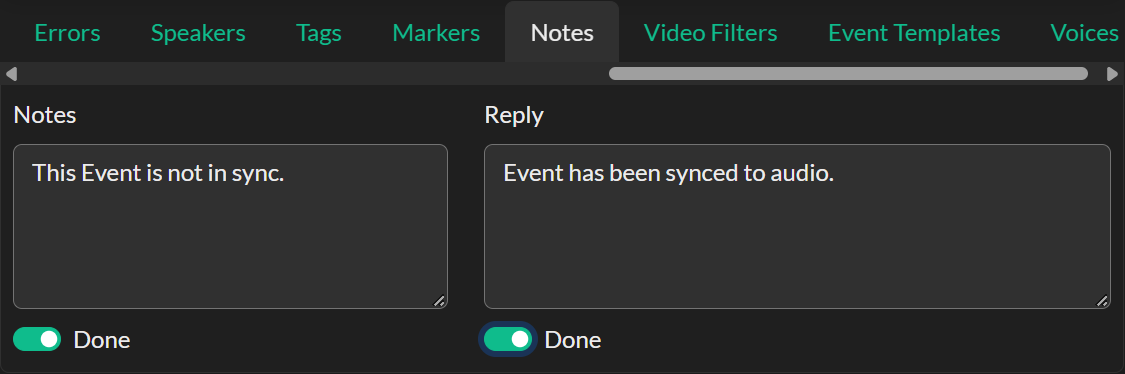
The QuickTools Notes panel displays the notes and reply fields for the currently selected Event in a persistent side panel. The panel shows two text areas side by side — Notes on the left and Reply on the right — each accompanied by a Mark as Done toggle switch. Changes are saved continuously as you type and are tracked in the undo history.
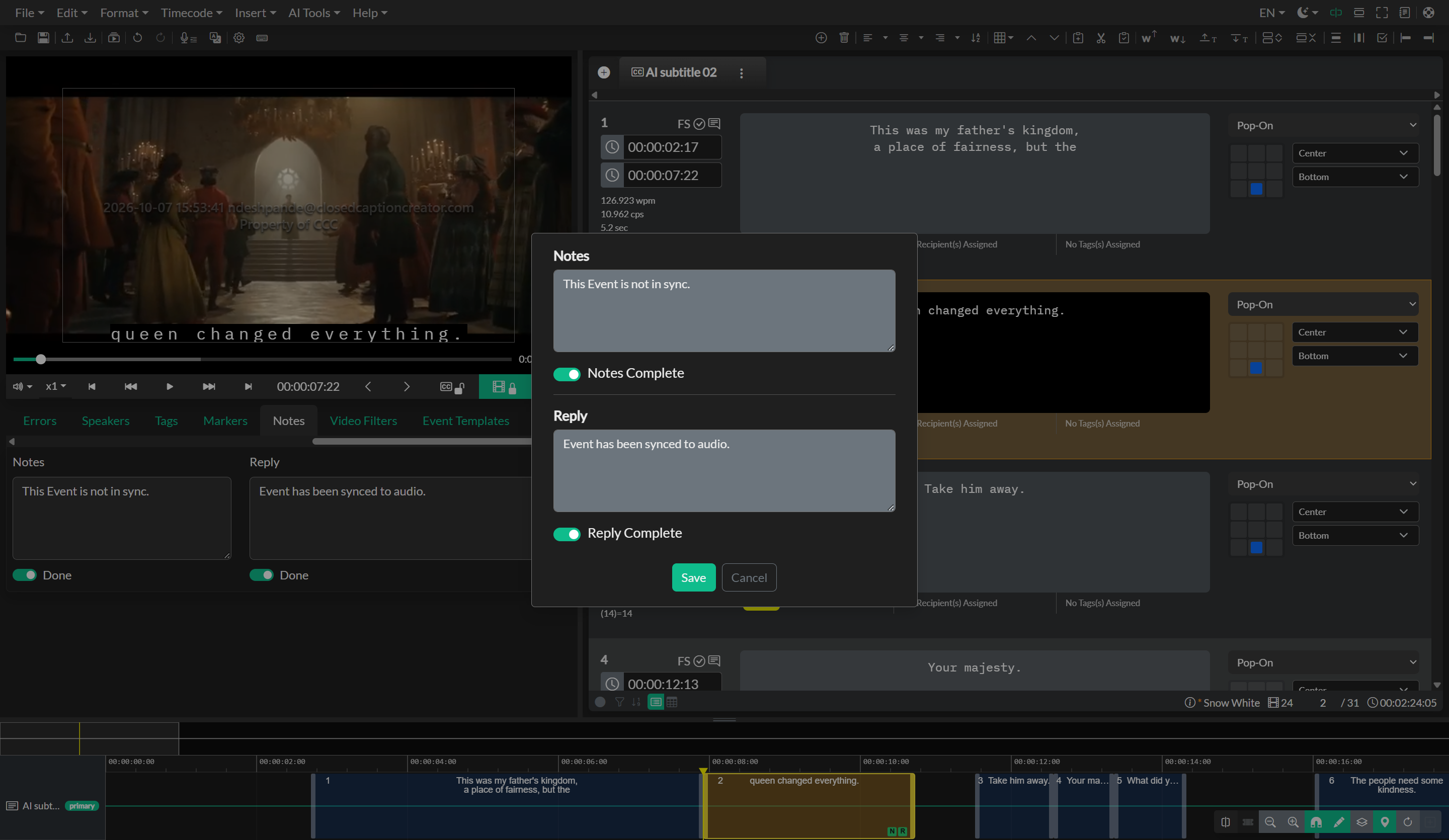
The inline notes button on each Event row in List View (the chat bubble icon) opens a dialog that contains the same four fields: a Notes textarea, a Notes Complete toggle, a Reply textarea, and a Reply Complete toggle. This approach is convenient when reviewing Events sequentially without switching away from the editor.
In Table View, enable the Notes, Reply, Notes Check, and Reply Check columns to edit annotations directly in the grid. Unselected rows ellipsize long notes; the first selected Event shows the full wrapped text. Notes and Reply cells use a wrapping multi-line editor — press Enter for a new line, and Ctrl+Enter (Windows) or Cmd+Enter (Mac) or click outside the cell to save. See Table View.
Copying notes between events
Shot descriptions and other repeated Notes text can be copied from one Event to another with standard clipboard shortcuts. Focus the Notes (or Reply) field, select the text, then Ctrl+C / Cmd+C to copy. Select the target Event, focus its Notes field, and Ctrl+V / Cmd+V to paste. Line breaks in the Notes field are preserved.
To apply one Event's full Notes and Reply fields (including Mark as Done state) to many selected Events at once, copy the source Event and use Paste Attributes with the Notes category enabled. See Copying & Pasting Events. To combine notes and replies from another Event Group onto a primary group's events, use Metadata Merge.
Visual Indicators
The notes button on each Event row changes color depending on the state of the notes and reply fields. A blue icon indicates that notes or a reply have been entered and both are marked as done. An amber icon indicates that content exists but at least one field has not been marked as done. A neutral dark icon indicates that no notes or reply have been recorded for that Event.
This color coding makes it easy to scan the editor and identify Events that are awaiting a response or still require action during a review pass.
Using Notes in a Team Workflow
Notes and replies are a practical tool for communication between a caption author and a reviewer without leaving the application. An author can use the Notes field to flag uncertainty about timing or content, and a reviewer can use the Reply field to provide guidance. Marking a field as done signals that the annotation has been addressed, giving both parties a clear record of what has been resolved.
Notes, replies, and their Mark Complete toggles remain editable even when the Event Group is locked, so reviewers can leave feedback without changing text or timing.
For a full walkthrough of how notes integrate into the QA review workflow, including integration with the Error Navigator, see Event Approval & Notes.