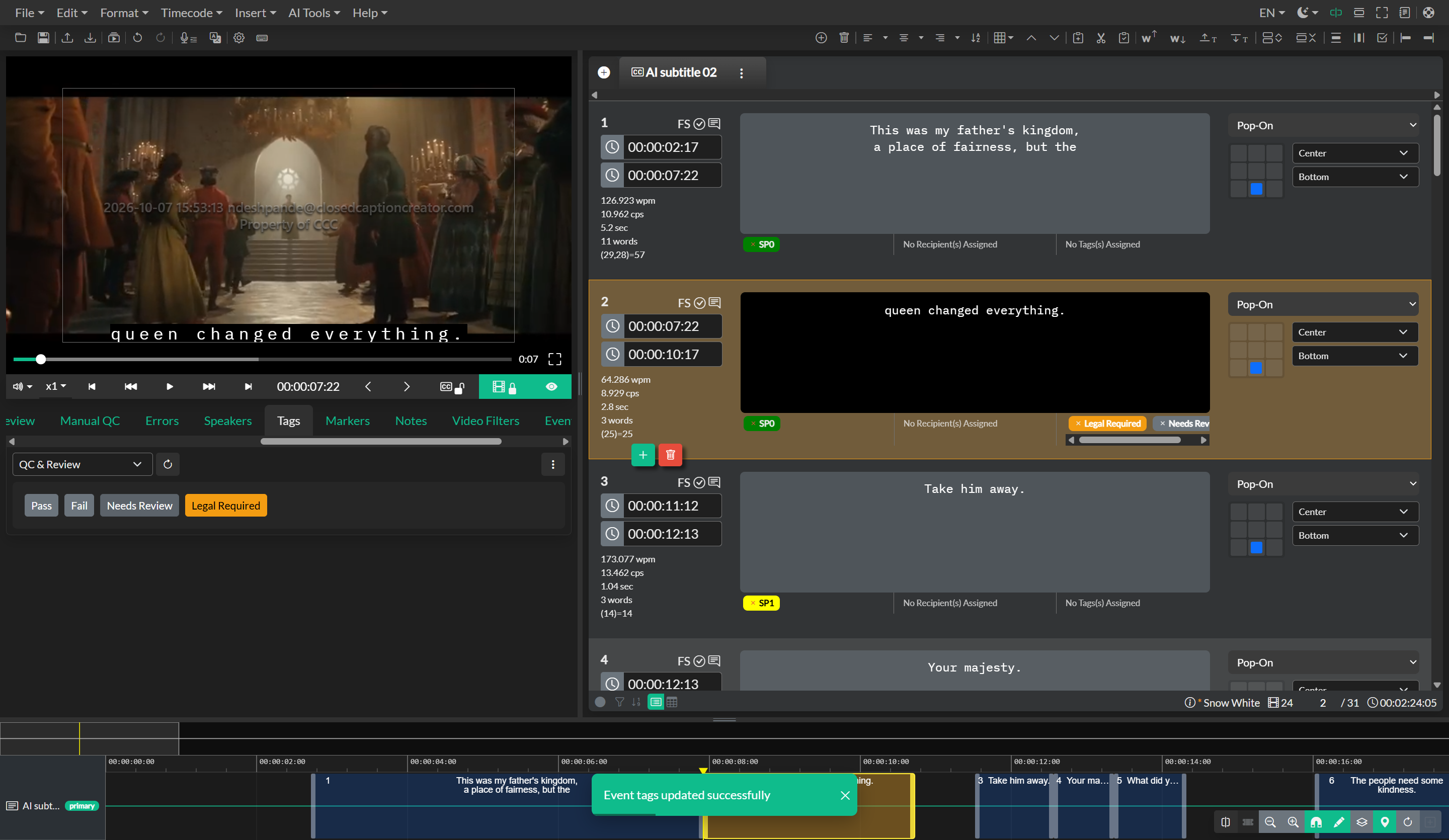
Tag Management
Tags are a form of custom metadata that can be assigned to one or more Events. They are useful for marking Events that require review, identifying objects or dialogue that appear at specific timecodes, or supporting translation and localization workflows. Each tag carries a term, a type, and an optional definition, and multiple tags can be assigned to a single Event at the same time.
Tag Sets and Tags
The tagging system is organized into two levels. A Tag Set is a named collection of tags stored either in your Firestore account (when online) or in your browser's local storage (when offline). Individual tags live within a tag set, and only one tag set is active and visible in the QuickTools panel at a time.
Each tag has three properties. The Term is the display label — it can be any word or phrase relevant to your workflow. The Type determines the color category applied to the tag badge and can be one of five options: Character (blue), Location (grey), Organisation (orange), Phrase (green), or Other (dark). The Definition is an optional free-text description that is only visible within the Tags Manager and is intended to help team members understand when and how a particular tag should be applied.
Managing Tag Sets with the Tags Manager
Tag sets are created and maintained through the Tags Manager, which is accessible by clicking the menu (...) button at the top-right of the Tags panel in the QuickTools drawer. From within the Tags Manager you can create new tag sets, rename or delete existing ones, and add, edit, or remove individual tags. Each tag requires at minimum a term and a type before it can be saved.
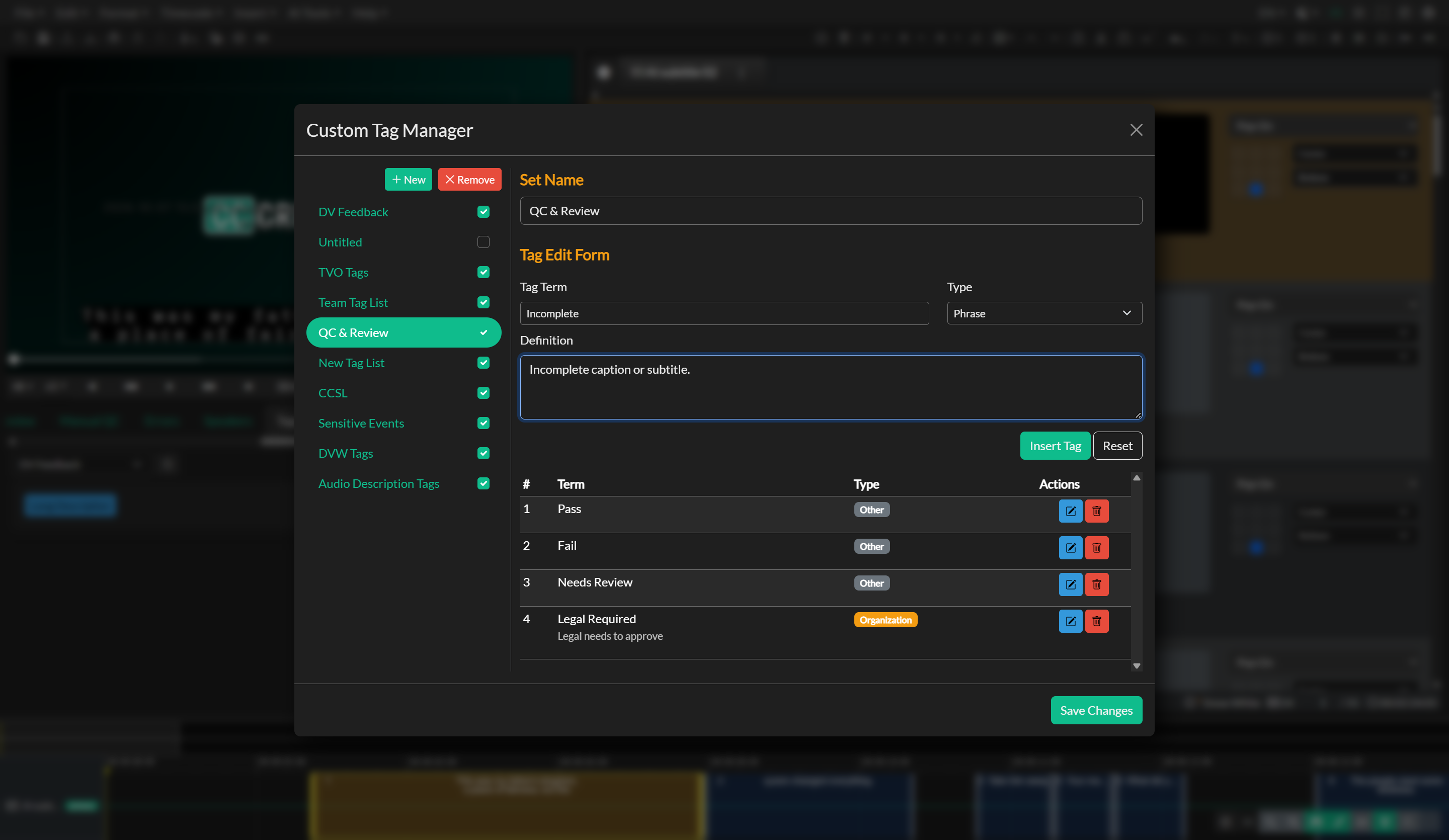
The Tags Manager also provides import and export controls near the bottom of the window. This makes it straightforward to share a tag set with colleagues or reuse a consistent tagging vocabulary across multiple projects. Tags are exported as a structured file that can be imported into any other project using the same import control.
Selecting an Active Tag Set
The QuickTools Tags panel displays a dropdown at the top that lets you switch between your available tag sets. Only the tags belonging to the currently selected set are shown as clickable badges. This keeps the panel focused and avoids clutter when working with large libraries of tags across different workflows.
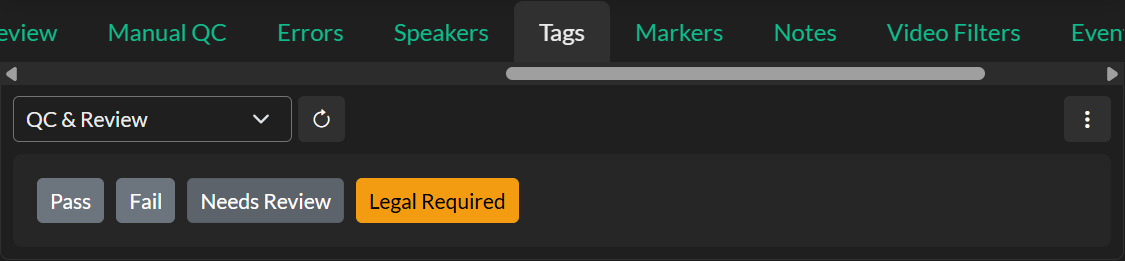
Assigning Tags to Events
To assign a tag to one or more Events, select the Events in the editor and then click the desired tag badge in the Tags panel. The tag is appended to the tags array on each selected Event. If a tag with the same identifier already exists on an Event, it is replaced rather than duplicated.
Assigned tags appear as color-coded badges directly on each Event in the editor list. To remove a tag from an Event, click the × icon to the left of the tag badge on the Event row. Removing a tag from the editor propagates that removal immediately; the tag is removed from every affected Event without requiring a manual save.