Style Guide Manager
Style guides are the foundation of automated QC in Closed Caption Creator. A style guide is a named, reusable collection of rules that defines the technical requirements your captions must meet. When you run a review, the application tests every event in your event group against the rules in the selected style guide and surfaces any violations as actionable errors. Because style guides are saved and tied to your profile, you can build them once and reuse them across every project that shares the same delivery specification.
Style guides are separate from standards presets, which fill the eight Realtime Error Detection fields on an Event Group during authoring. Presets control inline warnings as you type; style guides control the later review pass. See Realtime Error Detection.
Accessing the Style Guide Manager
Open the Style Guide Manager from QuickTools → QC & Review. Click the ellipsis button at the right of the toolbar.
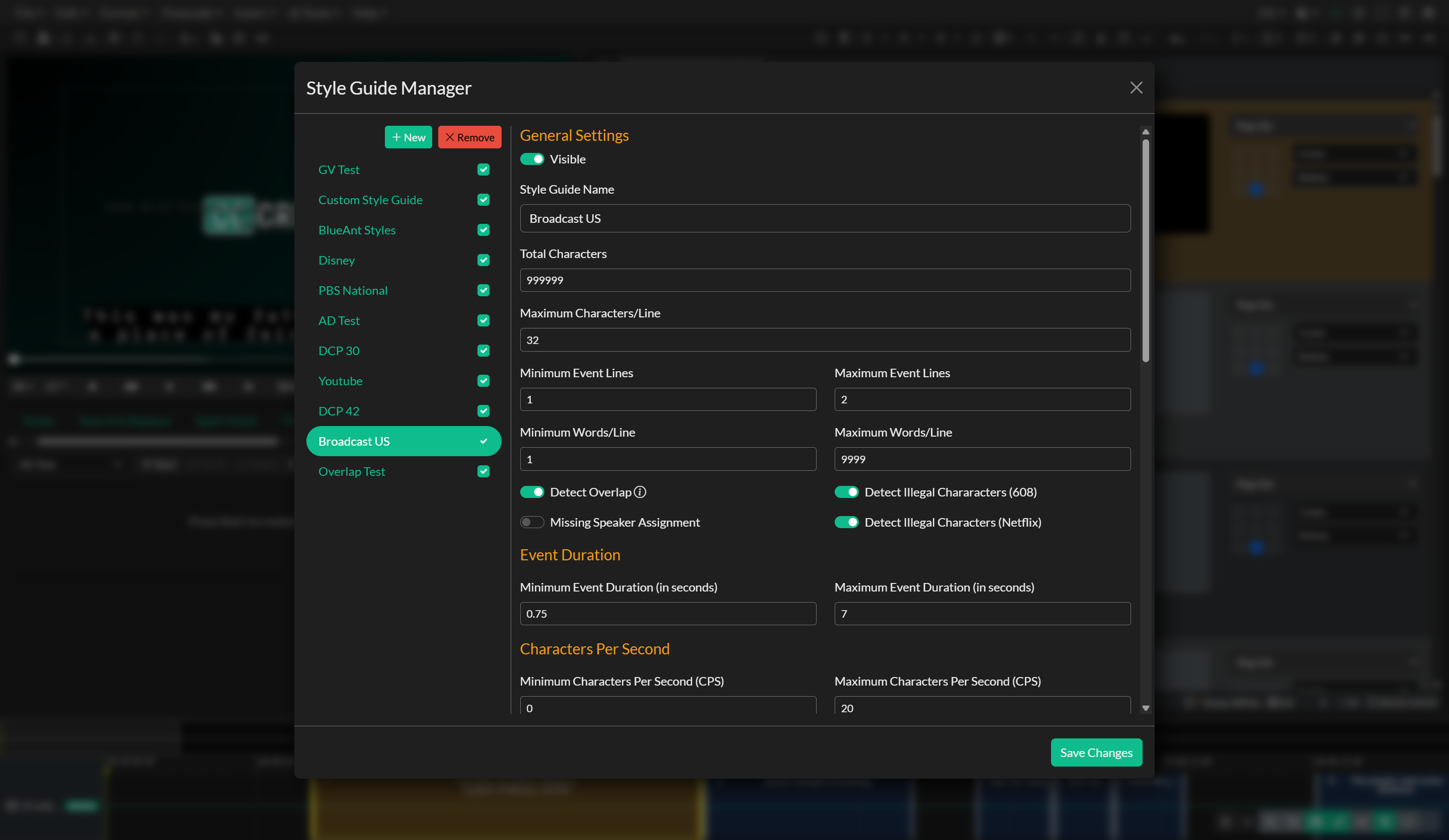
Creating a Style Guide
Click New Style Guide to create a new entry. Give the style guide a descriptive name that reflects the delivery specification or client it is intended for — for example, "Netflix English" or "Broadcast SCC 29.97". A clear naming convention makes it easier to select the correct guide quickly when starting a review.
Once created, the style guide will appear in the list on the left side of the manager. Selecting it opens its configuration panel on the right, where each rule category can be set independently.
Available Rule Categories
Lines and Characters
Max Event Lines sets the maximum number of text lines permitted in a single caption event. Platforms and broadcast specifications typically allow between two and four lines. Events containing more than the configured maximum will be flagged during review.
Max Characters Per Line enforces a character limit on each individual line within an event. This is one of the most universally important checks: lines that exceed the maximum may be truncated on viewer devices, may overflow the safe area, or may simply be too dense to read comfortably during normal playback.
Overlap
Overlap Detection identifies events whose timecodes overlap with the preceding event. Overlapping events cause display errors in SRT, WebVTT, and other subtitle formats that do not support simultaneous on-screen events. For broadcast closed captions, overlaps can cause timing corruption downstream. Enabling this check ensures that every event begins after the previous one has fully ended.
Character Validation
Illegal Characters checks event text for characters outside the permitted set for the target format. This is particularly important when authoring EIA-608 SCC files, which have a defined character set that excludes certain Unicode characters. Enabling this check prevents export failures and downstream playback issues caused by unsupported characters appearing in the file.
Duration
Min Event Duration and Max Event Duration define the acceptable on-screen lifespan of a single caption event, expressed in seconds. An event that is too short may not be readable before it disappears. An event that is too long may hold on screen past the relevant dialogue, which confuses the viewer. Platform-specific specifications such as the Netflix Timed Text Style Guide publish explicit minimum and maximum duration values that can be entered directly into these fields.
Reading Speed
Min CPS / Max CPS constrains the number of characters per second (including spaces and punctuation) that an event may represent. CPS is the most common reading-speed metric in broadcast captioning. The upper bound is the more practically important of the two: exceeding it means captions are on screen for too brief a period relative to the amount of text, making them difficult to read. The Netflix Timed Text Style Guide, for example, specifies a maximum of 17 CPS for English-language content.
Min WPM / Max WPM applies the same concept expressed as words per minute. Some captioning standards and clients prefer WPM over CPS. Both metrics can be active simultaneously if required.
Event Gap
Min Gap sets the minimum time interval, in seconds, that must separate the end of one event from the start of the next. A gap that is too small can cause events to blur together visually and may not comply with the requirements of the target platform. The Netflix Timed Text Style Guide specifies a minimum inter-subtitle gap of two frames, and many broadcast specifications have similar requirements.
Enabling and Disabling Style Guides
Each style guide has an enabled/disabled toggle in the manager. Only enabled style guides appear in the review panel's dropdown. This allows you to maintain multiple style guide configurations — for different clients, platforms, or languages — and activate only the one relevant to your current project without deleting the others.
Saving Changes
Changes to a style guide are saved automatically and apply immediately to any subsequent review you run. There is no separate save button; all modifications are persisted as you make them.
Reusing Style Guides Across Projects
Because style guides are stored in your profile rather than embedded in the project file, the same set of rules is available every time you open Closed Caption Creator. For teams working with recurring clients or platform specifications, a well-configured style guide library eliminates the need to re-enter requirements manually at the start of each project.
Video Tutorial
Related
- Realtime Error Detection — authoring-time error indicators and standards presets configured per event group
- Running a Review — how to run a style-guide review pass and work through the results
- Automatic Correction Tools — batch-fix reading speed and formatting issues automatically