Manual QC
Automated tools such as Style Guide review and Error Nav are well suited to catching measurable violations — timing thresholds, character counts, reading speed. But closed captioning projects also accumulate editorial and contextual findings that no algorithm can detect: a translation choice that sounds unnatural, a speaker identification label that was agreed upon verbally with a client, a segment where the audio is ambiguous and a second opinion is needed. The Manual QC panel provides a structured issue tracker for these findings so that they are recorded, assigned a priority, progressed through a defined workflow, and never silently dropped.
Opening Manual QC
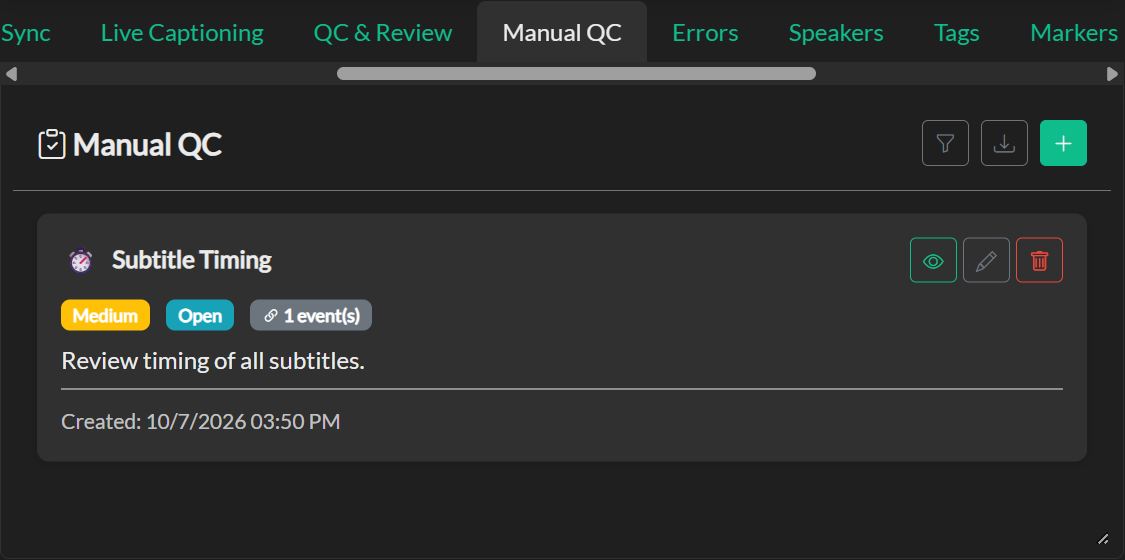
Open QuickTools and select the Manual QC tab. The panel displays your current list of issues for the project and the controls for creating new ones.
Creating an Issue
Click New Issue to create an entry. Each issue has four attributes that can be configured at creation or updated at any point:
Type categorises the nature of the finding. The available types are Note, Technical, Content, Grammar, Feedback, Timing, and Other. Selecting the most accurate type makes it easier for team members to filter the list and understand the intent of the issue at a glance.
Priority reflects the urgency of the issue relative to others in the list. Issues can be marked Low, Medium, High, or Critical. Priority levels are colour-coded in the panel so that the most urgent items stand out immediately. Issues are sorted by priority by default, with more recent issues appearing first within the same priority level.
Status tracks where the issue sits in the resolution workflow. An issue begins as Open, and can then move to In Progress, Review, Resolved, and Closed. These statuses are intended to support team workflows where different people are responsible for different stages — for example, a captioner moves an issue to In Progress when they begin working on it, then to Review when they believe it is fixed, and a reviewer moves it to Resolved or Closed once they confirm the correction.
Description is a free-text field where the issue can be described in detail. This is where context that cannot be captured by type or priority should be recorded — the specific wording concern, the timecode range, the client's instruction, or the question that needs an answer.
Linking Issues to Events
When an issue relates to a specific caption event or a range of events, it can be linked to those events directly from the panel. With the relevant event or events selected in the editor, use the link function in the Manual QC panel to associate the issue with the current selection. The issue will store the event IDs and the event group ID, so that navigating to the issue later will automatically switch to the correct event group, select the linked events, and scroll the editor to bring them into view.
Linking issues to events transforms Manual QC from a standalone notes list into a navigation tool. A reviewer working through a long issue list can jump directly to the context of each problem without having to remember timecodes or search the editor manually.
Searching and Filtering
The panel includes a search field and filter controls. Issues can be filtered by status — for example, showing only Open and In Progress issues to focus on what still needs attention — and by type, which is useful when dividing responsibilities between team members working on different aspects of the project. The search field matches against the issue description.
Exporting an Issue Report
When a project requires a deliverable QC document — for internal sign-off, client approval, or archival — click Export Report. This generates a CSV file containing all current issues, including their type, priority, status, description, and any linked event information. The CSV can be shared with stakeholders who do not have Closed Caption Creator installed and can be opened directly in Microsoft Excel or Google Sheets.
Related
- Event Approval and Notes — per-event approval checkboxes and notes for inline team feedback
- Running a Review — automated style-guide review and error navigation