The Voice Manager
The Virtual Voice Manager is where you search, preview, and pin the synthetic voices you want to use in your audio description project. It provides access to thousands of voices from Amazon Polly (Standard, Neural, and Generative), Google (including Gemini voices), and Microsoft Azure (Neural, HD Flash, and DragonHD) across more than 100 languages and regional variants. Each voice is shown as a compact card: a shortened name (the locale prefix is omitted; hover the name to see the full provider name) and a single meta line with gender, engine or tier, and locale — for example Female · Chirp3-HD · en-AU. From here you narrow down candidates, audition them against your own script text, and build a shortlist of pinned voices that remain accessible in the Quick Tools panel throughout your session.
Opening the Voice Manager
The Voice Manager is accessed through the Voices tab in the Quick Tools panel located beneath the media player. If the Voices tab is not visible, go to the Quick Tool settings in the Options window and enable it, then click Save Changes.
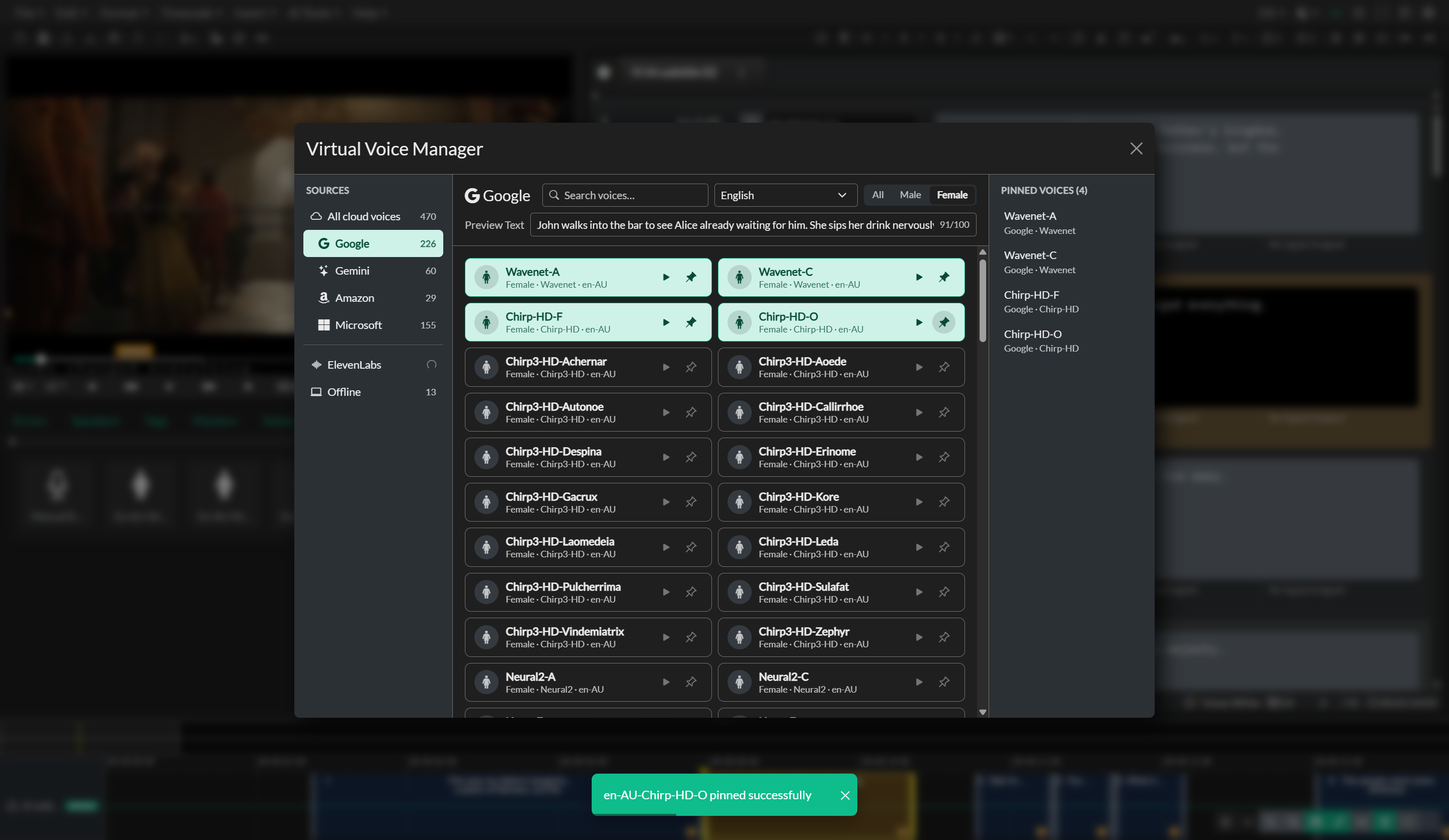
When you first open the Voices tab it will be empty because no voices have been pinned yet. Click the menu icon on the right side of the Voices tab header to open the Virtual Voice Manager.
Choosing a Voice Source
The Voice Manager has three columns: Sources on the left, the voice browser in the middle, and your Pinned Voices on the right.
The Sources list is where you pick where voices come from:
- All cloud voices shows every Google, Gemini, Amazon, and Microsoft voice for the selected language, grouped by provider. Select a single provider below it to narrow the list.
- ElevenLabs shows the voices on your own ElevenLabs account, including cloned voices and voices you added from the ElevenLabs Voice Library. See ElevenLabs Voices below.
- Offline shows voices installed on your device, which work without an internet connection. It only appears when your device provides offline voices.
Each source shows how many voices it has for the current language, so you can see at a glance where to look.
Amazon Polly lists some voices on more than one engine. The Voice Manager shows one card per name and keeps the highest-quality engine: Generative, then Neural, then Standard. The chosen engine still appears in the meta line (for example Female · Generative · en-US). If you previously pinned a lower engine, that pin stays in the Pinned Voices column and continues to render; the grid only offers the best engine going forward.
Filtering and Previewing
Use the toolbar above the voice list to narrow the results:
- Search matches voice names, tiers such as Generative or DragonHD, and ElevenLabs labels such as accent or use case.
- Language is available for cloud voices. It is hidden for ElevenLabs and Offline voices, which aren't organized by language.
- All / Male / Female filters by voice gender.
Each voice card is a single row: a gender avatar, the shortened name, the meta line, and two icons on the right — play to preview, pin to add the voice to your shortlist. Occasional extra labels appear as small pills on the meta line: ElevenLabs accent or use case, a style count when a voice has more than three styles, Default for the host's offline default voice, and Low quality or Cloud for certain offline voices.
The Preview Text field lets you type your own sample text — a sentence from your description script, for example — so you hear how a voice sounds with your content. Select the play icon on any voice card to hear it.
ElevenLabs Voices
ElevenLabs voices don't have a fixed language: they speak whatever language your description text is written in. That's why they have their own ElevenLabs source instead of appearing under a language.
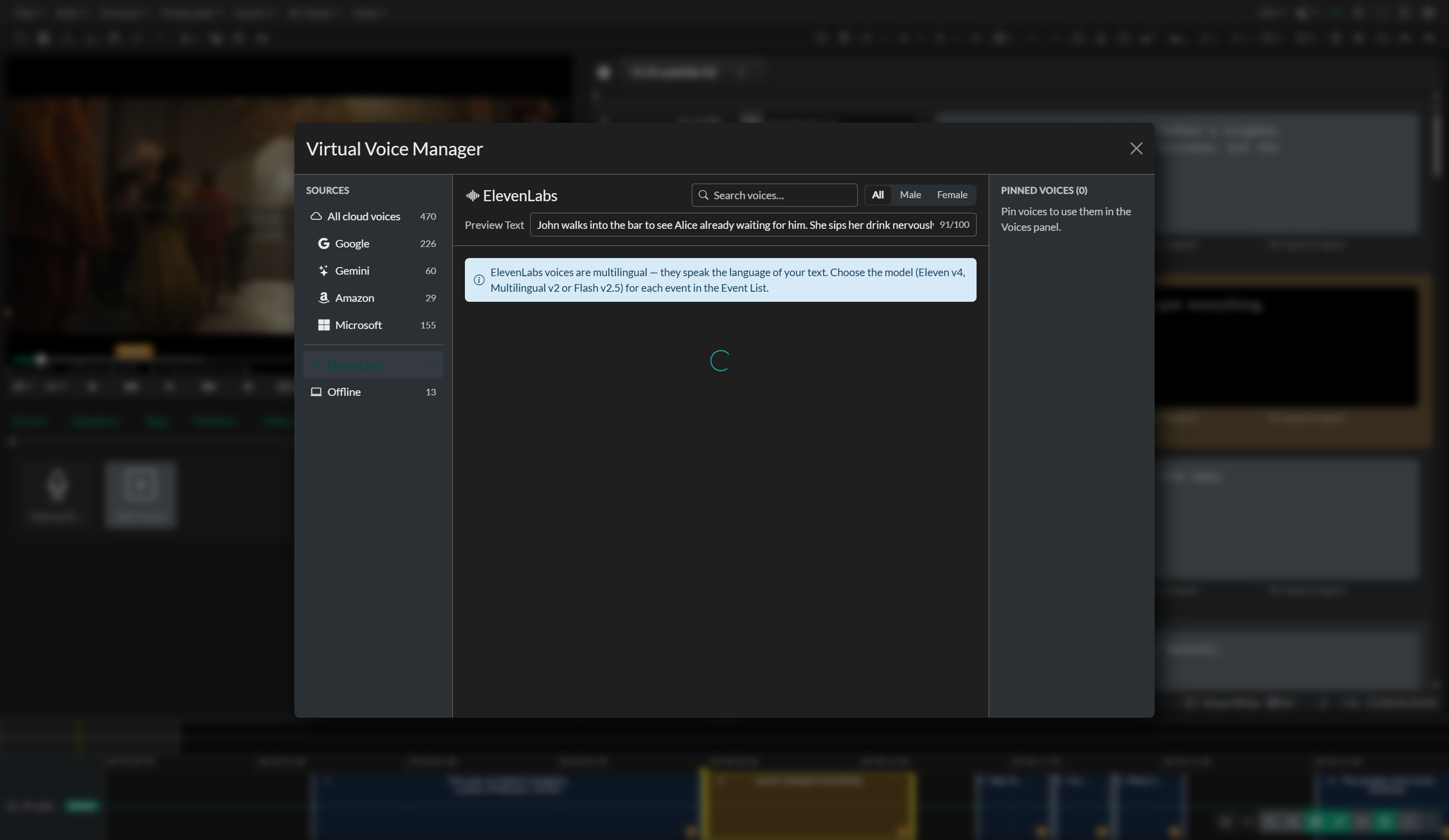
If you haven't connected ElevenLabs yet, selecting the ElevenLabs source shows a Connect ElevenLabs button that opens Options → Integrations, where you can add your API key. If ElevenLabs rejects your key, the source shows a warning with a shortcut to update it. After adding voices to your ElevenLabs account, select Refresh to load them. For setup details, see the ElevenLabs Integration.
You choose the ElevenLabs model — Eleven v4, Multilingual v2, or Flash v2.5 — for each event in the Event List. See Voice Properties.
Pinning Voices
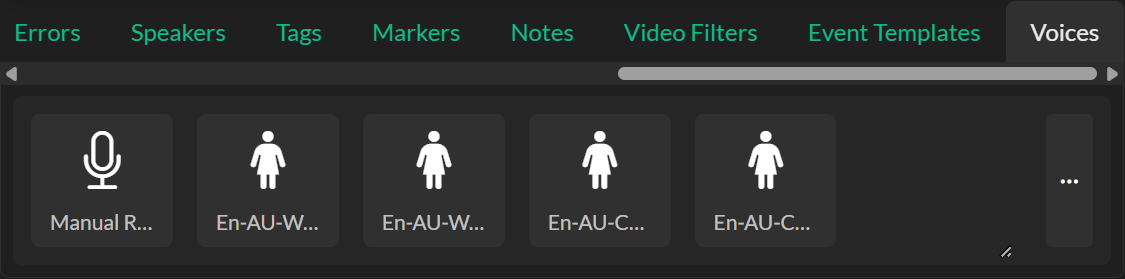
Once you identify voices you want to use, select the pin icon on the voice card to add it to your Voices panel. Pinned cards use a teal highlight, and the voice appears in the Pinned Voices column and as a selectable thumbnail in the Voices tab of the Quick Tools panel. You can pin as many voices as you need. To remove one, select the pin icon again on its card, or hover a row in the Pinned Voices column and select the remove control.
Assigning a Voice to Events
With voices pinned in the Quick Tools panel, assigning them to events is straightforward. Select one or more events in the Event List, then click the voice thumbnail in the Voices panel. The selected voice is applied to all highlighted events, its name appears in the top-left corner of each event card just below the Event ID, and the render button begins flashing to indicate that the event audio needs to be re-rendered with the new voice.
The Voices panel also contains a Manual Record option. Selecting this assigns a special CCC Manual Record designation to the event, indicating that the audio for that event will be recorded rather than synthesized. This is used when integrating recorded voice talent into an otherwise synthetic workflow.
Voice Styles
Voices from Microsoft Azure include optional expressive style settings that change the affective delivery of the narration — for example, a cheerful, empathetic, or newscast reading. The Voice Manager does not list every style on the card; if a voice has more than three styles, a count pill appears on the meta line. Once a Microsoft voice is assigned to an event, the available styles for that voice appear in a dropdown within the event editor itself. Selecting a style appends the appropriate SSML styling to the rendered output, so re-rendering the event is required after changing the selected style. See Voice Properties.