Voice Recorder
The Voice Recorder allows you to record live voice audio directly within Closed Caption Creator and attach it to an individual AD event. This is useful when a project requires real voice talent rather than, or in addition to, synthetic voice — for example, when recording a scratch track for client review, capturing pickups for a partially-synthetic project, or working in a studio environment where a talent is present and a DAW is not available or preferred.
Opening the Recorder
To open the Voice Recorder for a specific event:
- Open the Voices tab in the Quick Tools panel beneath the media player. If the Voices tab is not visible, enable it in Quick Tool settings in the Options window, then click Save Changes.
- Select the event you want to record in the Event List.
- Assign the Manual Record voice from the Voices panel.
- The render control on the event changes to a microphone icon.
- Click the microphone icon to open the Voice Recorder.
The recorder opens as a floating modal that can be repositioned anywhere on screen by dragging its header.
Teleprompter Display
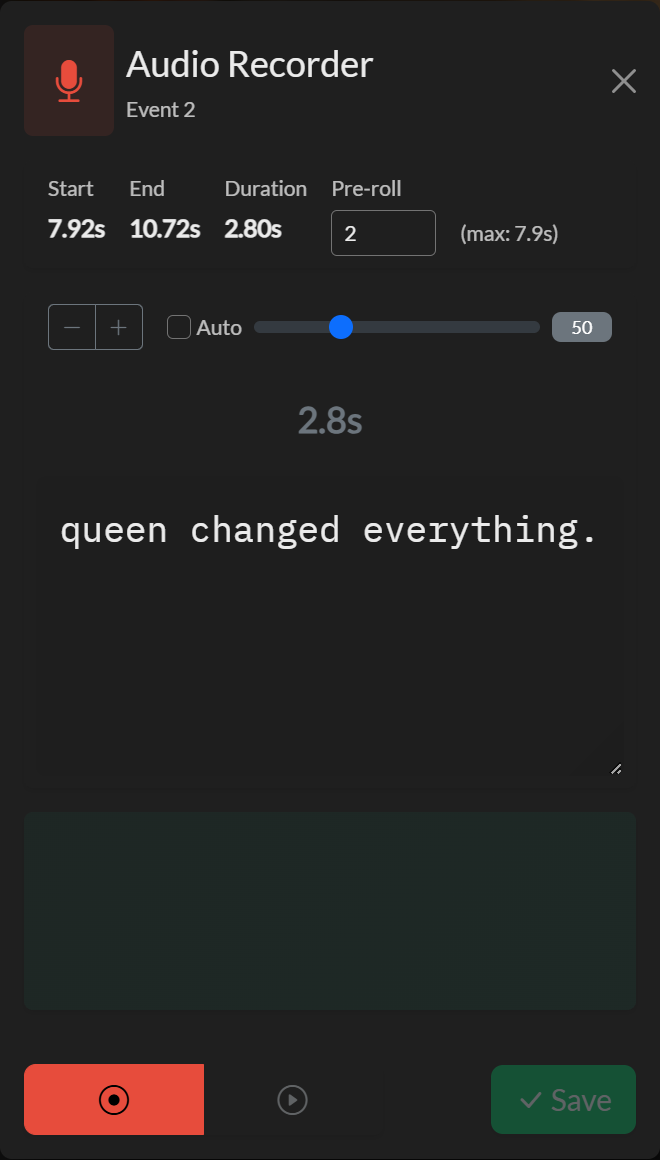
When the recorder opens, the description text from the selected event is displayed as a teleprompter to guide the voice talent during recording. The scroll speed and font size of the teleprompter are configurable and are saved to local storage so they persist between sessions. An auto-scroll speed option is also available, which calculates the ideal scroll rate based on the event's duration, so the text concludes scrolling just as the event window ends.
Pre-Roll and Countdown
A configurable pre-roll countdown (defaulting to two seconds) plays before recording begins. This gives the talent a moment to prepare after clicking the record button. During the pre-roll, a countdown is displayed visually and the recording only starts at zero. The maximum pre-roll duration is constrained by the event start time to ensure the countdown remains within the timeline.
Microphone Selection
Available audio input devices are listed in a dropdown within the recorder. The selected device is saved to local storage and is pre-selected on subsequent opens. Changing the device takes effect immediately without restarting the session.
Recording Workflow
Set your recording device and pre-roll time in the recorder, then click the Record button to begin the pre-roll countdown. When recording starts, the waveform display becomes active and captures the incoming audio in real time (rendered using WaveSurfer.js with the Record plugin). Click stop to end the recording. The recorded clip is then available for preview playback directly in the modal before being committed.
If the take is acceptable, click Save to attach the audio file to the event and replace any previously assigned audio. If the take is unsatisfactory, record again to capture a new clip. Closing the recorder without saving discards the new recording.
In the desktop application, recorded audio is saved as a local file. In the online mode, the audio is uploaded to Firebase Storage and the event is updated with the remote file reference.
Cancelling
Closing the recorder without saving discards the new recording and restores the original audio file that was assigned to the event before the recorder was opened.