New companion app · Closed Caption Review
Caption and audio description QC, built for screen readers
Closed Caption Review gives blind and low vision reviewers a professional QC tool they can run entirely from the keyboard with NVDA, JAWS, VoiceOver or Orca. Same projects, same account, same workflow as the rest of your team.
Included with Starter and Pro · Windows, Mac and Linux
What is Closed Caption Review?
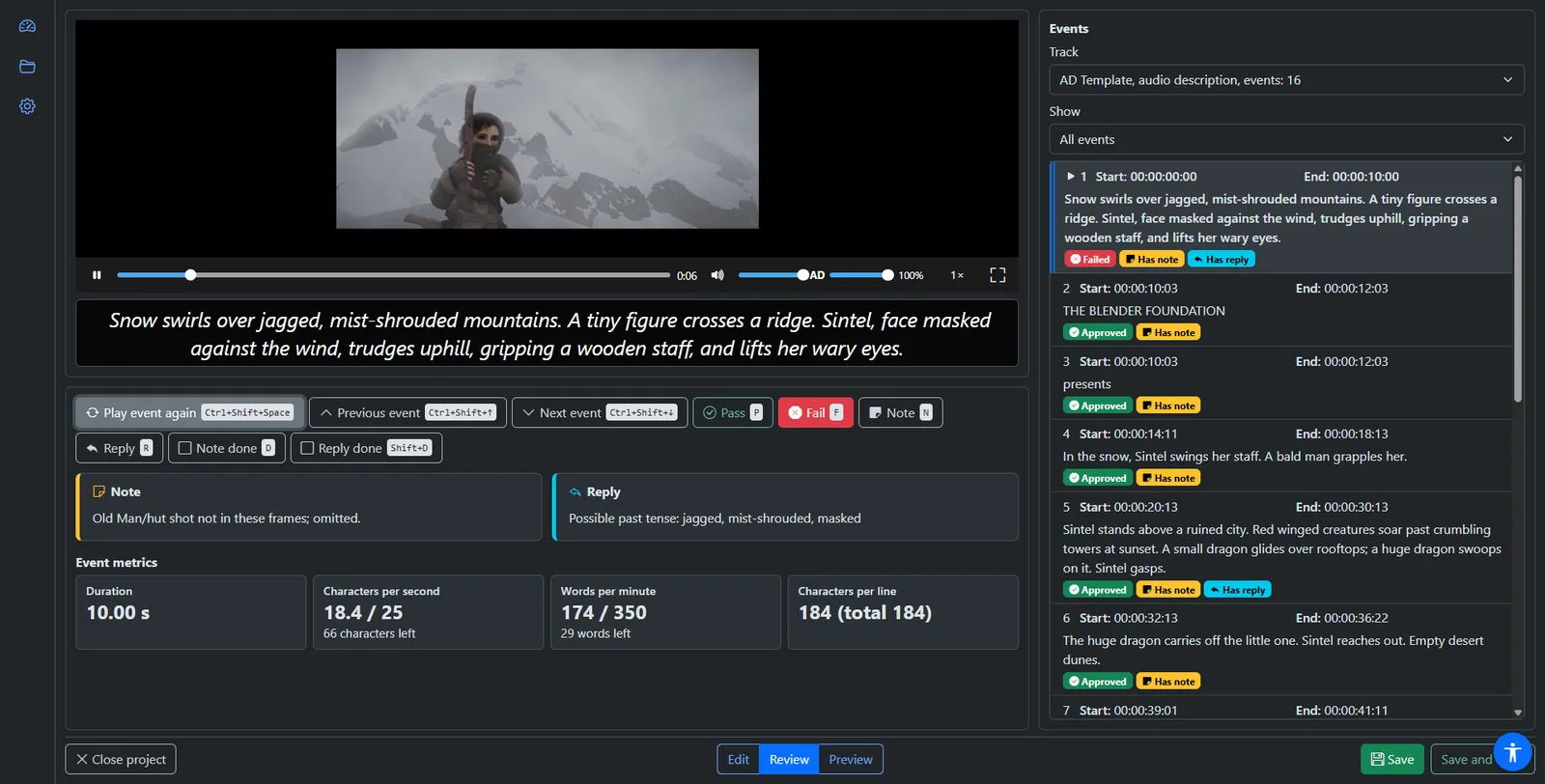
Closed Caption Review is a desktop app for reviewing and editing Closed Caption Creator subtitle and audio description projects with a keyboard and screen reader. It is a companion to Closed Caption Creator, not a cut-down copy. Reviewers sign in with their existing account, open the team's cloud projects, give a verdict on each event and hand the project back.
Screen reader support
Works with the screen readers your reviewers already use
Designed and tested for keyboard and screen reader use from day one, on every desktop platform.
- NVDAWindows
- JAWS®Windows
- VoiceOvermacOS
- OrcaLinux
Who it is for
Built for the people who rely on captions and audio description
Visual, mouse-driven caption editors have kept many skilled reviewers out of QC. Closed Caption Review is built so they can take part as full members of the team.
Blind and low vision QC staff
Check captions and audio description for accuracy, timing and quality with the screen reader you already know, without relying on a sighted colleague.
Caption and AD teams and service providers
Employ or contract accessibility experts as reviewers. Audio description in particular is best judged by the people who rely on it.
Starter and Pro customers
Add a dedicated review step to your production workflow, for sighted and non-sighted reviewers alike, at no extra cost.
How it works
How does a review work in Closed Caption Review?
A reviewer signs in, opens a project, gives a one-key verdict on each event and hands the project back. Here is each step.
-
Sign in with your Closed Caption Creator account
No new account and no separate subscription. Starter and Pro plans include access.
-
Find your project
The Projects page is one list you move through with the arrow keys. Each project is read as one short phrase, actions are in a context menu (Shift+F10), and you can group and search instead of scanning a visual grid.
-
Start the review
Focus lands on Begin review. Each event plays with a configurable pre-roll and post-roll, and the app tells you when it ends.
-
Give a verdict with one key
Press Pass, Fail, Note, Reply or Done, then move to the previous or next event. Notes and replies open in a simple dialog, and filters let you work through only the events that need attention.
-
Fix problems directly
Edit mode covers text, timing, speakers and forced flags, and every change can be undone. Preview mode plays the finished result with no risk of changing anything.
-
Review audio description
With the Audio Description Plugin, listen to rendered AD, balance its volume against the programme audio, choose voices and re-render where needed.
-
Save and hand off
On save and close, change the project's workflow state, assign it to the next person and email them, all in one step.
Accessible by design
Every action is spoken, every setting adjustable
Accessibility is not a mode you switch on. It is how the whole app was designed.
- Every action is announced, such as “Save successful” and “Closing project”
- Keyboard shortcuts are listed in the app (F1) and avoid keys screen readers use
- Adjustable text size and fonts
- High-contrast themes and reduced motion
- Adjustable caption display style for reviewers with some sight
- Live event metrics: duration, characters per second, words per minute and characters per line
| Action | Default key |
|---|---|
| Pass | P |
| Fail | F |
| Note | N |
| Reply | R |
| Note done / Reply done | D / Shift+D |
| Play event again | Ctrl+Shift+Space |
| Previous / next event | Ctrl+Shift+↑ / Ctrl+Shift+↓ |
| All shortcuts | F1 |
Benefits
Why add Closed Caption Review to your workflow
A wider pool of reviewers
Blind and low vision professionals join your QC process as full participants, using the same projects and data.
Better audio description
Feedback comes from the people AD is made for, so it catches problems sighted reviewers miss.
One shared workflow
Projects, comments, approvals, assignments and workflow states are the same ones your team sees in Closed Caption Creator. No copying files, re-importing or version confusion.
Faster, more consistent QC
The structured pass/fail loop with keyboard shortcuts makes review quicker and more repeatable, for sighted reviewers too.
Safe by design
Review only: reviewers can't create projects or export deliverables, so final output stays with your production team. Projects locked by someone else open read-only.
Supports your accessibility commitments
Show clients and regulators that your own workflow is accessible, not just the content you deliver.
Already doing manual QC in the editor? See how to QC closed captioning and subtitles.
Which plans include Closed Caption Review?
Closed Caption Review is included at no extra cost with Closed Caption Creator Starter and Pro subscriptions. The audio description review tools need the Audio Description Plugin.
| Plan | Caption and subtitle review | Audio description review |
|---|---|---|
| Free | Not included | Not included |
| Starter | Included | With the AD Plugin |
| Pro | Included | With the AD Plugin |
Bring accessible review into your QC process
Download Closed Caption Review for Windows, Mac or Linux and sign in with your Closed Caption Creator account. New to Closed Caption Creator? Start a 7-day free trial first.
Closed Caption Review questions
Screen readers, plans, audio description and how projects move between apps.
Closed Caption Review works with NVDA and JAWS on Windows, VoiceOver on macOS and Orca on Linux. It was designed for keyboard and screen reader use from the start, every action is announced, and its keyboard shortcuts avoid the keys those screen readers already use.
Yes. Closed Caption Review is included at no extra cost on the Closed Caption Creator Starter and Pro plans. Reviewers sign in with their existing Closed Caption Creator account. The audio description review tools are available to anyone whose team has the Audio Description Plugin.
Yes. With the Audio Description Plugin, reviewers can listen to rendered audio description, adjust its volume against the programme audio, choose voices and re-render descriptions where needed. Each description plays with a configurable pre-roll and post-roll, so reviewers hear it in context.
No. Closed Caption Review is review only. Reviewers can pass, fail, comment on and edit events, but they cannot create projects or export deliverables, so final output stays with your production team in Closed Caption Creator. Projects locked by someone else open read-only.
Through your team's cloud projects. A project saved to the cloud in Closed Caption Creator appears in the reviewer's project list in Closed Caption Review. When the review is done, the reviewer can change the workflow state, assign the project to the next person and email them in one step.