AI Caption Editing: Which Fixes Can Be Automated, and Which Still Need a Human
Can AI fix caption errors automatically?
Automated fixes are safe for timing and text structure — reading rate, duration, frame gaps, line count and line length — because each is measured against a numeric threshold. Placement, speaker labels, forced narrative flags and approval state are flagged but never corrected automatically, because judging them needs the picture.
The interesting question about AI in a caption workflow is not whether a machine can fix a reading-rate error. It has been able to do that for years, from a menu, deterministically, with no model involved.
The interesting question is which errors are legitimate to fix without looking at the programme — and that boundary already exists inside the QC tooling most captioners use every day. It was drawn long before anyone put a chat panel in an editor, and an agent does not move it.
This guide covers where that line sits, the single design rule that explains why it sits there, what an agent genuinely adds over a batch dialog, and the control surface that decides whether delegating edits is a reasonable thing to do on a paid delivery.
The Line Is Already Drawn
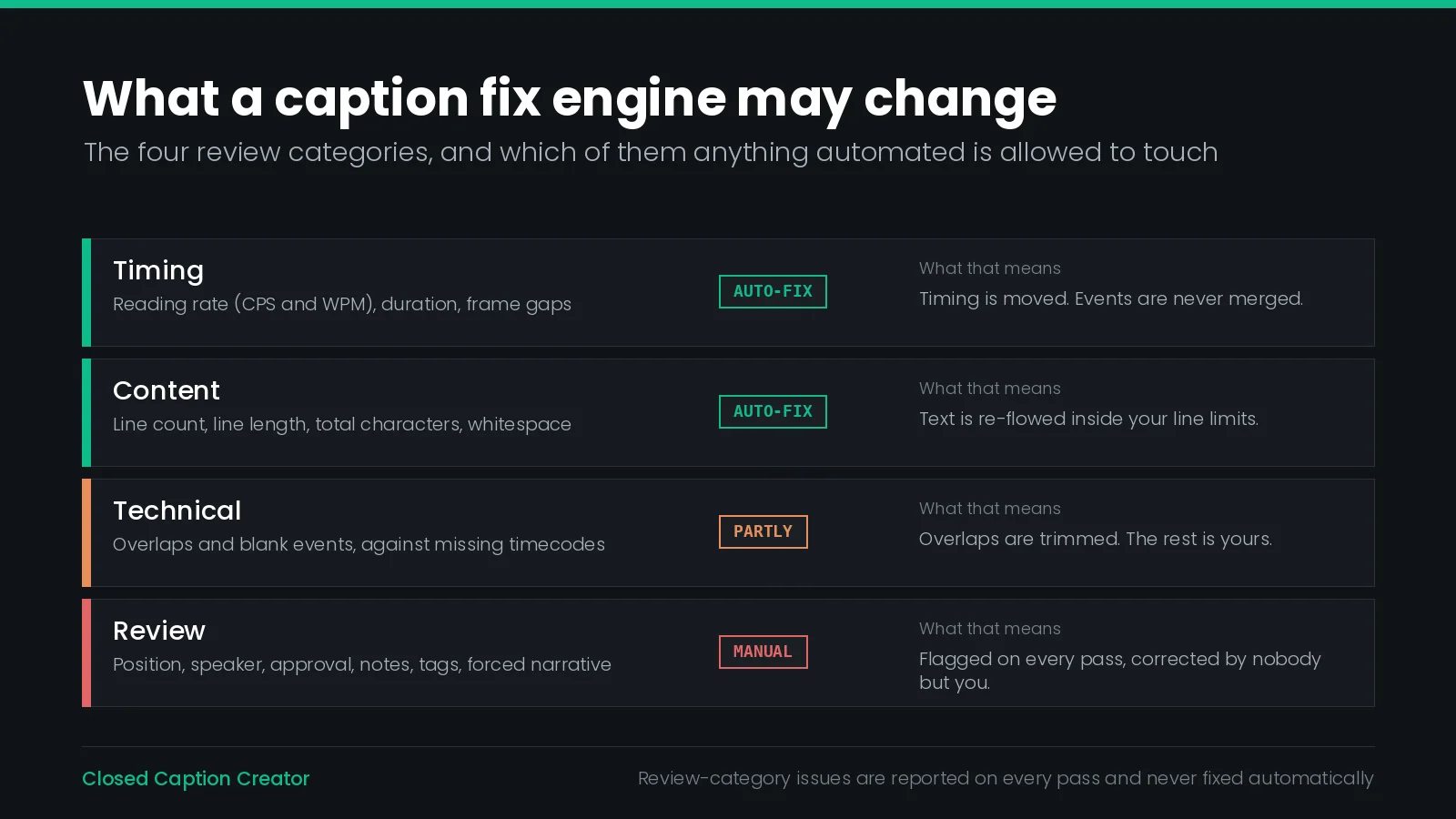
Run a style-guide review in Closed Caption Creator and every issue it finds is sorted into one of four categories. The categories are not cosmetic. They are the automation boundary.
| Category | What it covers | Automatable |
|---|---|---|
| Technical | Missing start or end timecode, empty event text, overlapping events, illegal characters for 608 or Netflix glyph sets | Partly — overlaps and blank events only |
| Timing | Reading rate in CPS and WPM, minimum and maximum duration, frame gaps that are too small, too large or inside a tolerance range | Yes |
| Content | Too many lines, lines over the character limit, total character count, text that would fit on one line, leading and trailing spaces, extra whitespace, blank lines, formatting flags | Mostly |
| Review | Event position, missing speaker assignment, approval state, notes and replies, tags, forced narrative events | No — never auto-fixed |
Read the fourth row again, because it is the whole argument. Review issues are described in the documentation as “informational flags rather than structural defects,” and they are excluded from automatic correction by design — not because the feature is unfinished, but because none of them can be judged without the programme in front of you.
Whether a caption is sitting on top of a lower third is a question about the picture. Whether the right speaker is attributed is a question about who is talking. Whether an event should carry a forced narrative flag is a question about what the audio does and does not convey. A threshold cannot answer any of those, and neither can a language model that has not watched the video.
The useful test. Ask whether the issue has a target value. Reading rate has one: 17 CPS, or 20, or whatever your delivery specification says. Caption position does not — the correct position depends on what is behind it in this shot. Issues with a target value can be automated. Issues without one cannot, however capable the tool.
What a Rule Can Correct
Here is the complete set of automatic corrections available from the QC & Review tab, and what each one actually does to the file. These are the same engines reachable from Format > Auto Format, Timecode > Auto Correct Reading Speed and Insert > Blank Frames — the chat panel does not introduce a second, looser set.
| Issue | What the fix does | Engine |
|---|---|---|
| Reading rate too high, WPM out of range, duration too short or too long | Extends the event, or borrows time from a neighbour, until the rate falls inside the limit | Auto Correct Reading Speed |
| Too many lines, line too long, too many characters, would fit on one line | Re-flows and redistributes the text inside your line and character limits, splitting into new events where it has to | Auto Format |
| Frame gap too small, too large, or inside the tolerance range | Adjusts the earlier event's end, or the next event's start if that is not enough | Gap adjustment |
| Overlapping events | Trims whichever of the pair has the shorter remaining duration until they no longer overlap | Overlap fix |
| Leading or trailing spaces, extra whitespace, blank lines | Cleans the event HTML | Text cleanup |
| Empty text | Optionally removes blank events — off by default, because it deletes | Remove blank events |
Three details in that table are worth pulling out, because they are the difference between a fix that helps and a fix that quietly damages a delivery.
Reading-rate correction borrows time from neighbours. An event that is too fast does not get its text shortened; it gets longer, which means the event after it may start later or the one before may end sooner. On fast-paced dialogue this is exactly where a corrected file drifts out of sync with the audio, which is why the documentation asks for a spot-check against the programme after a timing pass.
Auto Format can create events. If an event holds more text than fits inside your line limits, the tool splits it. Your event count changes, and so does the mapping between your file and anyone else's version of it.
Removing blank events is the only destructive fix, and it is unchecked by default. In the Fix All panel every issue type is pre-ticked except that one. A tool that deletes should ask, and this one does.
What Has to Stay Manual
The exclusion list is short, specific, and more revealing than the inclusion list.
| Issue | Why no rule can settle it |
|---|---|
| Missing start or end timecode | There is no correct value to infer. Inventing one produces a plausible file that is wrong against the programme |
| Illegal characters | The replacement is editorial. A curly quote, an em dash and an accented name each have a different right answer in 608 |
| Spelled-number rules and repeat words | House style, and sometimes the speaker genuinely repeated the word |
| Event position | Depends on what is behind the caption in this shot. See caption placement |
| Missing speaker assignment | Requires knowing who is speaking, which is in the audio and the picture, not the file. See speaker identification |
| Approval state, notes and replies, tags | These record human decisions. Clearing them automatically would erase the audit trail they exist to keep |
| Forced narrative events | A judgement about what the localized audio fails to carry |
Notice what the last three rows have in common. Approval flags, notes and tags are not defects at all — they are the record of somebody having looked. An automation that tidied them away would be destroying the evidence that review happened, which is the opposite of quality control.
This is also why “the agent QC'd my project” is a sentence worth distrusting. An agent can run the checks and correct the mechanical failures. It cannot produce the one thing a QC pass is for, which is a human attesting that the captions match the programme.
The Rule That Explains the Boundary
One line in the documentation does more to explain the design than any statement of principle: automatic fixes never merge events.
The reason given is specific. Merging can combine lines from different speakers into one caption. A merge is, on the surface, the obvious fix for an event that is too fast to read — join it to its neighbour, double the duration, halve the rate. It is also the one fix that can silently attribute one person's words to another.
So the engine refuses. And when a reading-rate problem cannot be solved by adjusting timing alone, it does something more interesting than failing quietly:
- The event is marked unapproved.
- A note is attached explaining the problem.
- The event stays in the error list for manual correction.
That is an automation handing work back with a reason attached, rather than forcing a fix it is not qualified to make. It is the single best piece of evidence for how to judge any caption automation, AI or otherwise: ask what it does when it cannot win.
Carry this test to every vendor conversation. A tool that reports “0 errors remaining” after a one-click pass has either solved every problem or silently papered over the ones it could not. Ask which events it declined to fix, and what it left behind to mark them. A good answer is a list. A bad answer is a clean bill of health.
Automation Inherits Your Thresholds
An automatic fix is only as correct as the number it is aiming at, and those numbers live in two separate places that are easy to confuse.
| Standards presets | Style guides | |
|---|---|---|
| Scope | Per Event Group | Per profile, selected at review time |
| Drives | Realtime Error Detection badges as you type, and Error Nav | The QC & Review scan and its automatic fixes |
| Fields | Eight: CPS, WPM, characters per line, max lines, min and max duration, overlap, illegal characters | Six categories: lines and characters, overlap, character validation, duration, reading speed, event gap |
| Disabling a check | Set the field to 9999 | Toggle the guide, or the rule inside it |
Two built-in presets ship with the application and cannot be overwritten. They are a useful sanity check on whatever numbers you have inherited from a client email.
| Preset | CPS | Characters per line | Lines | Duration | Overlap | Illegal 608 |
|---|---|---|---|---|---|---|
| North American Broadcast | 20 | 32 | 2 | 0.75–12s | On | On |
| European Teletext | 20 | 37 | 2 | 1–7s | On | Off |
Streaming specifications are usually stricter than either. The Netflix Timed Text Style Guide sets a maximum of 17 CPS for English-language content and a minimum inter-subtitle gap of two frames, numbers that will flag events a broadcast preset passes without comment. If you are delivering to more than one platform, build a style guide per specification rather than editing one in place — and see reading speed limits for how the thresholds differ across the industry.
The failure mode is silent. An automatic fix against the wrong threshold does not error. It runs, reports a count of corrections, and leaves you with a file that is confidently wrong — every event now sitting at 20 CPS for a platform that wanted 17. Confirm the active style guide before you run anything, and especially before you ask an agent to.
Where the Batch Tool Already Wins
It is worth being blunt about this, because the industry conversation about AI tends to skip it: for the common case, the deterministic tool is better than an agent, and it is not close.
Fix All opens a checkbox panel grouped by category, listing every issue type and how many times it occurred. You tick what you want, click Apply, and the engines run in a fixed order — text cleanup, then format, then overlap, then reading speed, then frame gaps — after which the review re-runs itself. One undo step covers the lot.
| Situation | Better tool | Why |
|---|---|---|
| Three hundred events over the line limit, one known rule | Fix All | Deterministic, instant, free, and the result is reproducible next week |
| The same pass on forty episodes | Fix All, or the API | A fixed pipeline should not depend on a model's reading of a sentence |
| “Fix the rate, but don't touch the text” | Agent | No dialog in the application exposes that condition |
| “Which of my groups fail this guide, and why?” | Agent | Crosses tools and summarises; a report answers one group at a time |
| A fix you cannot describe as a rule | Neither | Do it by hand. That is the honest answer |
If your weekly problem is “a lot of events break one rule,” you do not have an AI problem. You have a Fix All, and reaching for a chat panel to do it is slower, costs credits, and introduces variance into a step that had none.
What an Agent Adds
Given all that, the honest case for an editing agent is narrower and more interesting than “AI fixes your captions.” It comes down to four things a fixed dialog cannot do.
- It accepts conditions. Every batch dialog is a form: here are the fields, fill them in, press the button. A prompt is a sentence, and sentences can carry exceptions.
- It chooses scope. “Only the events after the ad break” is not a checkbox anywhere, but it is a selection an agent can make.
- It crosses tools. Reading events, searching text, running QC on a group, editing timing, adding notes and creating an Event Group are separate panels in the interface and one continuous task in a prompt.
- It explains itself while it works. Each step appears as an activity card — Found 3 events with QC issues, Edited 3 events — which is a running account of the reasoning, not just the result.
What it does not add is a new class of edit. The agent reads events, searches for text, speakers or tags, runs QC checks, edits text, timing, notes, tags, approval and forced flags, creates and deletes events, shifts timing, auto-formats line breaks, corrects reading speed, and creates or reconfigures Event Groups. Every one of those actions exists in the menus. The agent is a different way of reaching them, not a wider set of powers.
The Constraint You Cannot Type Into a Dialog
If there is one example that justifies the whole feature, the documentation supplies it in its section on saved prompts:
“Fix all reading rate issues but don't change subtitle text.”
Consider what that sentence is doing. Auto Correct Reading Speed adjusts timing. Auto Format rewrites text. An agent asked to “fix reading rate” may reasonably reach for either, because shortening the text is a legitimate way to lower characters per second. The second clause removes that option.
There is no checkbox for it. There is no combination of the existing dialogs that expresses “solve this constraint, but only using this half of the toolbox.” You either run the timing tool alone and accept that some events will remain unfixable, or you run both and audit what happened to your copy afterwards.
Write the prohibition, not just the goal. The useful half of a caption prompt is almost always the part that says what not to do: don't change the text, don't touch the first group, don't create events, don't alter anything already approved. A goal without a prohibition is where delegated edits go wrong, and it is the habit worth building first.
Prompts that earn their place in a saved library tend to share that shape:
- “Fix all reading rate issues but don't change subtitle text.”
- “Make sure there is at least a 2 frame gap between subtitles.”
- “QC my project and flag problems with event notes” — a read-and-annotate pass that changes no timing or text at all.
- “Translate the subtitles to French in a new Event Group” — additive by construction, since nothing existing is touched.
Saved prompts are stored with your account and available in every project, which turns a well-phrased constraint into something a team can share rather than something one person remembers. Note that they are saved with the mode they were written in, and that selecting one only loads it into the message box — nothing is sent until you press Send.
Read-Only by Design
The split between the two modes is not a preference setting, and that matters more than it sounds.
| Ask mode | Agent mode | |
|---|---|---|
| Can change the project | No, ever | Yes |
| What it reads | The user guide, plus a summary of your project: Event Groups, event counts, settings | The project itself, event by event |
| What it returns | Step-by-step instructions, with the documentation pages it used listed under Sources | Activity cards describing each change |
| Availability | Every plan, with a daily question limit | Pro and Enterprise |
A read-only assistant is the right default for most of the work. “How do I fix overlapping subtitles?” wants an answer, not an intervention — particularly on a file you have not finished inspecting. The citation behaviour is the other half of it: an answer that names the documentation pages behind it can be checked, and an answer that cannot be checked should not be acted on.
Daily limits reset at 00:00 UTC, and the remaining count sits under the message box. Free plans get 10 questions a day, every paid plan 50, and a Starter or Pro trial 15.
Approvals, Undo and Checkpoints
Whether it is sensible to let software edit a paid delivery is not a question about the model. It is a question about what sits between the model and the file.
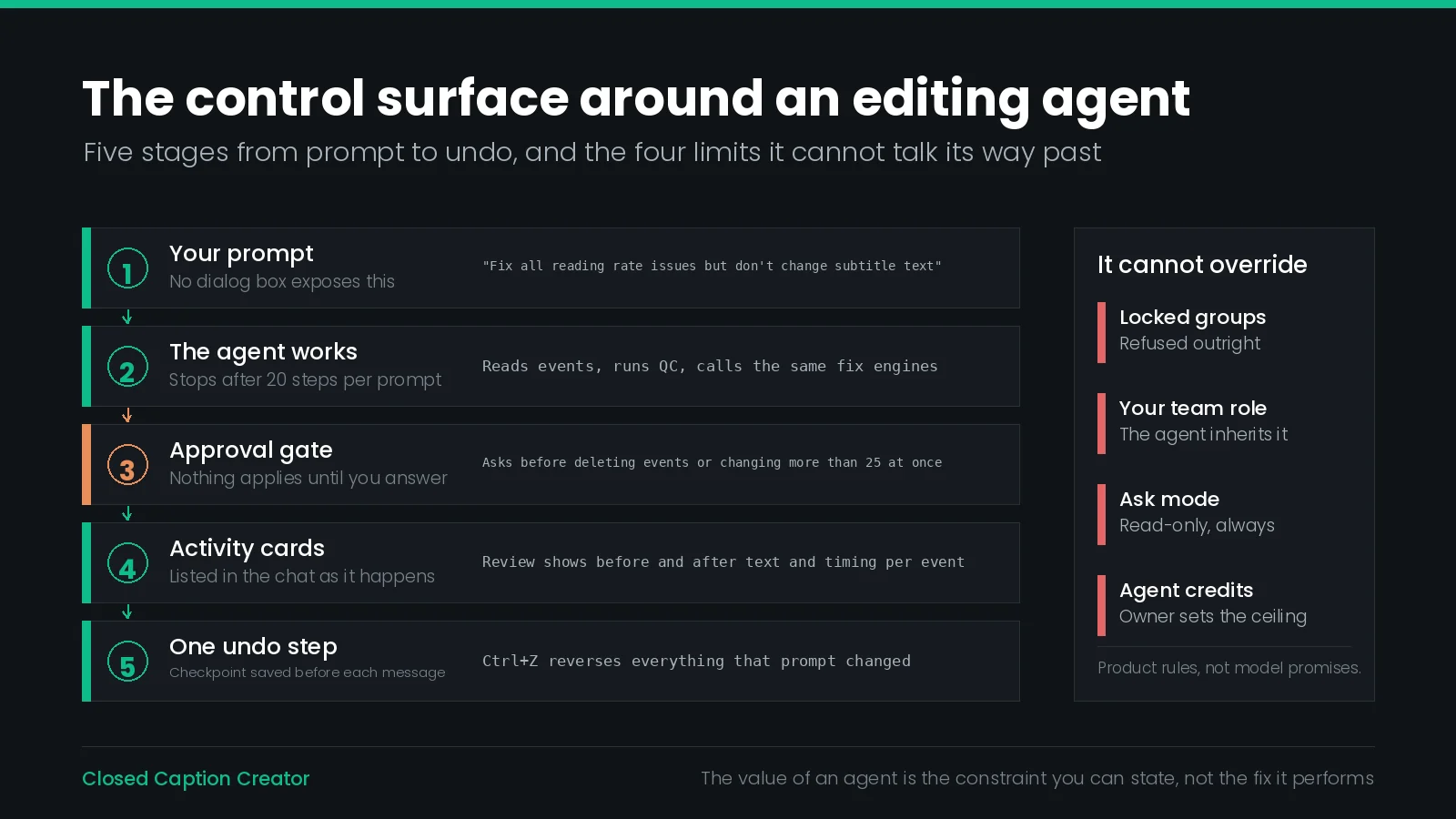
There are three layers, and they do different jobs.
The approval gate stops a change before it happens. The agent asks before it deletes events, and before it changes more than 25 events in a single step. Those two triggers are well chosen: deletion is the only irreversible-feeling action in an editor, and 25 is roughly the point at which a change stops being something you can verify by reading the activity card. Creating a new Event Group never prompts, because nothing existing is altered by it.
The undo step reverses a change after it happens. Everything the agent changes for one prompt is saved as a single undo step, reversible with Ctrl+Z or the Undo button on the change card. One prompt, one undo — which is the only grouping that matches how you think about the work. If you edited the same group while the agent was running, the changes may land as several undo steps, and the chat says so rather than leaving you to discover it.
Checkpoints reverse the conversation. Before each message, a checkpoint of the project is saved. Restore returns the project to its state before that message; Edit & restore also rewinds the chat so you can rewrite the message; Redo restore reverses a restore. The dialog lists which groups and how many events will change before you commit.
Two things about checkpoints worth knowing before you rely on them. A restore also rewinds edits you made since that checkpoint, so it is not a surgical undo of the agent's work alone. And checkpoints are kept for 30 days on the device where the chat ran — they are a working safety net, not an archive. If the project changed outside the chat through team sync, an import or another device, use Download copy to save the checkpoint as a separate project and compare before restoring over live work.
Step Limits, Locks and Roles
Four further limits are structural, in the sense that no amount of prompting moves them.
| Limit | Behaviour | What it protects |
|---|---|---|
| Locked Event Groups | The agent cannot change them | Approved or delivered work stays as delivered |
| Team role | The agent inherits yours. If you cannot edit notes, approvals or tags, neither can it | Permissions survive the new interface rather than being bypassed by it |
| Twenty steps per prompt | The agent stops and waits to be asked to continue | A runaway task cannot work through a project unattended |
| Group editing banner | Manual edits to the group are paused while the agent works, with a Stop control | Two writers cannot edit the same group at once |
The role inheritance is the one to raise with a security reviewer. A new interface onto an existing system is a classic place for permissions to be re-implemented and quietly widened. Here the agent is bound by the same role the person driving it holds, which means the access question has already been answered by whatever your team decided when you set the roles up.
The step limit deserves a mention too. Twenty steps is low enough that a large job will stop partway and ask, which feels like friction and is actually the point: it is a natural checkpoint where you look at what has happened so far before saying continue.
What Delegation Costs
Agentic editing is metered, and the meter is a workflow constraint rather than a billing footnote.
| Plan | Ask mode | Agent mode |
|---|---|---|
| Free | 10 questions a day | Not available |
| Starter | 50 questions a day | Not available |
| Pro | 50 questions a day | 500 credits each billing period, shared by the team |
| Enterprise | 50 questions a day | Included |
| Starter or Pro trial | 15 questions a day | 100 trial credits |
Each step consumes a small amount of credit based on how much work was done, and the remaining balance is shown under the message box. Two consequences follow for anyone running a team.
Standard against Deep is a cost decision. Deep uses a more capable model for large clean-ups and difficult translations, and burns credits about twice as fast. The choice applies from your next prompt, is remembered on the device, and replies made in Deep are tagged as such in the chat, so a later audit can tell which pass was which.
The credit pool is shared and capped. Pro's 500 credits are a team pool, not a per-seat allowance. Beyond them, extra credits cost $10 per 250 and are billed with the plan, up to a monthly spending limit the account owner sets under Help > Manage Subscription. Setting that limit to 0 stops hard at the included credits. For a shop onboarding a team onto agentic editing, setting the cap deliberately on day one is worth more than any prompt-writing guidance.
The Gate Nothing Can Switch Off
Underneath every discussion of what an agent may or may not do, there is a check that neither you nor it can disable. Every export runs a set of structural validations before the file is written, and they are not configurable.
- Missing start timecode, or missing end timecode.
- Start and end timecode identical — a zero-duration event.
- Start timecode after end timecode.
- Overlap with the previous event of one frame or more. Sub-frame overlaps are silently corrected, because they come from rounding during timecode conversion.
- Missing text.
When one fails you get three choices: Abort, which cancels the export, selects the failing event and scrolls the timeline to it; Ignore, which drops that event from the output; and Ignore All, which skips the rest of that check type. Exporting through Embed Captions adds three EIA-608 content rules — illegal character, more than 4 lines, line over 32 characters — and those cannot be ignored at all.
It is worth being precise about what this gate is and is not. It covers structural validity only: the properties that make a file well-formed regardless of specification. It does not look at reading speed, character counts or line limits, so a file that passes every pre-export check is structurally valid and still says nothing about whether it meets the requirements of your delivery. Treating it as a final safety net rather than a QC pass is the documented intent, and it is the right reading.
Where Regulation Draws Its Own Line
Regulators arrived at a similar boundary from a completely different direction, which is a reasonable sign that the boundary is real.
The FCC's caption quality rules, in 47 CFR § 79.1(j)(2), set out four characteristics: accuracy, synchronicity, completeness and placement. Line those up against the automation boundary and the overlap is partial in an instructive way.
| FCC characteristic | Can automation help? | What it cannot settle |
|---|---|---|
| Synchronicity | Yes — timing fixes exist precisely for this | Whether the corrected timing still matches the audio after events borrowed time from each other |
| Completeness | Partly — blank and zero-duration events are detectable | Whether anything spoken is missing from the file at all |
| Accuracy | No | Whether the words are the words that were said |
| Placement | No | Whether a caption blocks something the viewer needs |
Two of the four are exactly the two the QC tooling refuses to auto-fix. That is not coordination; it is two groups of people independently discovering that some caption properties can be measured against the file and some can only be measured against the programme.
The FCC judges failures with a de minimis test that weighs the kind of error and whether it is ongoing, rather than applying a fixed accuracy percentage — so “the automation reported no errors” is not a defence, and never was. The same logic runs through the European Accessibility Act, where the obligation is on the quality of the result rather than on the process used to reach it.
Translation Is a Different Problem
An agent that can create a new Event Group can also produce a translation into it, and the prompt reads so similarly to a correction prompt that it is easy to miss how different the task is.
A correction has a target value. A translation does not. There is no threshold against which “is this French subtitle right?” can be evaluated, which means none of the safety reasoning in this article transfers: the approval gate still works, the undo still works, but the thing you are checking afterwards cannot be checked by a rule.
The practical consequences are the ones you would apply to any machine translation output:
- Translate into a new group, never over an existing one. This is also why the action needs no approval — nothing existing is changed.
- Expect reading-rate failures in the output. Target languages expand. A French or German rendering of an English line that already sat at 16 CPS will often break the limit, so plan a correction pass after translation, not before.
- Supply terminology up front rather than correcting names afterwards. See translating subtitles for broadcast for the wider workflow.
- Keep the human review that the language deserves. An agent producing a draft changes who types the first version. It does not change who is answerable for the last one.
A Workflow That Uses Both
Putting it together, the sequence that gets the most out of automation without handing it anything it should not have:
- Set the thresholds first. Load the right standards preset on the Event Group and select the style guide that matches the delivery specification. Everything downstream aims at these numbers.
- Run the review. Read the category chips before fixing anything. The split across Technical, Timing, Content and Review tells you what kind of problem you have.
- Fix All the mechanical categories. Timing and Content, with Remove blank events left unticked unless you have confirmed those events are accidental.
- Use a prompt for the conditional pass. Anything carrying an exception — don't change text, only this range, leave approved events alone — goes to the agent, with the prohibition stated explicitly.
- Re-run the review. Automatic fixes re-run it for you; manual edits do not, so press Start again after hand corrections.
- Work the Review category by hand. Position, speaker labels, forced narrative and approvals. This is the part no tool is doing for you, and it is the part the delivery is judged on.
- Spot-check timing against the programme. Especially where reading-rate correction borrowed time, and especially across shot changes.
- Export the QC report. The CSV carries timecodes, category and message for every remaining issue — the document you hand a client when you say the file is clean.
Step 6 is the one under pressure. Every efficiency gain from steps 3 and 4 creates a temptation to compress step 6, because the error list is shorter and the file looks finished. The list is shorter because the automatable issues are gone. The ones that remain are the ones that were always going to need a person, and they have not become easier.
What Goes Wrong
| Symptom | Cause | Fix |
|---|---|---|
| Captions drift out of sync after a clean QC report | Reading-rate correction borrowed time from neighbouring events | Spot-check the corrected events against programme audio before delivery |
| Subtitle wording changed when only timing was meant to | The fix was allowed to reach for Auto Format as well as the timing engine | State the prohibition in the prompt, or run the timing tool alone |
| Event count no longer matches the client's reference | Auto Format split events that exceeded the line limits | Expect it, and re-issue the reference, or raise the limit if the specification allows |
| Every event sits at the wrong reading speed | The fix ran against the wrong style guide or preset | Confirm the active guide before running anything; build one guide per specification |
| Approval flags and notes disappeared | A restore rewound your own edits along with the agent's | Restore only after checking what the dialog says will change; use Download copy to compare first |
| The agent stopped halfway through a large job | The twenty-step limit for a single prompt | Review what it did, then ask it to continue |
| Reading-rate errors remain after a successful fix pass | They could not be resolved by timing alone, so they were left unapproved and noted | Correct them by hand — edit the text, or merge events yourself where the speaker allows |
| Team credits exhausted mid-week | Deep mode on routine work, against a shared pool | Use Standard by default; set the monthly limit deliberately |
Automation Checklist
- Confirm the active style guide and standards preset match the delivery specification, before anything runs.
- Run the review and read the four category counts before fixing.
- Use Fix All for whole categories that break one known rule.
- Leave Remove blank events unticked unless you have checked those events.
- Put every conditional pass in a prompt, and write the prohibition as well as the goal.
- Save prompts that work, so the constraint is shared rather than remembered.
- Read the activity cards. Expand Review on anything that changed more than a handful of events.
- Re-run the review after manual edits — they do not refresh the list on their own.
- Work the Review category by hand: position, speaker, forced narrative, approvals.
- Spot-check corrected timing against the programme, not against the error count.
- Export the QC report as the record that the file was checked.
- Set the agent credit limit before the team starts, not after the first overage.
Frequently Asked Questions
Can AI fix caption errors automatically?
Some of them. Reading rate, duration, frame gaps, line count, line length and stray whitespace are all measured against a numeric threshold, so a rule can correct them. Caption position, speaker labels, forced narrative flags, approval state, notes and tags are reported on every review pass and never corrected automatically, because judging them requires the picture.
Which caption errors cannot be fixed automatically?
Missing start or end timecodes, illegal characters for the target format, spelled-number rules and repeat words must be corrected by hand, along with every issue in the Review category: event position, missing speaker assignment, approval state, open notes and replies, tags, and forced narrative events.
Does an AI agent merge caption events?
No. Automatic fixes in Closed Caption Creator never merge events, because merging can combine lines from different speakers into one caption. If a reading rate problem cannot be solved by adjusting timing alone, the event is marked unapproved, given a note, and left for a human to resolve.
How do you stop an AI agent from rewriting subtitle text?
State the constraint in the prompt. A request such as “Fix all reading rate issues but don't change subtitle text” restricts the agent to timing adjustments. This is the main practical advantage of a prompt over a batch dialog, which has no field for conditions of that kind.
Can you undo what an AI captioning agent changed?
Yes. Everything the agent changes for one prompt is saved as a single undo step, reversible with Ctrl+Z or the Undo button on the change card. A checkpoint of the project is also saved before each message and kept for 30 days, so you can restore the project to its state before any point in the conversation.
Can an AI captioning assistant edit a locked event group?
No. The agent cannot change locked Event Groups, and it inherits your team role: if your role cannot edit notes, approvals or tags, neither can the agent. It also asks for approval before deleting events or changing more than 25 events in a single step.
Does automated captioning satisfy FCC caption quality rules?
Not on its own. The FCC's four quality standards in 47 CFR § 79.1(j)(2) are accuracy, synchronicity, completeness and placement. Automated correction addresses synchronicity and parts of completeness, but accuracy and placement are judged against the programme, which is why a human review pass remains part of the workflow.
What is the difference between Ask mode and Agent mode?
Ask mode is read-only. It answers how-to questions using the user guide and a summary of your project, and lists the pages it used under Sources. Agent mode makes changes to the open project. The separation is architectural, not a preference: Ask mode cannot change your project at all.
How much does agentic caption editing cost?
Agent mode is included with Pro and Enterprise plans. Pro includes 500 credits each billing period, shared by the team, and each step consumes a small amount based on how much work was done. Deep mode uses credits roughly twice as fast as Standard. Extra credits are $10 per 250, up to a monthly limit the account owner sets.
Should an AI agent translate subtitles?
Translation is a different problem from correction. A correction has a measurable target; a translation does not, so there is no threshold against which the result can be checked. Treat agent translation as a first pass into a new Event Group, and keep the same review that any machine translation output would receive.
Automation is worth exactly as much as the boundary around it. Want to see where that boundary sits on your own deliveries? Talk to our team or start a free trial.