Caption Placement and Positioning: Where to Put a Caption, and What Survives Export
Where should captions be placed on screen?
Place captions at the bottom centre of the frame, inside the safe area, and move them only when they would cover burned-in text, a lower third, or important action. Move them to the top rather than sideways, keep the move for the whole cue, and never position outside what your delivery format can store.
Placement is the part of captioning that gets decided by accident. Timing gets spotted, text gets reviewed, reading speed gets measured against a number in a style guide — and then the caption lands wherever the default put it, which is usually the bottom of the frame, which is usually fine, right up until the episode with the subtitled Russian dialogue and the sports ticker.
It is also the only one of the four FCC caption quality standards with no automated check behind it. Accuracy has spell check. Synchronicity has timing tools. Completeness is a count. Placement has a person looking at a screen.
This guide is about that decision: where a caption belongs, when to move it, what each delivery format is physically able to record, and what happens to placement when a file is converted. It is the layer underneath the format explainers — if you want the byte-level detail of how a position is encoded, the SCC, IMSC and EBU-STL guides have it. This one is about what to do with it.
Placement Is a Delivery Requirement
Placement is not a stylistic preference that a captioner gets to exercise taste over. It is written into the rules.
In the United States, the FCC caption quality standards list four requirements: accuracy, synchronicity, program completeness and placement. The placement standard in 47 CFR 79.1 is short and specific. Captioning “shall be viewable and shall not block other important visual content on the screen.” Lines of caption “shall not overlap one another.” And captions “shall be adequately positioned so that they do not run off the edge of the video screen.”
Read that again as a QC list rather than as legislation and it gives you three testable conditions: nothing important is covered, no two caption lines collide, nothing is clipped at the edge. Those are the three things to look for.
Platform specifications say much the same thing in operational language. Netflix requires that subtitles be centre justified and placed at either the top or the bottom of the screen, with vertical positioning allowed only for Japanese, and asks authors to position subtitles to avoid overlapping on-screen text. Where text appears at both the top and the bottom of the frame and a collision cannot be avoided, its guidance is to put the subtitle “where easier to read” — an explicit acknowledgement that placement sometimes comes down to judgement.
Placement is the only caption quality standard that is a per-cue editorial decision. Accuracy, timing and completeness are properties of the file as a whole and can be measured in bulk. Placement has to be decided against the picture, cue by cue, which is why it is the standard that tooling helps least with.
In Europe, the European Accessibility Act works through harmonised standards rather than a numbered placement rule, but the same principle arrives by a different route: a caption that obscures information is a caption that has failed to make the content accessible.
The Safe Area, and the Numbers Behind It
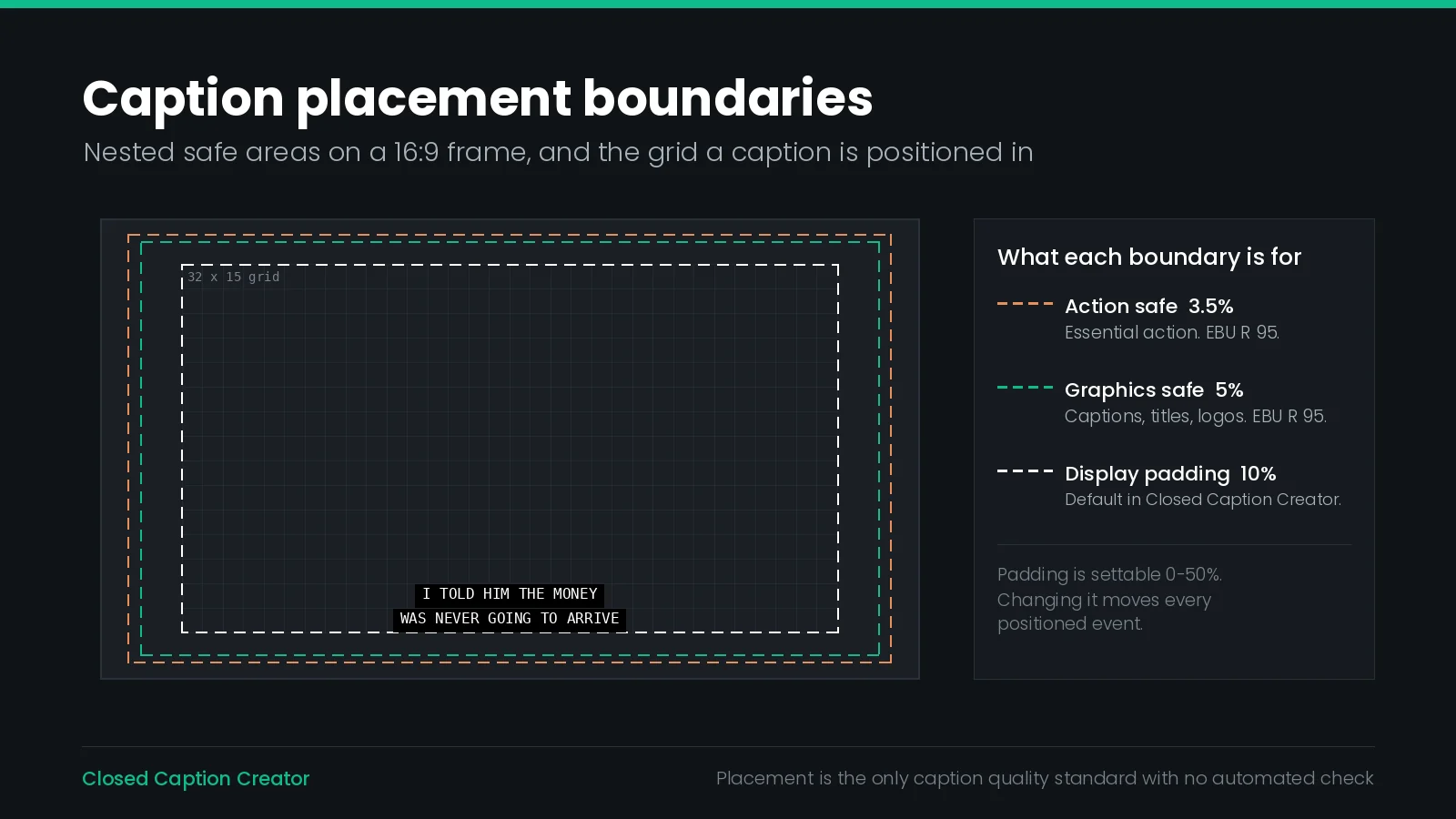
The safe area is the inset rectangle inside the frame where you can rely on text being seen. It exists because displays have historically cropped the edges of the picture, and because modern players, overlays and device chrome still do.
The authoritative numbers for 16:9 come from EBU Recommendation R 95, which sets two nested boundaries: the action safe area at 3.5 per cent, and the graphics safe area at 5 per cent, at the top, bottom and lateral parts of the image. Essential action belongs inside the first. Graphics — and captions are graphics — belong inside the second.
| Boundary | Inset | At 1920×1080 | What belongs inside it |
|---|---|---|---|
| Action safe | 3.5% | 67 px / 38 lines | Essential action and anything the story depends on |
| Graphics safe | 5% | 96 px / 54 lines | Captions, subtitles, titles, logos, lower thirds |
| Closed Caption Creator default padding | 10% | 192 px / 108 lines | The default preview canvas — deliberately conservative |
That third row is worth dwelling on, because it is the number most captioners actually work inside without having chosen it. In Closed Caption Creator, Horizontal Padding and Vertical Padding both default to 10 per cent and can each be set anywhere from 0 to 50 per cent. Together they define the safe area the preview renders captions within.
Ten per cent is twice the graphics safe area that R 95 asks for. That is not an error; it is a margin inherited from an era of overscan and 4:3 letterboxing, and it is the right default for broadcast delivery, where you do not know what display the caption will land on. But it does mean that if you are authoring for a known streaming target and you are fighting for horizontal room on a 32-character line, reducing padding to 5 per cent is a legitimate, specification-backed move rather than a corner cut. Reducing it below 5 per cent is not.
One caveat with real teeth: changing the padding does not only move the boundary. Because the preview divides the available area by the grid and multiplies each event's stored position by the cell size, changing horizontal or vertical padding moves every positioned event in the project, not just the ones near the edge. Decide the canvas before you start positioning, not after.
Grids Against Pixels
There are two ways to say where a caption goes, and the difference between them is the single most consequential thing on this page.
Pixel positioning puts a caption at an absolute coordinate. It is precise and it is brittle: the number is only meaningful at the resolution it was authored for, and it says nothing useful about a different frame size.
Grid or percentage positioning puts a caption in a cell or at a proportion of the frame. It is coarser and it survives: the same file renders correctly at 1080p, 720p, 2160p and on a phone.
Closed Caption Creator works in a grid. Display Settings define a character and line grid — Display Width defaults to 32 characters and accepts 1 to 100; Display Height defaults to 15 lines and accepts up to 50 — and an event's row and column position is interpreted inside that grid. A caption placed at row 15 of a 15-line grid appears at the bottom of the screen. The preview then computes pixels at render time by dividing the available area by the grid and multiplying out. Pixel-level offsets are available per event when you need them, but the grid is the system of record.
The 32×15 default is not arbitrary. It is the EIA-608 caption grid, which means the default canvas in the editor is the one that broadcast closed captions are physically constrained to. If you are authoring for teletext instead, a 40-character grid matches that canvas.
Netflix states the rule plainly: “Only use percentage values. Do not use pixel values.” That is specifically about TTML region authoring, and it generalises. If a position in your file is expressed in pixels, you have authored for one screen size and guessed at every other one.
A related trap sits in media import. The aspect ratio you pick when importing media — 16:9, 4:3, 1:1 — controls how the video is displayed in the player and does not affect the source file or the export. It is genuinely useful for checking how captions will read in a different display context, which is the point of it. But it also means your preview can show you a safe, well-placed caption in an aspect ratio that nothing downstream is going to use.
What Each Format Can Actually Store
Here is the table that decides most placement arguments. A position you cannot encode is a position you do not have.
| Format | How placement is recorded | Precision | The practical limit |
|---|---|---|---|
| IMSC / TTML | Named regions with tts:origin and tts:extent, plus tts:displayAlign and tts:textAlign | Percentage of the frame, effectively continuous | Regions are declared up front; a cue pointing at a missing region has no position |
| WebVTT | Cue settings: line, position, align, size, vertical | Percentage or line number | Player support for the settings is uneven in practice |
| CEA-708 | Up to eight windows, each anchored to one of nine anchor points | Window-level, relative or absolute | Nine anchors is not nine positions — the anchor plus offsets does the work |
| EIA-608 / SCC / MCC | Preamble address codes setting row and column | 15 rows; columns divisible by four, plus tab over | Every row of a multi-line caption needs its own PAC, and each one costs bandwidth |
| EBU-STL | Vertical Position byte in each TTI block, plus a Justification Code | Teletext row 1–23 | Vertical only — horizontal is justification, not position |
| PAC / Cavena 890 | Row and horizontal position per subtitle | Row-level | Legacy grids that do not map cleanly onto percentages |
| SRT | Nothing. The format has no positioning mechanism | None | Any position in the source file is discarded |
Three observations that matter more than the individual rows.
- Vertical is universal, horizontal is not. Every format that carries placement at all can say “put this near the top” or “put this near the bottom.” Horizontal control ranges from continuous to four-column increments to nonexistent. If a placement decision can be expressed vertically, it will survive more deliveries.
- Region-based and cue-based formats fail differently. In IMSC a broken position usually means a broken region reference, and it affects every cue that points at it. In WebVTT a broken position is a per-cue problem. One is a systemic failure, the other is a scatter of individual ones.
- Precision is not the same as reliability. WebVTT can express a position to a fraction of a per cent. Whether the player honours it is a separate question, and the answer varies by player.
WebVTT: Line, Position, Align and Size
WebVTT puts placement in the cue itself, as space-separated settings on the timing line. It is the most approachable positioning model of any caption format, and it has one trap that catches almost everybody.
| Setting | What it controls | Values | Default |
|---|---|---|---|
line | Vertical position | A percentage of video height, or a line number, optionally followed by start, center or end | auto |
position | Horizontal position | 0–100 per cent, optionally followed by line-left, center or line-right | auto |
size | Width of the cue box | A percentage of video width | 100% |
align | Text alignment inside the box | start, center, end, left, right | center |
vertical | Vertical writing direction | rl or lr | Absent — horizontal layout |
The line setting is the one you will use. Given a number, it counts lines rather than pixels, sized by the first line of text. Positive numbers count down from the top starting at zero; negative numbers count up from the bottom, so the last line is −1. That negative form is what you want: line:-1 is “the bottom line, whatever the frame height is,” and line:0 is the top. Two durable positions, no arithmetic.
A detail that explains a whole class of mysterious bugs: when line is left on auto and several cues overlap in time, they are assigned successively negative line numbers — −1, −2 and so on. That is why two simultaneous cues stack upward on their own, and why they stop doing it the moment you set an explicit line on one of them.
The trap: a cue that carries a vertical, line or size setting drops out of its region. If you are using WebVTT regions for roll-up behaviour and you add a line override to one cue to dodge a lower third, that cue leaves the region entirely and is laid out against the viewport instead. It is in the specification, and it looks like a rendering bug.
One more authoring constraint worth knowing before you hit it: when a cue's size is less than 100 per cent and its text alignment is start or end, you must not leave position on auto. The automatic value is derived from the text alignment, and in that combination it is ambiguous. Set it explicitly. For the segmented delivery case, the HLS WebVTT guide covers how cue settings interact with segment boundaries.
IMSC and TTML: Regions, Not Coordinates
IMSC does not position cues. It positions regions, and then puts cues in them. That indirection is the whole character of the format: placement is a layout decision made once, at the top of the document, and referenced thereafter.
A region is a rectangle given by tts:origin (its top-left corner) and tts:extent (its width and height), with tts:displayAlign deciding whether text sits at the start, centre or end of that rectangle vertically, and tts:textAlign handling the horizontal. Two regions — one at the top, one at the bottom — cover almost every subtitle file ever delivered.
Three consequences of the region model:
- A missing region reference is a positioning failure, not a syntax error. The file parses. The cue just has nowhere to go.
- Assume strict clipping. IMSC tells authors to expect content outside a region area to be clipped regardless of the computed
tts:overflowvalue. A region sized for one line will cut the second one off rather than growing. - Everything is relative to the root container region, which maps to a rectangle inside the video frame, centred, entirely within it, matching the frame on one axis. Percentages are percentages of that, not of the display.
IMSC also carries a feature almost nobody uses and everybody with a multi-aspect-ratio delivery should know about: ittp:activeArea, which declares that the area actually occupied by subtitle content is smaller than the root container region. A player on a different display aspect ratio can then scale the video and the root container so that all subtitle content inside the active area stays visible, at the cost of clipping some picture. It is, in effect, a safe area you can put in the file. The IMSC format guide has the full region anatomy.
608 Rows and 708 Anchors
Broadcast closed captions are the most constrained placement environment you will work in, and the two standards in play constrain it differently.
EIA-608 addresses a grid 32 columns wide and 15 rows tall. Position is set by a Preamble Address Code, which fixes the row, the starting column and the colour or underline state in one command — and a PAC can only land on a column divisible by four. Columns 0, 4, 8, 12, 16, 20, 24 and 28 are directly addressable; anything between them needs a Tab Over code for a one, two or three column shift. Each row of a multi-line caption needs its own PAC, and because every control code is doubled for error resilience, heavy positioning costs real bandwidth. The SCC guide works through the byte sequences.
CEA-708 replaces that with windows. A service can define up to eight of them, and each window is anchored to one of nine anchor points arranged in a three-by-three grid — top-left, top-centre, top-right, down to bottom-right — with the anchor identifier running 0 to 8. The anchor decides which corner or edge of the window is pinned to the coordinate you give it, and a relative flag says whether that coordinate is a percentage of the screen or a physical screen coordinate. Window buffers run to 16 rows, and 32 columns in 4:3 or up to 42 in 16:9.
| EIA-608 | CEA-708 | |
|---|---|---|
| Grid | 32 columns × 15 rows | Up to 16 rows; 32 columns (4:3) or 42 (16:9) |
| Positioning unit | Row and column, per caption row | Window, anchored and offset |
| Horizontal granularity | Columns divisible by four, plus tab over | Anchor point plus coordinate |
| Simultaneous areas | One caption area | Up to eight windows |
| Coordinate basis | Grid cells only | Percentage or physical, by flag |
The asymmetry is the point. 708 coordinates can be a percentage of the screen; 608 positions are grid cells. A 708-to-608 downconversion therefore has to quantise every position to the nearest cell, and a layout that used several simultaneous windows has to collapse into the single 608 caption area. If you are embedding both, check the 608 rendering, not just the 708 one.
EBU-STL: One Byte for Vertical Position
EBU-STL takes the most economical approach of any format here. Each Text and Timing Information block carries a Vertical Position field — a teletext row from 1 to 23, or a row count for open subtitles — and a separate Justification Code for horizontal treatment.
That is the whole model, and it is worth understanding what it implies. STL does not have horizontal positioning; it has justification. You can say left, centred or right. You cannot say “thirty per cent across.” For a format built for teletext subtitling that is entirely sufficient, and it is also why STL files converted from region-based formats tend to arrive with their horizontal intent flattened.
The bounded row range is a real source of broken deliveries. A converter that carries a pixel position or a zero-based row straight through into Vertical Position produces subtitles that land off-page. Any value outside 1 to 23 is invalid, and the symptom is a subtitle that simply never appears.
One teletext-specific effect deserves a mention here because it is a placement problem that does not look like one. In teletext, colour and background control codes are spacing attributes: each control byte occupies a character cell and shifts the text after it. A left-aligned caption with a leading colour code is therefore indented on air by cells that are not in your text — typically three for background styling. Closed Caption Creator has a Teletext Spacing preview option that reserves those cells so the preview matches transmission; it applies only to left-aligned events with a horizontal position of start, because a centred row is not pushed over by its leading codes. It affects preview only, not export or validation. The EBU-STL guide has the detail.
SRT: No Position at All
SRT has no positioning mechanism. Not a limited one — none. A cue is an index, a timecode pair and some text.
This matters because SRT is the most widely exchanged subtitle format in the world, which means it is the format most often sitting in the middle of a workflow, quietly discarding everything positional that passes through it.
You will see claims that SRT supports positioning tags such as {\an8} for top-centre. Those are SubStation Alpha override tags that some players honour inside SRT text because they are permissive, not because SRT defines them. They are not part of the format, no specification requires a player to act on them, and a conformance check or a broadcast ingest will treat them as literal text. Do not build a delivery on them.
If placement matters to the deliverable, SRT is the wrong container — and the wrong intermediate. Converting IMSC to SRT and back does not round-trip. The position is gone after the first hop, and the return trip has nothing to restore. Keep a positional master and generate SRT from it, never the reverse.
The SRT format page covers what the format does and does not carry.
Placement Is the Most Lossy Property in Conversion
Text survives conversion. Timecode survives conversion, give or take a frame rate decision. Placement degrades, in one direction, every time.
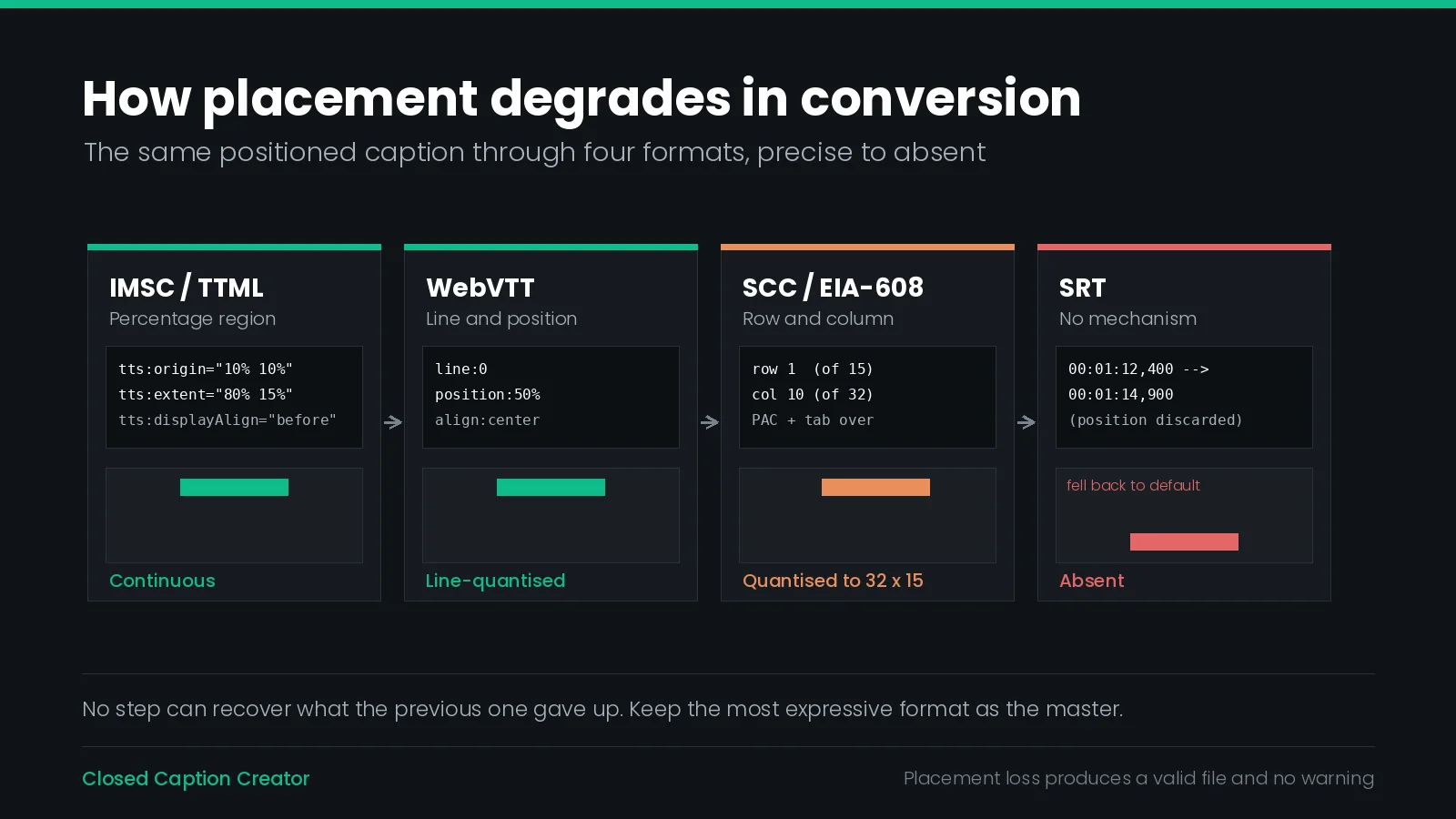
The chain runs from continuous to quantised to absent, and no step can recover what the previous one gave up.
| Conversion | What happens to placement | What to check |
|---|---|---|
| IMSC → SCC | Percentage regions quantise to the 32-column, 15-row grid | Top-placed cues landed on a sensible row; nothing drifted horizontally |
| SCC → IMSC | Rows and columns become regions, usually generated per distinct position | Region count has not exploded; regions are not overlapping |
| EBU-STL → IMSC | Teletext rows map to percentage origins; justification becomes tts:textAlign | Row 1–23 mapped inside the safe area, not to the frame edge |
| PAC → SCC | Legacy grid rounds to the 608 grid | Rows that were mid-frame did not collapse to the bottom |
| SAMI → WebVTT | CSS-positioned classes map to cue settings where they can | Which positions were carried and which were silently dropped |
| Anything → SRT | All placement discarded | Nothing to check — confirm the deliverable does not need it |
| 608 → 708 in one stream | 708 windows can express more than the 608 service can carry | Both renderings, separately |
The practical rule follows from the shape of the table: convert from the most expressive format you have, once, and keep it as the master. Every additional hop through a less capable format is an irreversible loss, and because placement loss is silent — no error, no warning, a perfectly valid output file — it is usually discovered by a client rather than by you.
When to Move a Caption, and Where To
The default is the bottom. The question is when to leave it.
Move a caption when leaving it where it is would hide something the viewer needs. That is the whole test, and it is deliberately narrow — because every move costs the viewer something too. A caption that jumps around the frame forces the eye to hunt for it, and hunting costs reading time you have already budgeted against a reading speed limit.
| Situation | Move to | Why |
|---|---|---|
| Burned-in subtitles or translation already on the picture | Top | Two text blocks in the same place is unreadable; the burned-in one cannot move |
| Lower third, name key or location super | Top, for the duration of the super | The super carries information the caption does not duplicate |
| Scoreboard, ticker or persistent graphic | Whichever edge the graphic is not on | Persistent graphics do not clear, so the move lasts as long as they do |
| On-screen text that the story depends on | Top, or the opposite side | FCC placement explicitly protects important visual content |
| Speaker identification in a two-shot | Horizontal shift toward the speaker, if the format allows | Placement can do the work a speaker label would otherwise do |
| Credits or end-card text | Top | Credits occupy the lower frame for a long, predictable stretch |
| Nothing is in the way | Do not move it | Stability is a readability feature |
Three working rules that resolve most of the remaining cases.
- Prefer vertical moves to horizontal ones. Top and bottom are expressible in every format that carries placement at all, they survive conversion better, and they are what platform specifications expect. A horizontal nudge is the first thing to be flattened downstream.
- Move for the whole cue, not part of it. A caption that relocates mid-display reads as a glitch. If the obstruction appears halfway through a cue, either split the cue at that point or move the whole thing.
- Move back when the obstruction clears, not later. Leaving captions at the top for the rest of the scene because it was easier is the most common over-correction, and it trains the viewer to look in the wrong place.
Shot changes are the natural seam for a position change, for the same reason they are the natural seam for a timing change. If you can align a move to a cut, the change reads as part of the edit rather than as an error. The shot change rules cover the timing side of this, and Snap to Shot Changes will align event boundaries to detected cuts for you.
Burned-In Text, Lower Thirds and Forced Narrative
The hardest placement problems are the ones where two things both have a claim on the same part of the frame.
Burned-in text wins, always. It cannot be moved, re-timed or turned off. Everything else accommodates it. This is why localisation deliveries with burned-in foreign-language titles are the single most placement-intensive work there is, and why it is worth asking for a textless master or a list of burn-in timings before spotting rather than discovering them during QC.
Forced narrative subtitles create a collision that is easy to miss, because of how they are delivered. Forced narrative events must display regardless of whether the viewer has subtitles enabled, and Netflix requires two files for any project containing them: a complete track that includes the forced events alongside all dialogue, and a second file containing only the forced events. Netflix's own guidance explains why — forced narrative subtitles display only when full subtitles are off, so the forced events have to be present in both.
The placement consequence is specific. In the full-track deliverable, a forced narrative event and a dialogue subtitle can be on screen simultaneously, in the same default position. Check the overlaps in the file that contains both, not in the forced-only file where the problem is invisible. Marking events as forced is a per-event toggle in the editor and the export filter has Include All, Exclude FNS and FNS Only modes, so producing both files from one project is a matter of exporting twice — which is also why it is easy to QC only one of them.
Where a collision genuinely cannot be resolved, both the FCC rule and the Netflix guidance point the same way: readability decides. Netflix says to place the subtitle “where easier to read.” That is permission to use judgement, not an invitation to leave it on the default and hope.
For vertical 9:16 video the whole calculus changes, because platform interface elements — captions, handles, buttons — occupy predictable bands of the frame that no caption should be in.
Roll-Up and Paint-On Change the Question
Caption display style and caption placement are not independent, and it is worth being explicit about where they interact.
Pop-On captions appear and disappear atomically. Placement is a property of the cue, it is stable for the cue's whole duration, and everything above applies directly.
Roll-Up captions scroll. New lines arrive at the bottom of the roll-up area and push older lines up, with 2, 3 or 4 lines visible depending on the configured row count. Placement therefore applies to the roll-up area rather than to an individual caption, and the area has to be sized for the full row count even when only one line is showing.
The authoring consequence is one most people meet the hard way: a roll-up display does not clear between events. To clear it you insert a blank roll-up event, which is interpreted as a clear command. Forget them and lines stack across scene changes, which presents as a placement problem — captions in the wrong part of the frame, text where it should not be — when the cause is a missing clear.
Paint-On reveals characters left to right. Position is fixed at the start and the text grows into it, so a paint-on caption near the right edge can reach the frame boundary partway through its reveal even though its start position was inside the safe area.
Export support constrains all of this. Roll-Up and Paint-On are carried by SCC, MCC and Embed Captions. Every other format — SRT, WebVTT, STL — treats all events as Pop-On regardless of the style set in the Event Group, and burned-in video export renders Pop-On only, with roll-up events drawn as static captions holding their full text for the event duration.
Setting Position in Closed Caption Creator
There are four places to set position, and which one you reach for depends on how many events you are changing.
- The position grid on each subtitle event in List View sets the general screen region — top-left through bottom-right — and the event's horizontal alignment within it. This is the per-event control.
- The secondary toolbar carries alignment and position buttons that apply to the entire current selection. Select the range first, then set the position once.
- Table View exposes Align, H and V as columns, which is the fastest way to audit placement across a whole file and to spot the one event that is different from its neighbours.
- Pixel-level offsets are available per event for the cases the grid cannot express. Use them knowing they are the least portable thing in the file.
Two settings worth knowing about before they surprise you. Display Settings under Edit → Options define the grid and the padding that every position is interpreted against, so they belong at the start of a project. And Collapse Position and Caption Style, under Edit → Options → Editor, replaces the per-event position and style controls in List View with compact informational icons — top, middle, bottom, or a custom line — which frees width for text, speakers and tags. It is the right setting for a subtitle workflow where position rarely changes, and it does mean position has to be changed from the toolbar, Table View, or by turning the option back off.
For closed caption mode specifically, the Styles tab hides the manual style controls and defers to Display Settings, because closed caption rendering is driven by the character grid rather than free-form typography. That is the correct behaviour and it catches people who go looking for position in the wrong panel.
Nothing Validates Placement
This is the finding that should change how you work, so it gets its own section.
Closed Caption Creator has three automated quality layers, and none of them contains a placement rule.
| Layer | When it runs | What it checks | Placement? |
|---|---|---|---|
| Realtime Error Detection | While authoring | Max CPS, max WPM, max characters per line, max lines, min and max duration, overlap, illegal characters | No |
| Style guide review | Review pass | Lines and characters, overlap, character validation, duration, reading speed, event gap | No |
| Pre-export checks | Every export | Missing or identical timecodes, reversed timecodes, overlap with the previous event, missing text, plus 608 content rules on embed | No |
Eight realtime thresholds, six style guide rule categories, six structural export checks. Twenty rules, and not one of them looks at where a caption is.
That is not an oversight, and it is not fixable in the obvious way. A placement rule would have to know what is in the picture, and no caption file contains that. The nearest thing to an automated defence is Max Characters Per Line, which both the realtime detection and the style guide documentation justify partly in safe-area terms — a line short enough to fit the grid is a line unlikely to run off the edge. But that is a proxy for one failure mode, the clipping one. It says nothing about whether the caption is covering a lower third.
Placement is the one delivery property with no automated gate, which makes it the one that most needs a deliberate human pass. Budget it explicitly. A file that passes every check in the application can still fail the FCC placement standard on the first cue.
What that pass should consist of:
- Play the file against the picture at full frame, not in a scrubbing window. Collisions are an event in time, not a property of a static frame.
- Audit positions as data in Table View. The Align, H and V columns turn a visual question into a scannable list, and the odd one out is usually an accident.
- Check the top-placed cues specifically. They are the ones that were moved, which means they are the ones where a decision was made and might have been wrong.
- Re-check after every conversion. Placement loss produces a valid file, so nothing downstream will tell you.
- Check the delivered aspect ratio, not the one that happened to be set at import.
The QC guide covers the checks that are automated, and QC and Review covers the review workflow itself.
What Goes Wrong
- Position set, format cannot carry it. Hours of placement work exported to SRT. The file is valid and the work is gone.
- Padding changed mid-project. Every positioned event moves, because positions are grid cells interpreted against the padding.
- Vertical Position outside 1–23 in STL. The subtitle never appears.
- A WebVTT cue silently leaving its region because a
line,sizeorverticalsetting was added to it. - A missing region reference in IMSC. The file parses, the cue has no position.
- Roll-up lines stacking across a scene change because a blank clear event was not inserted.
- Captions left at the top long after the lower third cleared.
- Forced narrative and dialogue colliding in the full-track deliverable, while the forced-only file looks perfect.
- 708 placement checked, 608 placement not, in a stream carrying both.
- Pixel offsets in a file delivered at more than one resolution.
- A preview aspect ratio that does not match delivery, so the safe area on screen is not the safe area on air.
Placement Checklist
- Confirm the delivery format can store a position before spending time on placement.
- Set the display grid and padding at the start of the project, not after positioning.
- Keep captions inside the graphics safe area — 5 per cent minimum, 10 per cent for unknown displays.
- Default to bottom centre; move only to avoid covering something.
- Prefer top and bottom over horizontal offsets.
- Move for the whole cue, and move back when the obstruction clears.
- Align position changes to shot changes where possible.
- Use percentages, not pixels, wherever the format allows.
- In WebVTT, prefer
line:-1andline:0over computed percentages. - In IMSC, declare the regions you need up front and check every cue resolves to one.
- For roll-up, insert blank clear events at scene boundaries.
- QC the full track that contains forced narrative events, not only the forced-only file.
- Re-check placement after every format conversion.
- Review placement against the picture, at the delivery aspect ratio, as a deliberate pass.
Frequently Asked Questions
What is the caption safe area?
The safe area is the inset region of the frame where text is guaranteed to be visible on any display. EBU Recommendation R 95 puts the graphics safe area at five per cent in from the top, bottom and sides, and the action safe area at three and a half per cent.
Why do captions move to the top of the screen?
Because something at the bottom of the frame needs to stay visible. Burned-in titles, a lower third, a scoreboard, or on-screen text that carries the story all take priority. Moving the caption to the top keeps both readable, which is why it is the standard remedy rather than shifting sideways.
Which caption formats can store a position?
WebVTT, IMSC, TTML, SCC, MCC, EBU-STL and PAC can all carry placement, though they express it differently and at different precision. SRT cannot store a position at all. That difference is why placement is the property most often lost when a caption file is converted from one format to another.
Does caption position survive file conversion?
Often not. Conversion degrades placement in one direction, from precise to coarse to absent. A percentage-based IMSC region maps onto a WebVTT line, then onto the nearest addressable EIA-608 row and column, then disappears entirely in SRT. Check placement after every conversion, because nothing warns you it was dropped.
How many rows and columns does the closed caption grid have?
EIA-608 uses a grid thirty-two columns wide and fifteen rows tall, and a preamble address code can only land on a column divisible by four. CEA-708 is larger and more flexible: up to sixteen rows, thirty-two columns in four by three or forty-two in sixteen by nine.
What does the WebVTT line setting do?
It sets the vertical position of a cue, either as a percentage of the video height or as a line number. Positive line numbers count down from the top starting at zero, and negative numbers count up from the bottom, so minus one is the last line.
How do you change caption position in Closed Caption Creator?
Use the position grid on each subtitle event in List View, the alignment and position buttons on the secondary toolbar, or the Align, H and V columns in Table View. Select several events first and the toolbar controls apply to the whole selection rather than one event.
Do streaming platforms allow caption positioning?
Yes, within limits. Netflix requires subtitles to be centre justified at the top or bottom of the screen, allows vertical positioning only for Japanese, and instructs authors to use percentage values rather than pixel values. Most platforms publish a comparable rule, so check the specification before repositioning.
What happens if a caption is positioned outside the safe area?
It may be clipped, cropped or pushed off screen depending on the player and the display. IMSC tells authors to assume strict clipping of anything outside a region, and the FCC rule states that captions must be positioned so they do not run off the edge of the screen.
Is caption placement a legal requirement?
In the United States, yes. Placement is one of the four FCC caption quality standards, alongside accuracy, synchronicity and completeness. The rule requires that captioning be viewable, that it not block other important visual content, that lines not overlap, and that captions stay within the screen edges.
Placement is the check no tool can run for you, which makes the tooling around it worth getting right. Want to see how positioning and QC work on your own files? Talk to our team or start a free trial.