ElevenLabs Integration
ElevenLabs is a third-party speech synthesis platform that enables users to train custom synthetic voices or access a library of high-quality pre-trained voices licensed for commercial use. The Closed Caption Creator integration with ElevenLabs brings these voices directly into the application, making them available for audio description and described video projects alongside the built-in voice options from Google and Microsoft.
Prerequisites
This integration requires an active Closed Caption Creator subscription that includes the Audio Description Plugin, as well as a separate ElevenLabs account. Once both accounts are in place, configuration takes just a few moments.
Configuring the Integration
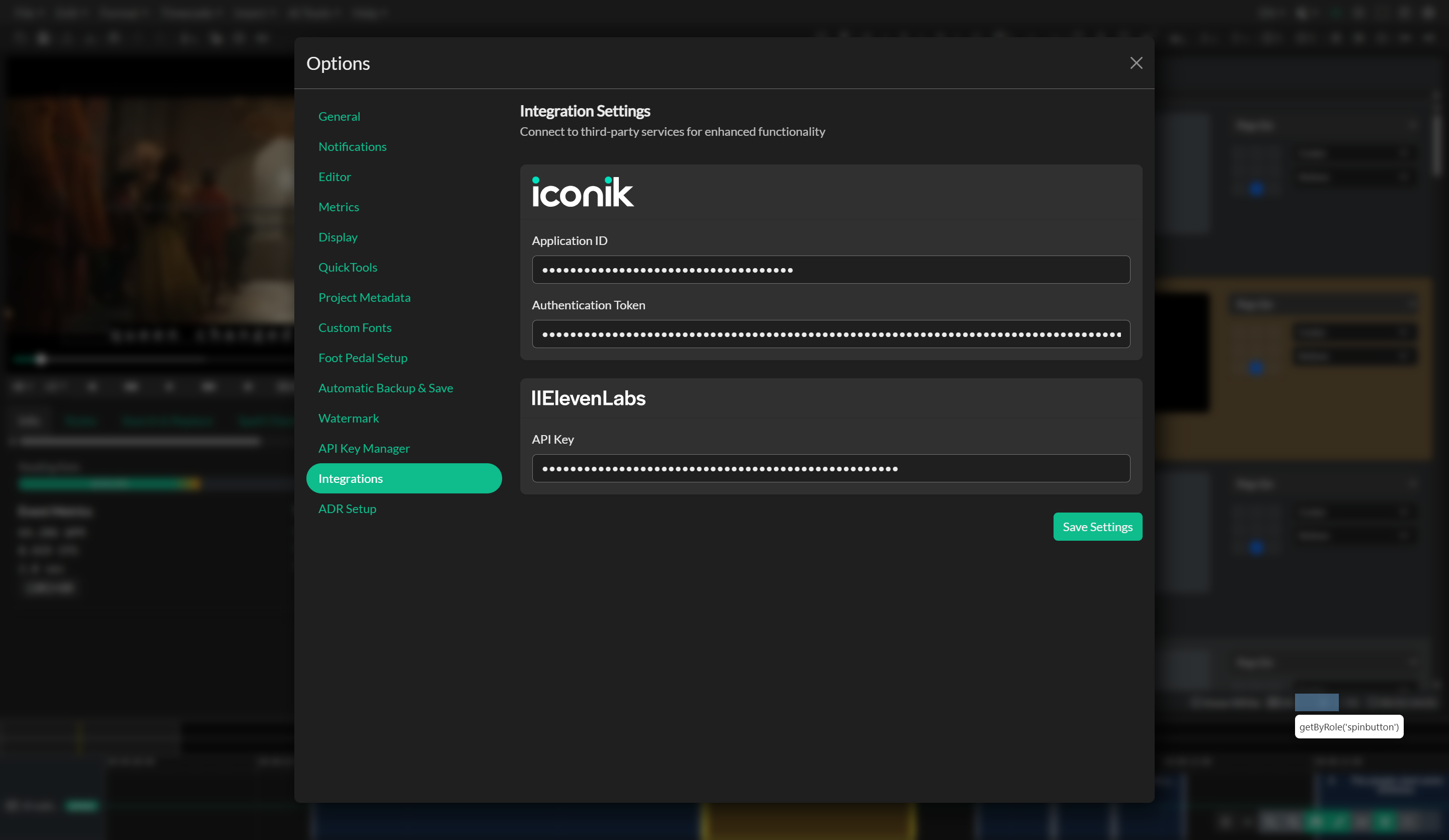
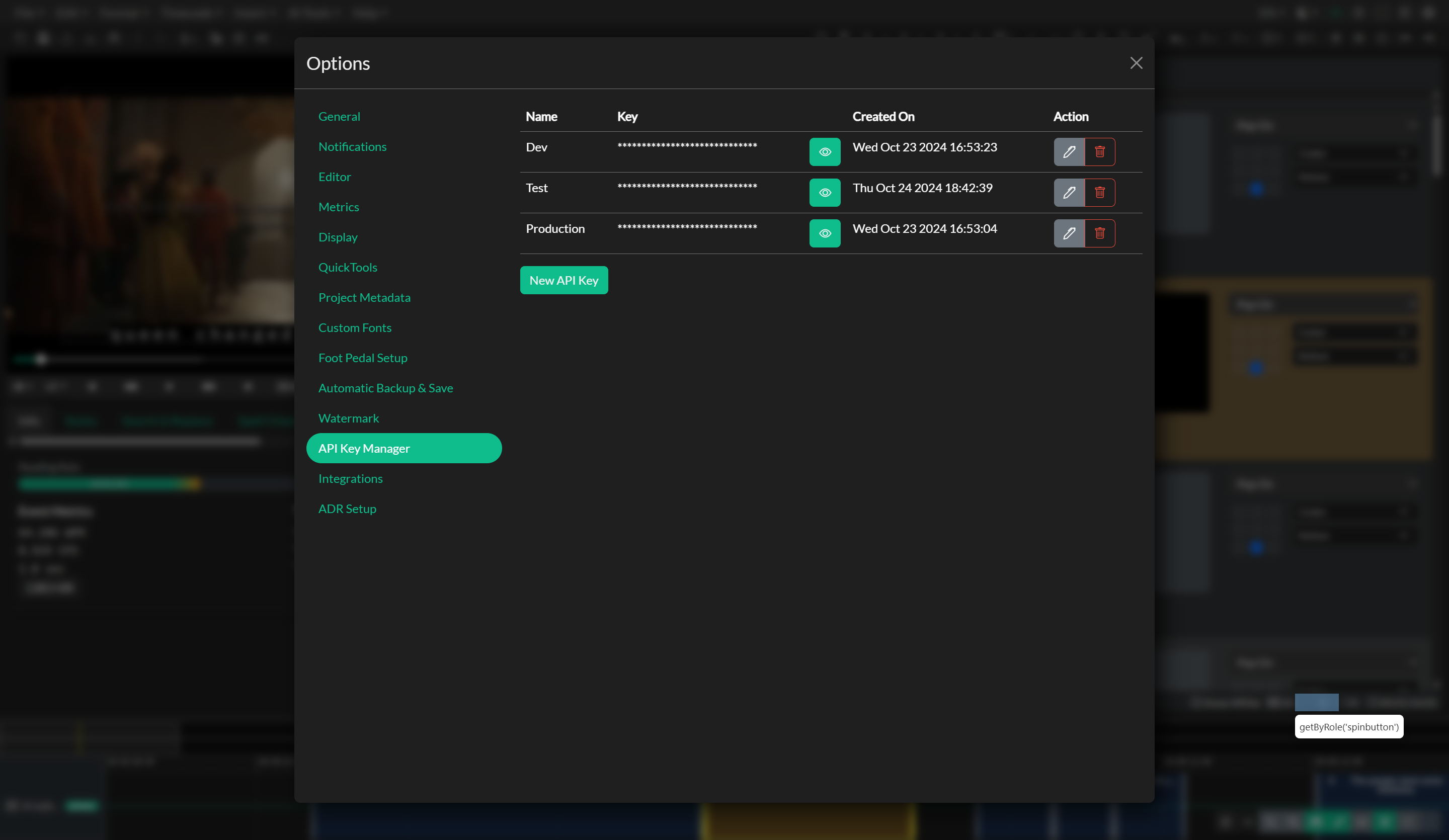
To connect your ElevenLabs account, open Edit > Options and select the Integrations tab. In the ElevenLabs section, locate the API Key field. In your ElevenLabs dashboard, navigate to your profile, reveal your API key using the Eye icon, and copy it. Paste the key into the field in Closed Caption Creator and click Save Settings. The integration is now active and your ElevenLabs voices will be available the next time you open the Virtual Voice Manager.
Using ElevenLabs Voices
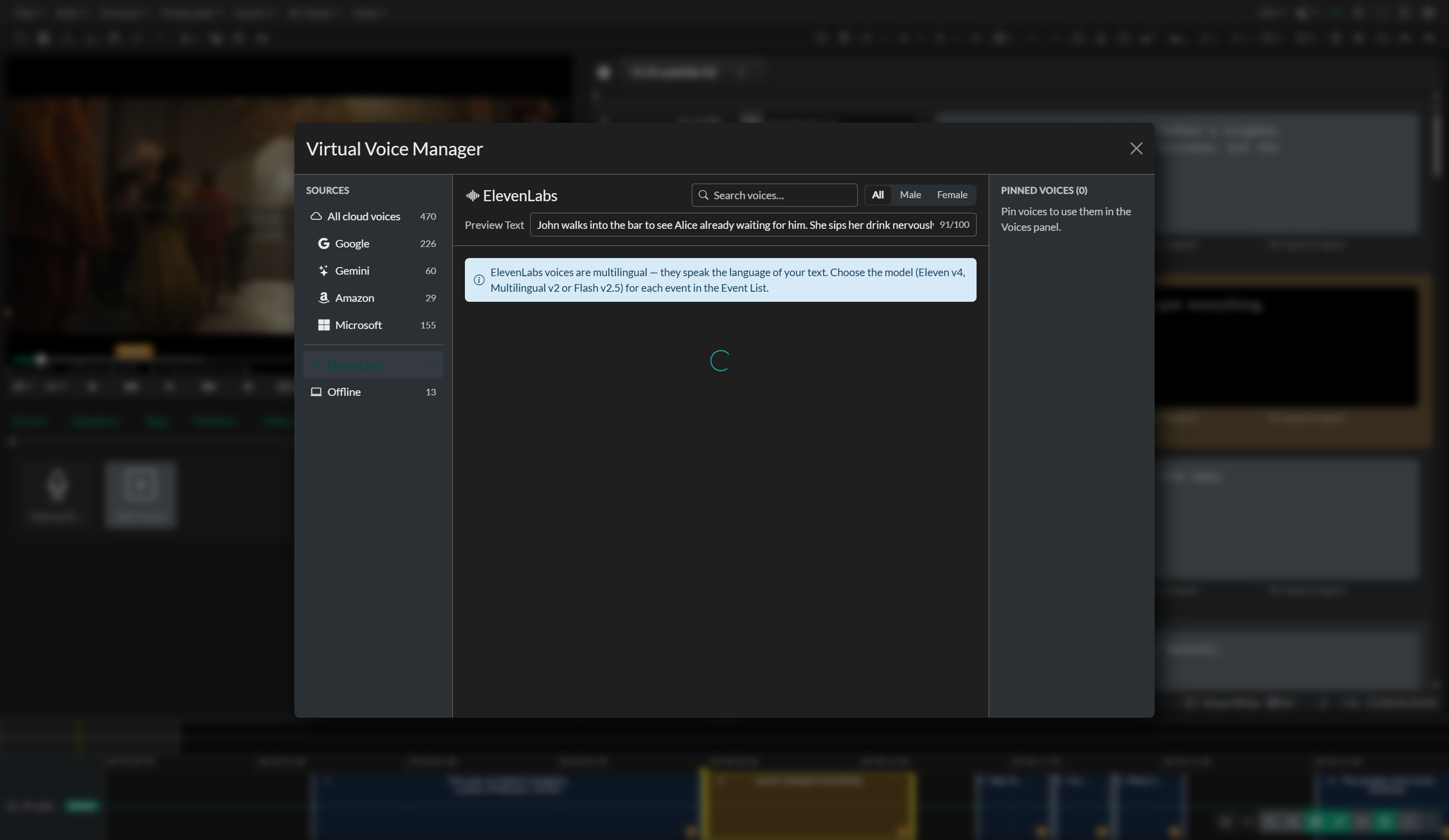
ElevenLabs voices are accessed through the Virtual Voice Manager, which is found in the Quick Tools panel located below the media player. Select ElevenLabs in the Sources list on the left of the Voice Manager to browse the voices on your account. ElevenLabs voices are multilingual — they speak the language of your description text — so they aren't listed under a language. Preview them, then pin the ones you want to use; pinned voices are immediately available in the Voices panel, ready to be assigned to audio description events.
If you haven't added an API key yet, the ElevenLabs source shows a Connect ElevenLabs button that takes you straight to the Integrations settings.
The integration supports your cloned voices (Instant and Professional Voice Clones), generated voices, and any voices you've added from the ElevenLabs Voice Library. Each voice card shows type and labels such as accent and use case as small pills on the meta line. Voice usage is tracked in your ElevenLabs dashboard, giving you visibility into consumption across your team.
Choosing a Model
Each audio description event that uses an ElevenLabs voice has a model dropdown in the Event List:
- Eleven v4 — ElevenLabs' most expressive model and the default for newly assigned voices. The model sets its own internal pacing; the Speed slider (0.5–2) is still available.
- Multilingual v2 — stable long-form narration. Events created before model selection was available keep using this model, so re-rendering them doesn't change how they sound. Speed is 0.5–2.
- Flash v2.5 — faster, lower-cost rendering. Speed is 0.5–2.
Stability and Similarity are available for every model. See Voice Properties for details.
Troubleshooting
If the ElevenLabs source shows a warning that your key was rejected, select Manage API key (or go to Edit > Options > Integrations) and verify that the key was saved correctly. API keys are account-specific and will not work if copied with extra whitespace. If voices are missing, confirm in your ElevenLabs dashboard that your subscription is active and that the voices are in your account, then select Refresh in the Voice Manager.