Video / Media Import
Media Import allows you to attach video or audio source files to your project so you can work with synchronized playback during editing, timing, and quality control. Closed Caption Creator provides flexible media import options that support a wide range of playback sources, from local files and cloud storage to streaming URLs and professional broadcast formats. The media you import becomes the reference for all timing operations and provides the audio source for waveform generation and automatic transcription workflows.
Opening the media import dialog
To import media into your project, navigate to File in the menu, select Import, choose Media File from the list of import options, and click Next. This opens the Media Import dialog where you can select your media source and configure playback settings.
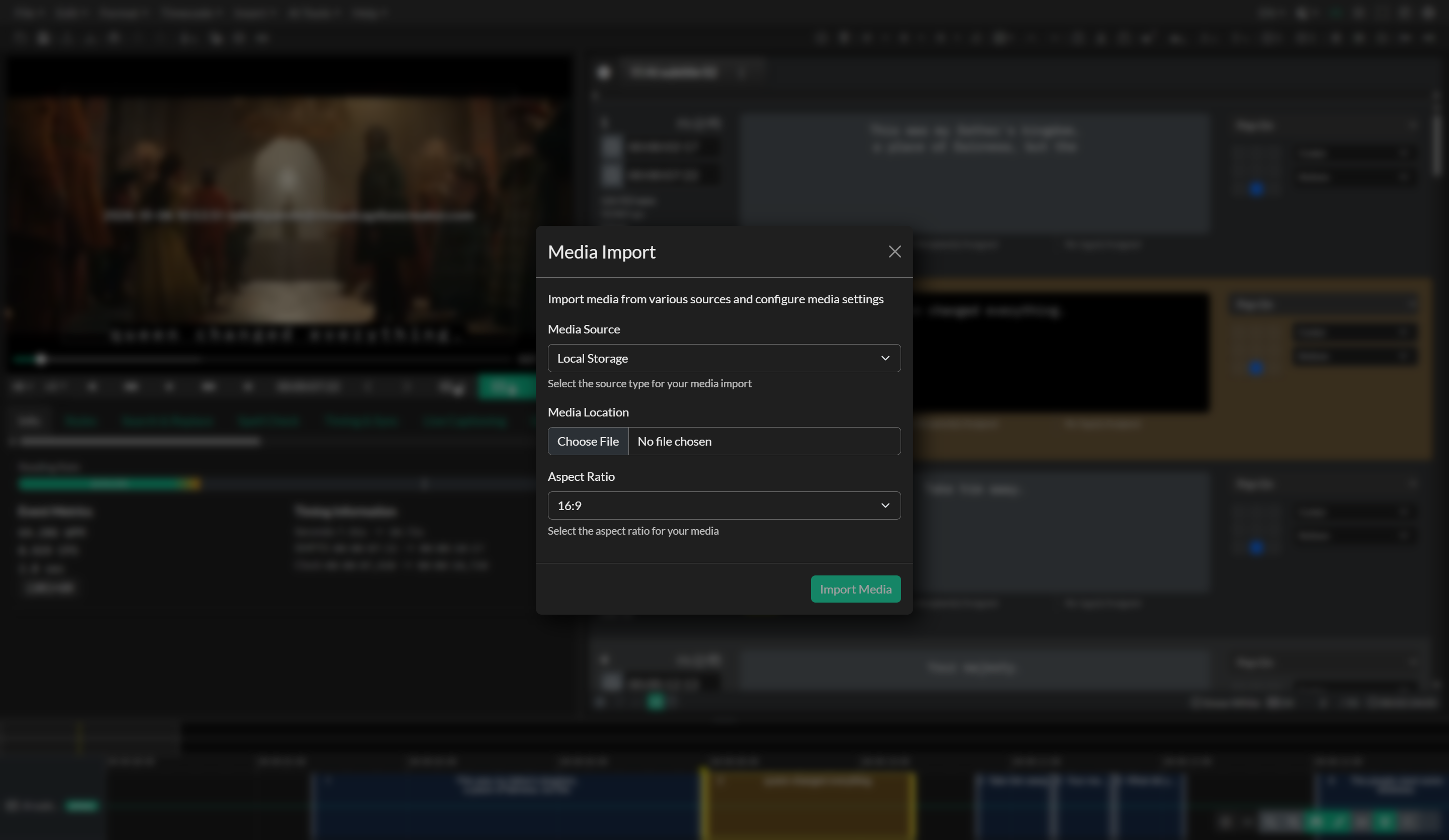
You can also import media when creating a new project. The New Project dialog includes media source and location options that allow you to attach media during the initial project setup. If you skip media import during project creation, you can add or change media at any time using the Media Import workflow.
When import finishes and you are online, Closed Caption Creator asks whether you want to automatically transcribe compatible media (local files, Proxy RT, cloud storage, and YouTube). Choose Yes to open the Automatic Transcription dialog, or No to continue editing without a transcript.
Media sources
Closed Caption Creator supports multiple media sources, each designed for specific playback scenarios and technical requirements. The media source you choose determines how the application loads and plays your media file.
Local Storage
Local Storage is the default media source for most workflows. It supports playback from any hard drive or network location mounted to your system, including internal drives, external USB drives, and network-attached storage. Local Storage playback is limited to audio and video formats that are natively supported by the Chromium browser engine, including MP4, WebM, OGG, and common audio formats such as WAV and MP3.
When you select Local Storage as your media source, you can browse to any accessible file on your system. Closed Caption Creator will load the file directly and begin playback. If you are using the desktop version, the application will also automatically extract audio waveform data from your media file to support timeline visualization and precise timing operations.
Proxy RT (Real Time)
Proxy RT is a specialized media source available exclusively in the desktop version of Closed Caption Creator. It is designed to handle high-resolution video and professional broadcast formats that are not natively supported by standard browser playback engines. Proxy RT allows you to import files in formats such as ProRes, DNxHD, MXF, and other mezzanine codecs commonly used in broadcast production.
When you select Proxy RT as your media source, Closed Caption Creator uses FFmpeg to generate a just-in-time proxy stream from your source file. This process happens entirely on your local machine with no upload or external processing required: the application serves the stream from a private local media server and encodes short segments on demand. The proxy stream is optimized for smooth playback while preserving the original file for final export and delivery workflows.
Playback starts within a few seconds of importing your media — there is no need to wait for the full file to be converted. You can seek anywhere in the timeline immediately; if you jump to a section that has not been generated yet, the Proxy RT engine restarts the encoder at that position and playback resumes after a short buffering pause. The rest of the proxy continues to generate in the background, and generated segments are cached on disk, so re-opening the same media file resumes instantly without re-conversion. The Proxy RT engine also handles audio extraction automatically, ensuring that waveform data and audio playback are synchronized with your video.
Proxy RT is particularly valuable for broadcasters and production teams working with high-bitrate files that exceed the capabilities of standard web playback. It allows you to work with pristine source media without the need for pre-conversion or external transcoding workflows.
YouTube and Vimeo
Closed Caption Creator supports direct playback from YouTube and Vimeo URLs. This is useful when your source media is hosted on these platforms or when you are creating captions for content that will be delivered through YouTube or Vimeo.
To use YouTube or Vimeo as your media source, select the appropriate source option and paste the video URL into the media location field. Closed Caption Creator will load the video player and stream the content directly from the platform. This eliminates the need to download and store large video files locally.
Note that some YouTube and Vimeo videos may have playback restrictions or embedding limitations that prevent them from loading in Closed Caption Creator. YouTube media can be sent to Automatic Transcription. Vimeo, HLS, Mux, DASH, and Cloudflare Stream cannot.
HLS Manifest
HLS (HTTP Live Streaming) is a streaming protocol that delivers video content in small segments using an M3U8 manifest file. Closed Caption Creator supports HLS streaming, which is particularly useful for secure media delivery workflows where content cannot be downloaded or stored locally.
To use HLS as your media source, select HLS Manifest and provide the URL to the M3U8 playlist file. Closed Caption Creator will load the manifest and begin streaming the video segments. This method is commonly used by studios, broadcasters, and post-production facilities that require secure, encrypted content delivery without allowing local file access.
HLS streaming is ideal for remote collaboration workflows where team members need to access the same media source without transferring large files. It also reduces storage requirements on client machines since the video is streamed rather than downloaded.
Cloud Storage
Cloud Storage allows you to load media files directly from cloud-based storage services such as Amazon S3, Google Cloud Storage, or Microsoft Azure Blob Storage. This option is useful when your media is hosted in the cloud and you want to access it without downloading the file to your local machine.
To use Cloud Storage as your media source, select Cloud Storage and provide the direct URL to the media file. Ensure that the URL is publicly accessible or that your cloud storage service is configured to allow playback from Closed Caption Creator. Playback is limited to the same natively supported formats as Local Storage, so ensure that your cloud-hosted file uses a compatible codec.
Cloud Storage is valuable for distributed teams working with centralized media repositories or for workflows that require access to large media libraries without local storage overhead.
Automatic metadata detection
When you import media using the desktop version of Closed Caption Creator, the application automatically scans the file for technical metadata and offers to update your project settings to match the source file specifications.
If the frame rate detected in your media file differs from your current project frame rate, you will be prompted to update the project frame rate to match the source media. This ensures that all timecodes and timing operations align correctly with your video. In most cases, you should accept this change to avoid timing discrepancies.
Similarly, if your media file contains embedded timecode metadata with a start timecode that differs from your project incode, you will be prompted to update the project incode. This is particularly important when working with broadcast media that includes burned-in timecode or when maintaining timecode continuity across multiple segments.
The automatic detection process also identifies the media duration, which is used to calculate waveform peaks and manage timeline rendering. This metadata ensures that Closed Caption Creator has the correct technical context for your media before you begin editing.
Audio extraction and waveform generation
When you import media using the desktop version of Closed Caption Creator, the application automatically extracts audio from your video file and generates waveform data for display on the timeline. This process happens in the background using FFmpeg and does not interfere with your ability to begin working on the project.
The waveform data provides a visual representation of the audio amplitude over time, making it easier to identify dialogue, sound effects, and silent gaps when timing captions. The waveform is displayed on the timeline beneath the Event markers, allowing you to align caption timing with audio cues visually.
Audio extraction is essential for automatic transcription workflows, as the extracted audio is uploaded to transcription services when you request an automatic transcript. The audio file is stored temporarily in your system's temporary directory and is managed automatically by Closed Caption Creator.
Aspect ratio and display settings
During media import, you can select the aspect ratio for playback display. Common aspect ratios include 16:9 for widescreen video, 4:3 for standard definition content, and 1:1 for square formats used on social media platforms such as Instagram.
The aspect ratio setting controls how the video is displayed in the media player but does not affect the source file or final export. This allows you to preview how your captions will appear in different display contexts without altering the original media.
Troubleshooting media import
If you encounter issues during media import, there are several steps you can take to diagnose and resolve the problem.
If your video does not load or displays a black screen, verify that the file format is supported by your selected media source. For unsupported formats, try using Proxy RT if you are on the desktop version, or convert your file to a compatible format such as MP4 with H.264 encoding.
If the audio waveform does not appear or audio playback is missing, check that your media file contains an audio track and that the audio codec is supported. If you continue to experience issues, contact support and provide details about your file format and codec specifications.
If your media file is extremely large and playback is slow or choppy, consider using Proxy RT to generate a lightweight proxy stream, or reduce the file size by transcoding to a lower bitrate before importing.
For cloud-hosted or streaming media sources, ensure that the URL is publicly accessible and that there are no CORS (Cross-Origin Resource Sharing) restrictions preventing playback in Closed Caption Creator.