Video Watermarking
A visual watermark is a text overlay drawn over the video player so everyone on your team can see who is viewing pre-release material. It sits under the caption, subtitle, and audio description preview. It is not burned into the media file or into any subtitle, audio, or video export.
Team members cannot turn the overlay off once a team admin has enabled it.
Who can configure it
The Watermark tab in Options appears only when all of the following are true:
- You are signed in online
- You belong to a team
- Your role is admin
Solo accounts never see the tab. Managers, editors, and viewers cannot open the settings and cannot turn the overlay off once a team admin has enabled it.
Creating a team is Help → Team Management, which is available to Pro and Enterprise admins who are online. See Users & Groups.
Opening Watermark settings
Go to Edit → Options, or click the gear icon on the secondary toolbar. In the left navigation, select Watermark.
Edit → Options and the Settings gear are hidden when Closed Caption Creator is embedded in an iframe. IFrame hosts configure the overlay with the setWatermark remote method instead. Host settings take precedence over any team configuration for the rest of the session. See IFrame Embed — Watermarking.
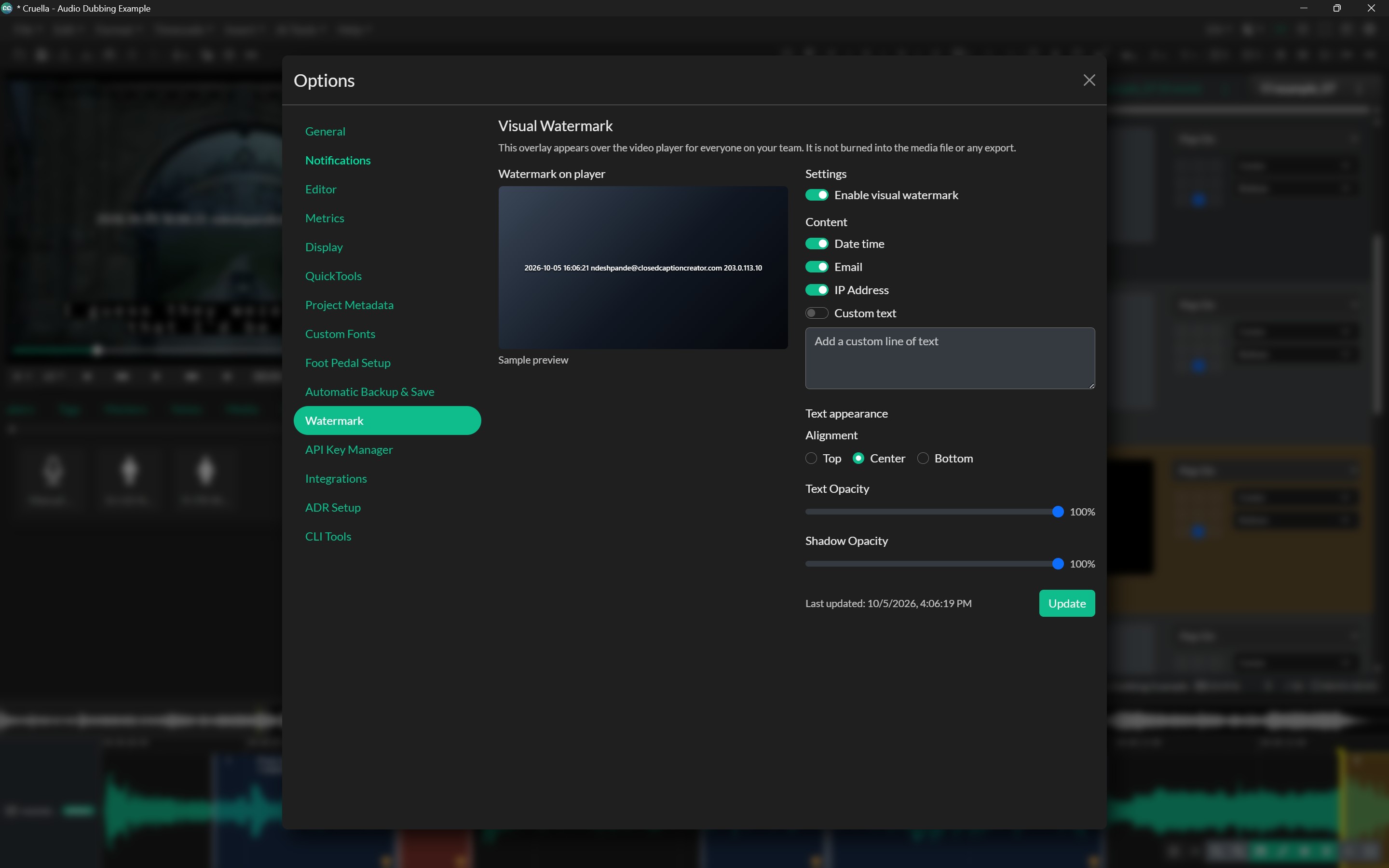
The panel heading is Visual Watermark. The description in the window states that the overlay appears over the video player for everyone on your team and is not burned into the media file or any export.
If an embedding application has already called setWatermark for this session, an info notice reads A connected application is currently controlling the watermark for this session. Team settings cannot take over until Help → Reset Application or a full reload.
Settings
Changes in the modal update the Watermark on player sample preview immediately. The live player overlay does not change until you click Update.
Enable visual watermark
The Enable visual watermark switch turns the overlay on or off for the whole team. It is off by default.
Content
When the watermark is enabled, choose which fields appear:
| Switch | What is shown |
|---|---|
| Date time | Current date and time in the viewer's local time, formatted YYYY-MM-DD HH:mm:ss. In team mode this clock ticks every second. On by default. |
| The signed-in user's email address. On by default. | |
| IP Address | The IP address captured at login. It is a snapshot, not a live lookup. On by default. |
| Custom text | A second line of text you enter. Off by default. |
When Custom text is on, the textarea is enabled. The placeholder is Add a custom line of text. The field accepts up to 120 characters.
Date, email, and IP share one horizontally centered line, separated by spaces. Custom text is a second line below that. Alignment is vertical only: the overlay is always centered horizontally.
Text appearance
Alignment radios: Top, Center, or Bottom. The default is Center.
Text Opacity and Shadow Opacity are sliders from 0 to 100. Both default to 100%. The current value is shown next to each slider.
Saving
Click Update to save the settings to your team. Until that succeeds, only the sample preview in the modal reflects your edits. After a successful save, a Last updated: timestamp appears and a toast confirms Watermark settings updated.
Every member of the team then sees the overlay on the player. They cannot disable it from Options.