Spell Check
Spell Check reviews every event in the selected Event Group and lists suggested spelling corrections so you can accept or skip them one by one. It lives in the Quick Tools panel and is available in both the web application and the desktop application.
Closed Caption Creator always includes Local (offline dictionaries) and OpenAI (cloud, online mode only). The desktop application can also offer System (Windows or macOS spelling dictionaries) and Word (Microsoft Word proofing on Windows when Word is installed). The web application never uses Microsoft Office, Word COM, or the operating-system spell checker.
Opening Spell Check
Open Quick Tools and select the Spell Check tab. The panel shows a corrections list, a preview of the selected change, an engine picker, a language picker, and Run / Ok / skip / All actions.
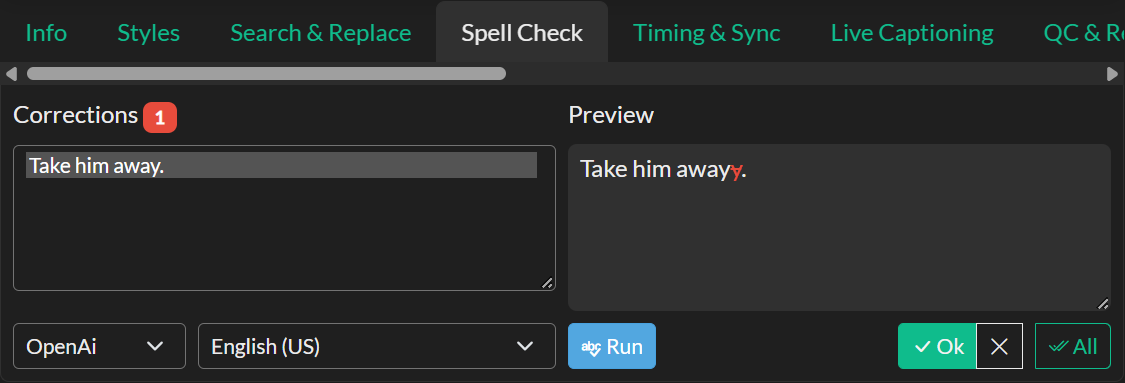
Spell Check is disabled when the selected Event Group is locked.
Choosing an engine
Local uses Hunspell dictionaries bundled with the application. It runs in the browser and in the desktop app, including offline mode. Use it when you are not connected, or when you want a fast dictionary pass without sending text to the cloud.
OpenAI sends event text to Closed Caption Creator cloud services for a language-aware spelling pass. It appears only when the application is in online mode. Use it when you want a stronger spelling review than the local dictionaries provide. The OpenAI engine is configured to correct spelling, not grammar. Editorial grammar findings can still be tracked in Manual QC.
System uses the operating system's spell checker. On Windows this is the built-in Windows spell API (language packs with Basic typing), not Microsoft Word. On macOS it uses the system spelling dictionary. System appears only in the Windows and macOS desktop apps, and only checks spelling.
Word uses Microsoft Word's proofing tools when Word is installed on a Windows desktop. It can flag spelling and grammar. Word does not appear on macOS, Linux, or the web app. If Word fails to start, repair or launch Word and try again, or use Local or System instead.
Choosing a language
Select the language that matches the Event Group you are checking. Local uses the dictionaries Closed Caption Creator ships. System uses the languages installed on the operating system; if a language is missing, add it in Windows Settings (Basic typing) or macOS Keyboard settings. Your last language choice is remembered for later sessions.
Running a check
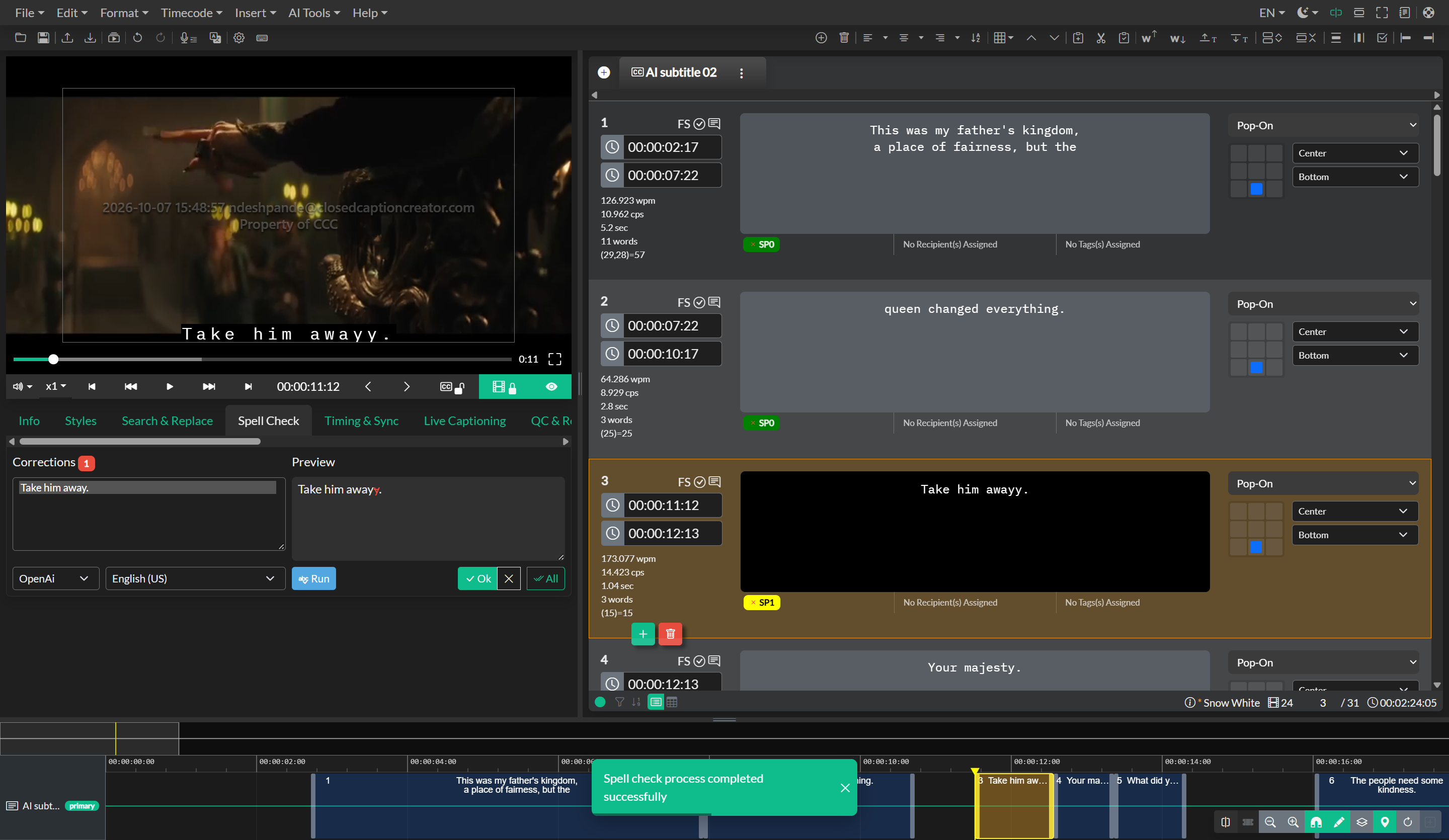
Click Run. Spell Check processes events in batches and fills the corrections list as results arrive. You can review and accept items while a long run is still in progress.
When the pass finishes, a confirmation toast appears. If some batches fail, a warning toast reports how many failed; successful corrections from the other batches remain in the list.
Reviewing and applying corrections
Select an item in the corrections list to preview the change. Inserted text is shown in bold; removed text is struck through. Selecting a correction also selects that event in the Event List and can seek the player when video lock is enabled.
Ok applies the selected correction to the event text.
The skip button leaves the event unchanged and moves to the next correction.
All applies every remaining correction in the list.
Applied changes are recorded in undo history as a correct-event action.
Platform notes
| Engine | Web | Windows desktop | macOS desktop | Linux desktop | Offline |
|---|---|---|---|---|---|
| Local | Yes | Yes | Yes | Yes | Yes |
| OpenAI | Yes, online mode | Yes, online mode | Yes, online mode | Yes, online mode | No |
| System | No | Yes | Yes | No | Yes |
| Word | No | Yes, if Word is installed | No | No | Yes |