Help Menu
The Help Menu provides access to documentation, support resources, application settings management, and system information. This menu serves as your gateway to learning resources, troubleshooting assistance, and utilities for maintaining your personalized configuration and preferences.
User Guide and Documentation
The Help Menu includes links to comprehensive documentation resources including this user guide, video tutorials, and feature-specific help articles. These resources provide detailed explanations of application features, step-by-step workflow instructions, best practices for broadcast captioning, and troubleshooting guidance for common issues.
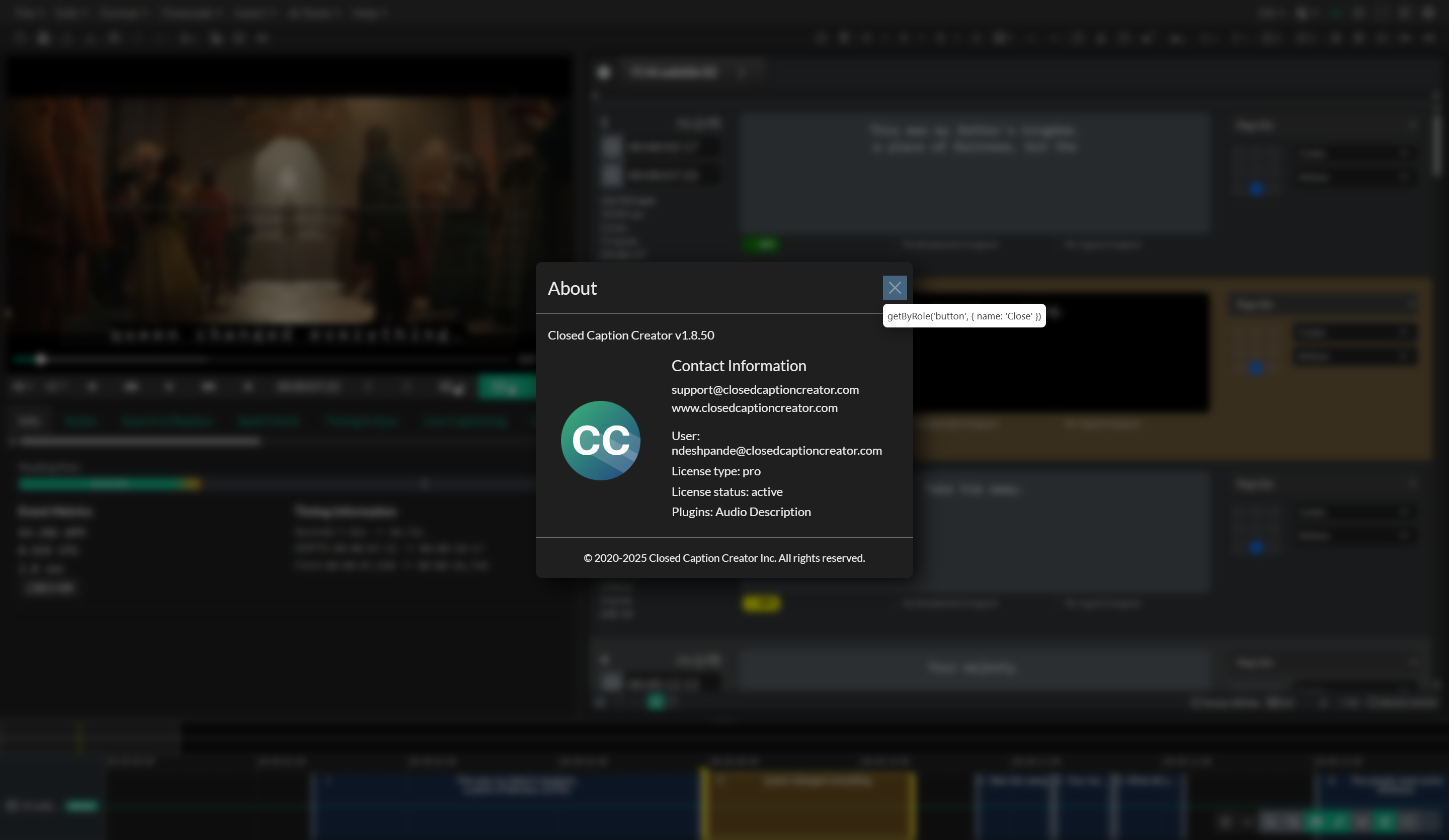
Documentation links open in your default web browser, allowing you to access help resources while continuing to work in the application. The documentation is continuously updated to reflect new features, workflow improvements, and expanded functionality, so checking the online documentation ensures you have access to the most current information.
Support Resources
Direct access to support channels is provided through the Help Menu, including links to live support chat for real-time assistance with urgent issues and email support for detailed technical questions that require extended investigation or specialized guidance. Support availability and response times vary based on your subscription level and support plan.
When working in the online version of Closed Caption Creator, the Help Menu provides access to live support chat features that connect you directly with the support team. This real-time support channel is valuable when you need immediate assistance with workflow questions, technical issues, or feature clarification during active production work.
Backup User Settings
The Backup User Settings command exports your personalized configuration preferences to a JSON file that you can save to your local file system. This backup includes your editor defaults, audio description settings, event group default configurations, keyboard shortcuts, theme preferences, project defaults, style presets, and timing and synchronization settings.
Creating regular backups of your user settings is recommended when you have invested significant time in customizing your workspace and workflow to your specific needs. Settings backups allow you to restore your configuration after reinstalling the application, transfer your settings to a different computer, recover from accidental settings changes, or share standardized configurations with team members to ensure consistent workflows across your organization.
The exported settings file contains all customization preferences but does not include project data, media files, or user account credentials. The backup is created in JSON format with readable formatting that allows for manual inspection or editing if needed. Settings backups include version metadata and timestamp information to help you track when each backup was created.
Restore User Settings
The Restore User Settings command imports a previously exported settings file and applies those saved preferences to your current application configuration. This restoration process replaces your current settings with the values from the backup file, allowing you to recover lost preferences, migrate settings to a new installation, or apply standardized configuration templates.
Before restoring settings, the system validates the imported file to ensure it contains properly formatted settings data and is compatible with your current application version. Settings from older application versions are automatically migrated to the current format when possible, though some settings may not transfer if they reference features that have been redesigned or replaced in newer versions.
After restoring settings, you may need to refresh the application interface or restart the application to ensure all settings are fully applied. The restoration process preserves your current project data and does not affect any saved projects or work in progress.
Software Updates and Version Information
When working in the online version, the Help Menu displays update notifications when a new version of Closed Caption Creator becomes available. This update indicator alerts you to new features, bug fixes, and performance improvements that can be accessed by refreshing your browser or clearing your application cache.
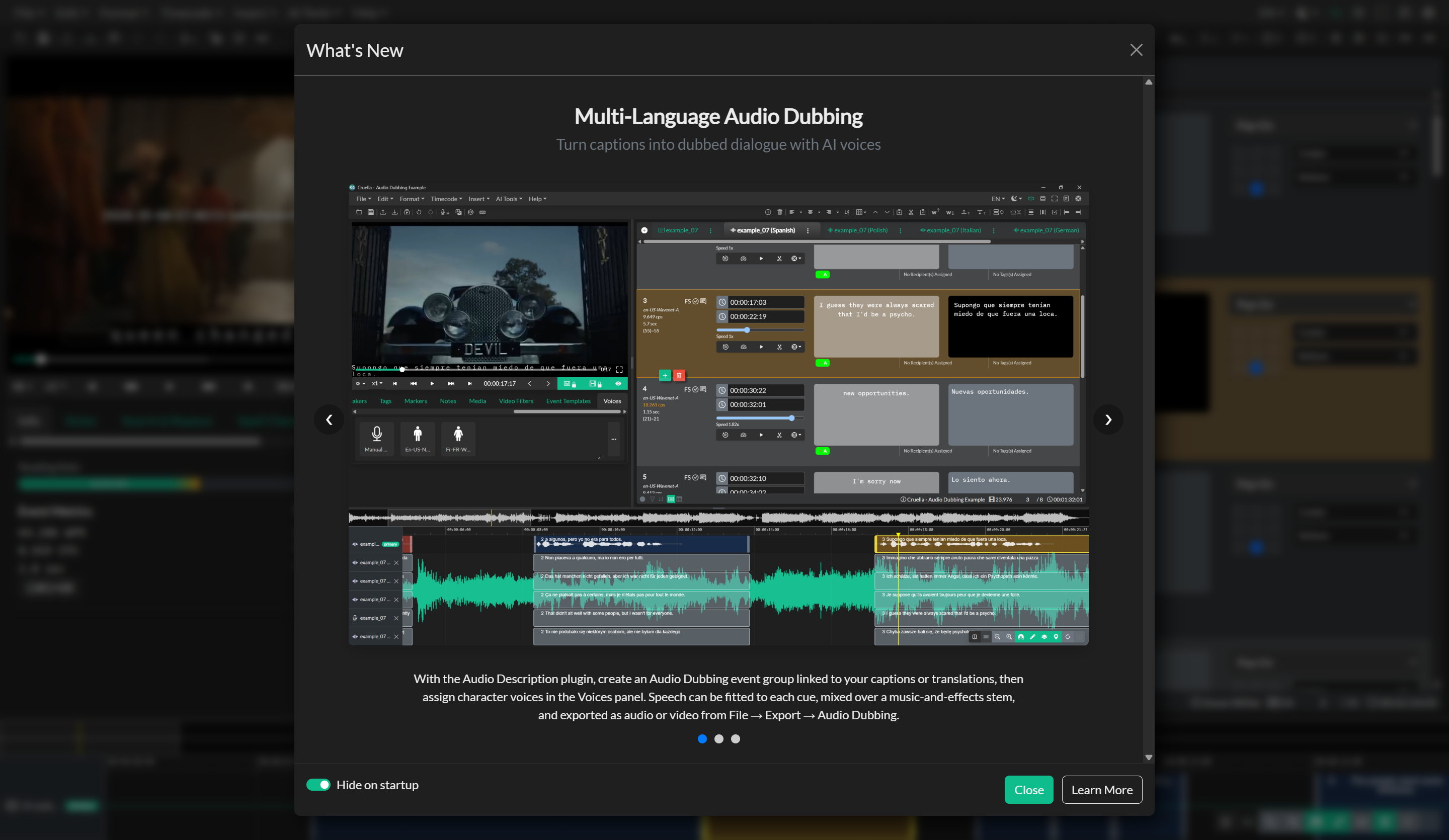
Version information is also accessible through the Help Menu, displaying the current application version number, build date, and release channel. This information is useful when reporting issues to support or verifying that you have access to specific features that may have been introduced in recent updates.
Application Diagnostics
The Help Menu may provide access to diagnostic information and system logs that can be useful when troubleshooting technical issues or performance problems. Diagnostic data includes information about your browser or operating system version, available memory and storage, enabled features and plugins, and recent error messages or warnings.
When requested by the support team, you can export diagnostic logs or system information reports that provide detailed technical data to help investigate specific issues. This diagnostic information does not include personal data or project content but focuses on system configuration and application state.