Edit Menu
The Edit Menu provides essential editing operations including undo and redo functionality, clipboard operations for events, and text cleanup utilities. These tools form the foundation of efficient caption and subtitle editing workflows by enabling quick corrections, batch operations, and content refinement.
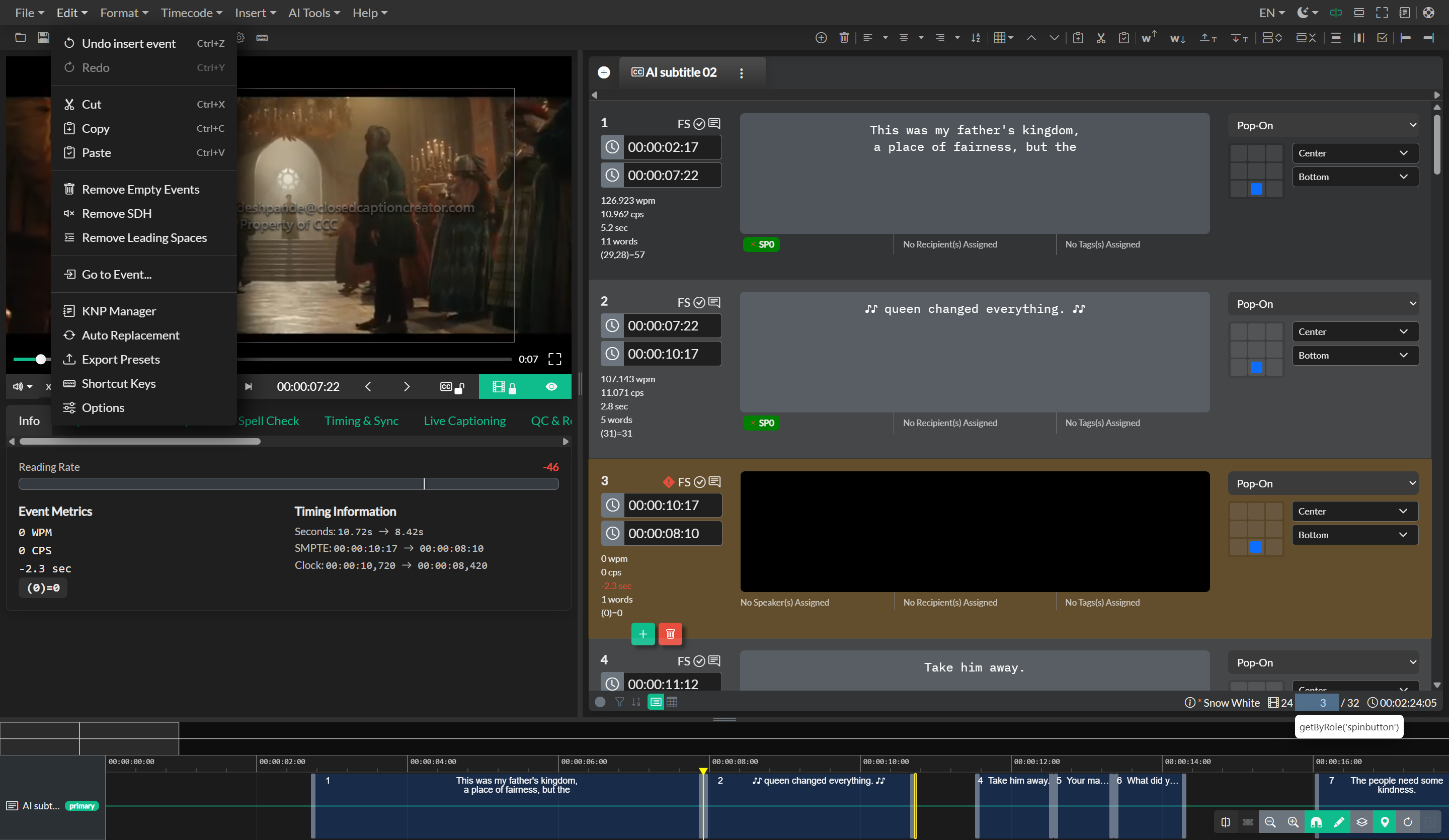
Undo and Redo
The Undo and Redo commands allow you to step backward and forward through your editing history, providing the ability to reverse mistakes or restore previous states of your work. The history system tracks changes across all event groups within your project, including text modifications, timing adjustments, formatting changes, speaker assignments, and event insertions or deletions.
Each undo operation reverses the most recent change and adds it to the redo stack, allowing you to move freely between different project states during your editing session. The history depth is preserved throughout your working session, giving you extensive ability to experiment with different approaches and reverse course when needed. This system operates independently from the snapshot history feature available in team projects, which provides longer-term version control across save operations.
Copy Events
The Copy Events command copies selected events to your system clipboard in a structured format that preserves all event properties including text content, timing data, formatting, positioning, speaker assignments, and metadata. This enables you to duplicate events within the same event group, transfer events between different event groups in your project, or even copy events to a different project entirely.
The clipboard data includes complete event structure, ensuring that all formatting, styling, and metadata travel with the copied content. This operation requires one or more events to be selected in your event list before the copy command becomes available.
Paste Events
The Paste Events command inserts previously copied events into your current event group at the position of your current selection or at the end of the event list if no events are selected. When pasting events, the system presents you with timing options that control how the pasted events are positioned in your timeline.
If you choose to apply new timing based on current playback position, the pasted events are repositioned so that the first pasted event begins at the current playback time, with subsequent events maintaining their relative timing intervals from the original source. This mode is useful when you want to reuse event content at a different point in your timeline while preserving the original duration and spacing between events.
Alternatively, you can choose to preserve the original timing data from the copied events. This mode is appropriate when you are transferring events between event groups that share the same timeline reference or when you want to maintain exact timing synchronization with the source material.
Remove Leading Spaces
The Remove Leading Spaces command eliminates unnecessary whitespace at the beginning and end of each line within all events in the selected event group. This cleanup operation targets formatting issues that commonly occur during import operations or when working with transcript data that includes inconsistent spacing.
The operation processes the HTML structure of each event and removes spaces immediately following opening paragraph tags and immediately preceding closing paragraph tags, while preserving intentional spacing within the text content. This ensures clean presentation without altering the intended line breaks or text flow. This command operates on all events in the current event group and clears any existing event selection after completion.
Remove Empty Events
The Remove Empty Events command deletes all events from the selected event group that contain no visible text content. This cleanup operation is valuable after import operations, automatic transcription workflows, or extensive editing sessions where placeholder events may have been created but left unpopulated.
The system examines each event and removes those where the text content is empty or contains only HTML formatting tags without actual text characters. Events with whitespace but no visible characters are also removed. This operation is permanent and cannot be undone through the standard undo system, so it is recommended to save your project before performing bulk deletion operations.
Auto Format
The Auto Format command applies automated formatting rules to the selected event group based on the specifications and constraints defined in the event group settings. This comprehensive operation analyzes each event and applies corrections to ensure compliance with maximum character counts, line limits, reading speed targets, and style guide requirements.
Auto formatting performs multiple operations simultaneously including line break optimization to balance text distribution across lines, adjustment of event boundaries to meet minimum and maximum duration requirements, and verification that character-per-second and words-per-minute constraints are satisfied. The formatter also applies positioning rules, text alignment preferences, and style consistency based on your event group configuration.
This feature is particularly valuable when working with imported transcripts that were not originally formatted for subtitle display, or when you need to bring a manually edited event group into compliance with delivery specifications. The auto format operation respects your existing timing where possible but may adjust event boundaries when necessary to meet reading speed requirements.
Export Presets
The Export Presets command opens the Preset Manager, where you can list, delete, import, and export named configurations. Tabs cover subtitle, video, transcript, and audio description export presets, plus a Standards tab for Event Group error-detection presets (reading rate, line length, duration, overlap, and illegal-character checks). Built-in standards such as North American Broadcast and European Teletext are applied from the New Project and Event Group forms rather than from this manager. See Export Presets and Batch Export and Realtime Error Detection.