Insert Menu
The Insert Menu provides quick access to commands that add new events, special characters, and speaker identification elements to your caption and subtitle projects. These insertion tools streamline common editing tasks and ensure consistent application of broadcast caption conventions.
Insert Event
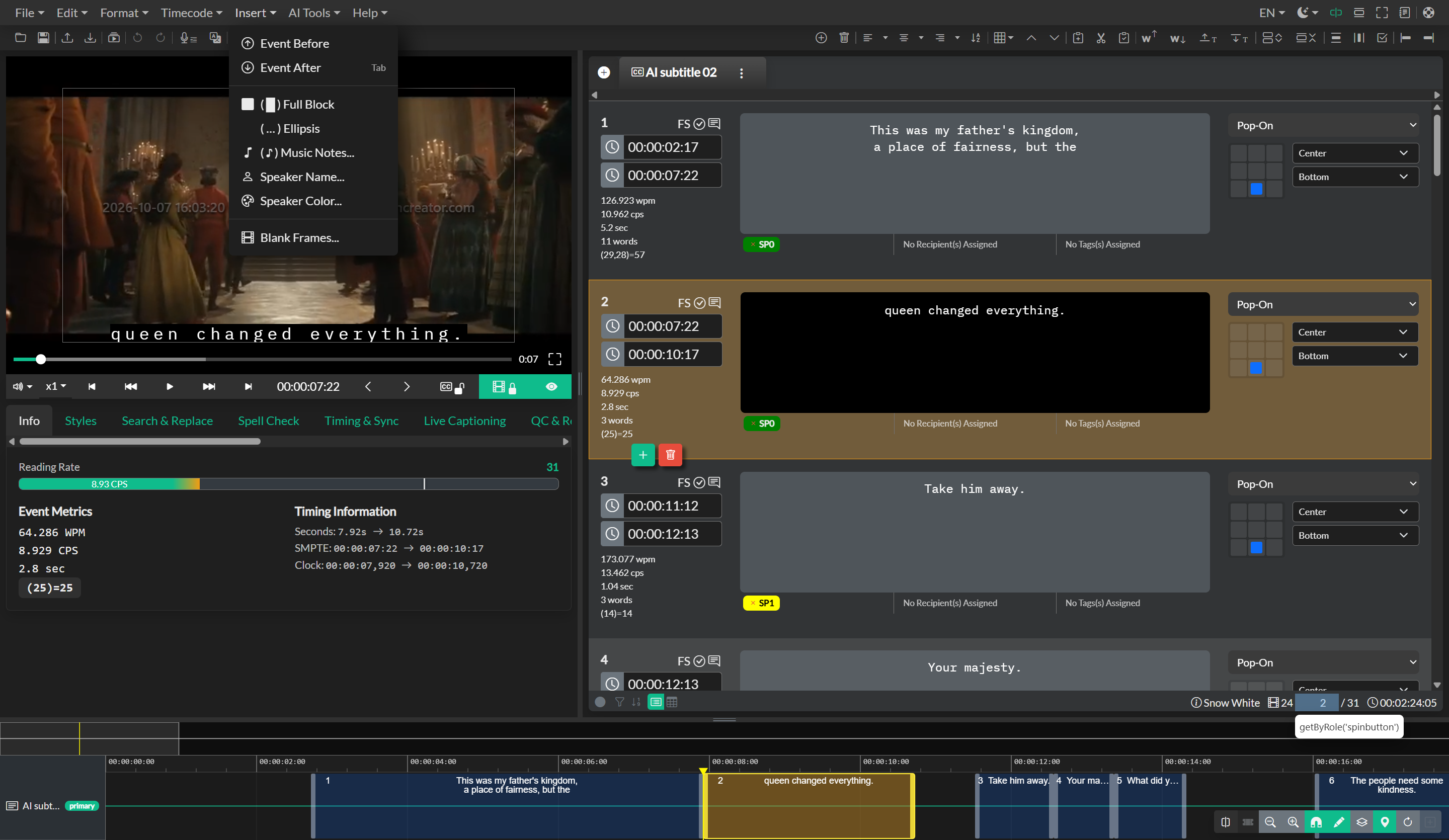
The Insert Event commands create new empty events within your current event group. The Insert Event Below command creates a new event immediately following the currently selected event in your event list, while Insert Event Above creates a new event immediately before the selected event. If no event is selected, the new event is added at the end of your event list.
When creating a new event, the system inherits formatting properties from the template event, which is either the currently selected event or the most recent event in your group. Inherited properties include text alignment, positioning coordinates, writing mode, voice selection for audio description, speaking style, and display style preferences. This ensures that new events maintain consistency with your existing content without requiring manual configuration of each property.
If you have enabled the Insert Start on Insert option in your editor preferences, newly created events are automatically assigned timing based on the current playback position. The start time is set to match the current video position, and the end time is calculated by adding the minimum duration defined in your event group settings. This allows for rapid event creation during spotting workflows where you are creating caption breaks while watching the video.
Insert Block
The Insert Block command inserts a solid block character (█) at the current cursor position within your text editor. This character is used in closed captioning to represent censored or redacted content, typically obscuring profanity or sensitive information while maintaining caption readability.
The block character insertion respects your current cursor position and can be used mid-word or mid-line to create partial redactions. Multiple block characters can be inserted in sequence to match the length of the obscured content. This command requires that you have an active cursor position within a text editor field.
Insert Ellipsis
The Insert Ellipsis command inserts a proper ellipsis character (…) at your current cursor position. The ellipsis is rendered as a single character rather than three separate periods, which ensures consistent spacing and appearance across different playback systems and subtitle renderers.
Ellipses are commonly used in captioning to indicate pauses in speech, trailing off, or continuation of thought. They may also be used at the beginning of an event to indicate that the caption is continuing from a previous event. The proper ellipsis character is preferred over three periods in professional broadcast captioning because it prevents line breaking or spacing issues that can occur with separate period characters.
Insert Music Notes
The Insert Music Notes command provides access to musical note characters that are used in closed captioning to indicate music, singing, or sound effects. The standard music note symbols (♪ or ♫) are inserted at your cursor position and can be placed at the beginning or end of caption text to denote musical content.
Broadcast captioning conventions typically use a single music note (♪) at the beginning and end of a caption to indicate singing or lyrics, while instrumental music may be described with notes surrounding descriptive text such as ♪ piano music ♪. The music notes serve as visual indicators that distinguish musical or sound effect captions from dialogue captions.
Insert Speaker Name
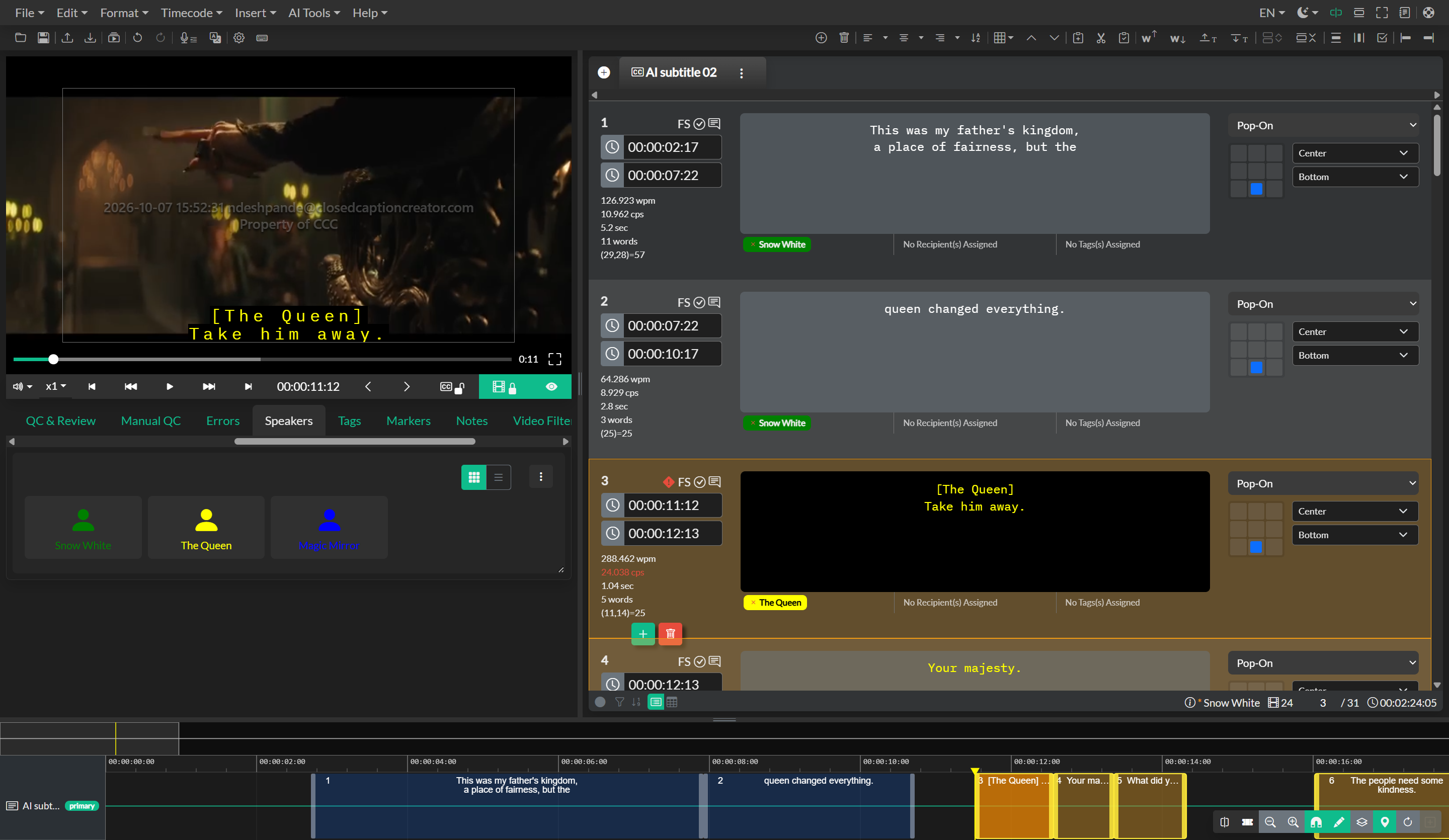
The Insert Speaker Name command automatically inserts the name of the speaker assigned to the current event at your cursor position. This function is particularly valuable for multi-speaker content where speaker identification is required for clarity, such as panel discussions, interviews, or dramatic content with multiple characters.
Speaker names are drawn from the speaker metadata assigned to each event in your project. When you invoke this command, the system looks up the speaker associated with the current event and inserts their name as text. Common formatting conventions place the speaker name at the beginning of the event text, often followed by a colon, though specific formatting is controlled by your style preferences.
This automated insertion ensures consistency in speaker identification throughout your project and saves time compared to manually typing speaker names repeatedly. Changes to speaker names in your speaker management system can be reflected throughout your captions using find-and-replace operations.
Insert Speaker Color
The Insert Speaker Color command applies color formatting to individual lines within an event based on speaker assignments. This is an advanced feature used primarily in multi-speaker scenarios where color coding helps viewers distinguish between different speakers when multiple people are speaking simultaneously or in rapid succession.
The command analyzes the speaker assignments for the current event and applies appropriate color attributes to text based on the speaker's defined color in your speaker management system. This ensures that color coding remains consistent throughout your project and matches the speaker identification conventions you have established.
Color coding in captions must be used carefully to ensure accessibility for color-blind viewers, and it should always be used in conjunction with other speaker identification methods such as speaker names or positioning.