Format Menu
The Format Menu provides advanced text transformation and formatting operations that help refine caption and subtitle content for clarity, consistency, and compliance with style guidelines. These tools operate on the entire selected event group and include text cleanup utilities, case transformations, sorting operations, and specialized formatting for right-to-left languages.
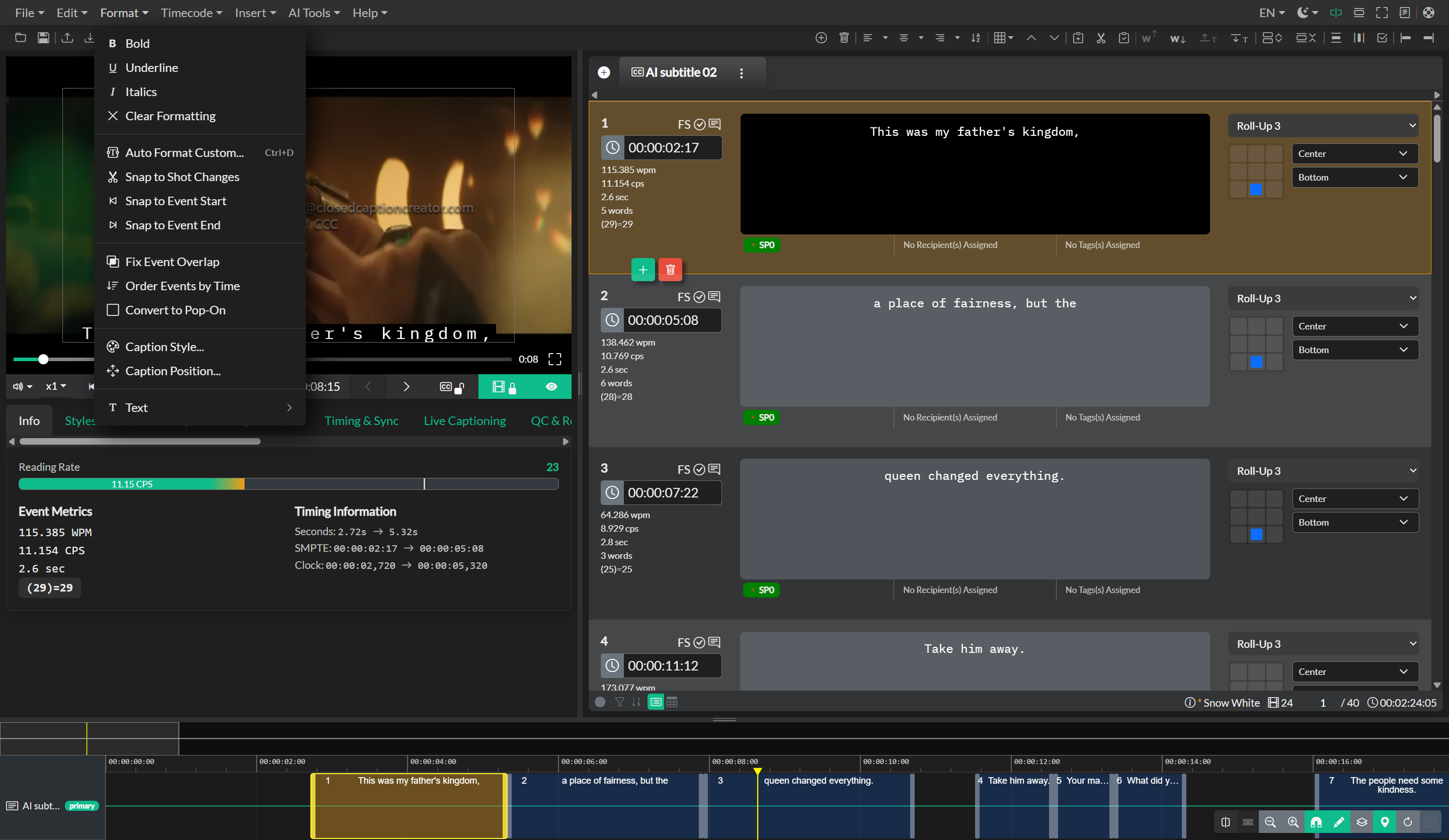
Text Transformations
Several commands in the Format Menu apply systematic text changes across all events in your selected event group. The Spell Numbers command converts single-digit numbers written as numerals into their spelled-out word equivalents, transforming characters like "1," "2," and "3" into "one," "two," and "three." This transformation is often required for broadcast captioning style guides that mandate spelling out single-digit numbers for improved readability.
The Remove Repeat Words command identifies and eliminates consecutive duplicate words within events, addressing a common error that occurs during manual transcription or automatic speech recognition. This cleanup operation searches for patterns where the same word appears twice in succession and removes the duplicate instance while preserving the intended text flow. This is particularly useful for cleaning up stuttered speech patterns or transcription artifacts.
Case Transformations
The Format Menu provides three case transformation options that modify the capitalization of text across your event group. The Uppercase command converts all text to capital letters, which is a requirement for certain broadcast caption formats and style specifications. The Lowercase command converts all text to lowercase letters, which can serve as a starting point for applying proper sentence-case capitalization. The Capitalize Each Word command applies title case formatting where the first letter of each word is capitalized, which is occasionally used for specific content types such as credits or on-screen labels.
These transformations operate on the text content while preserving formatting attributes such as italics, color, and positioning. They provide quick access to bulk capitalization changes without requiring manual editing of individual events.
Fix Overlaps
The Fix Overlaps command identifies and resolves timing conflicts where event end times extend past the start time of the subsequent event. Overlapping events can cause display issues in certain playback environments and violate technical specifications for some file formats and broadcast systems.
When you execute this command, the system analyzes the timeline sequence of all events in the selected event group and adjusts event boundaries where overlaps are detected. The resolver typically shortens the end time of the earlier event to match or precede the start time of the following event, with options to apply minimum gap requirements between events based on your event group configuration. This operation ensures clean timeline sequencing while preserving as much of the original timing as possible.
Sort Events
The Sort Events commands provide timeline organization options that arrange events based on timing or spatial positioning. The Sort by Time command reorders all events in chronological sequence based on their start times, which is the standard organization for caption and subtitle workflows. This operation is essential after import operations or timing adjustments that may have left events out of sequence.
The Sort by Line command reorders events based on their vertical positioning rather than timing, which is valuable when working with complex multi-line layouts or when organizing events that appear simultaneously on screen at different vertical positions. This specialized sorting is used primarily for advanced captioning scenarios involving multiple speakers or layered text elements.
Right-to-Left Text Support
For projects involving languages that read from right to left such as Arabic or Hebrew, the Format Menu includes specialized commands that handle text directionality. The Fix RTL Text command applies appropriate Unicode bidirectional formatting to ensure that right-to-left text displays correctly while preserving proper handling of embedded left-to-right elements such as numbers, Latin characters, or punctuation marks.
The Reverse RTL Start and End command addresses a specific technical requirement in some subtitle formats where the logical start and end positions of text need to be inverted to account for right-to-left reading direction. This ensures that positioning coordinates are correctly interpreted by playback systems when rendering RTL language content.
Text Conversion Options
The Format Menu also provides access to text conversion utilities that transform formatted content between different representations. These operations allow you to strip formatting tags and convert rich text to plain text, apply custom text transformations, or reformat content to meet specific technical requirements. The conversion system preserves line breaks and basic text structure while applying the requested transformation rules.