Timecode Menu
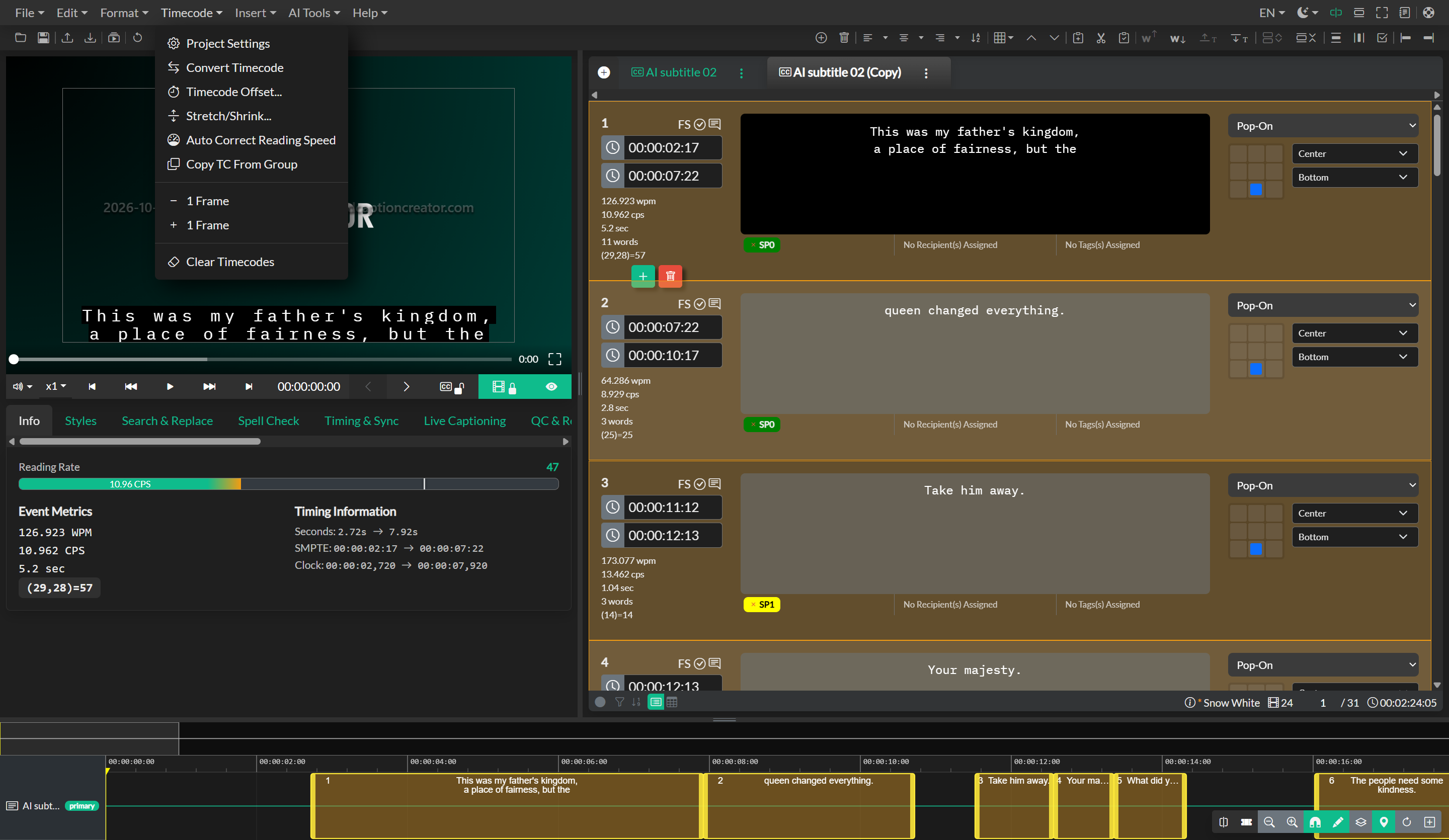
The Timecode Menu provides comprehensive tools for managing timing, frame rates, and synchronization across your caption and subtitle projects. These functions control the fundamental timing framework that governs how events are positioned in relation to your source media and how timing data is interpreted during import, export, and playback operations.
Project Settings
The Project Settings command opens a configuration modal where you define the foundational timing parameters for your project. These settings include the frame rate that determines how many frames occur per second in your source media, the drop frame mode that controls timecode calculation for NTSC frame rates, and the incode or starting timecode for your project timeline.
Frame rate selection is critical because it affects how timecode values are calculated and displayed throughout your project. Common broadcast frame rates include 23.976, 24, 25, 29.97, and 30 frames per second, with 29.97 often used in drop frame mode to maintain timecode accuracy over long durations. The incode setting establishes the zero point for your timeline, which may differ from 00:00:00:00 when working with content that has a specific start timecode for broadcast scheduling or editorial reference.
Changes to frame rate or drop frame mode after events have been timed can affect the timecode representation of your events, so these settings should be established at project creation whenever possible. The Project Settings modal provides frame rate conversion tools that help preserve timing accuracy when changes are necessary.
Convert Timecode
The Convert Timecode command provides utilities for translating timing data between different frame rates and timecode standards. This function is essential when repurposing content originally created for one frame rate to a different delivery format, or when synchronizing caption files created for one video version with a different video master.
The conversion system calculates new timecode values that preserve the temporal relationships between events while adjusting for the mathematical differences between source and target frame rates. You can specify source and target frame rates along with drop frame mode preferences, and the system applies the appropriate conversion algorithms to maintain synchronization. This operation is particularly valuable in international distribution workflows where content may be converted between PAL and NTSC standards.
Timecode Offset
The Timecode Offset command adjusts the timing of selected events by adding or subtracting a specified time value from their start and end times. This operation is used to synchronize captions with edited video where the editing changes have resulted in a consistent time shift across the program, or to align imported caption files with slightly different video versions.
When you apply a timecode offset, you specify the offset value in hours, minutes, seconds, and frames, along with the direction of the shift. The system then applies this offset to all selected events while maintaining their duration and relative spacing. If no events are selected, you have the option to apply the offset to the entire event group. This command also supports ripple operations that can selectively apply offsets to events following a specific timeline position.
Stretch and Shrink
The Stretch and Shrink command allows you to proportionally scale the timing of selected events to fit a different duration. This is valuable when you need to synchronize captions with video that has been speed-changed or when adjusting timing to match a different program version that has been edited for time.
You specify either a target duration or a percentage scaling factor, and the system recalculates the start and end times of all selected events to fit the new timeframe while preserving their relative positions. This maintains the overall pacing of your captions while adapting them to the modified program duration.
Auto Correct Reading Speed
The Auto Correct Reading Speed command analyzes your events and adjusts their display duration to ensure compliance with maximum reading speed requirements. Reading speed is typically measured in characters per second or words per minute, and broadcast standards often mandate maximum reading speeds to ensure accessibility for all viewers.
When you run this operation, the system examines each event and extends the duration of events that would require reading speeds exceeding your specified maximum. The correction algorithm attempts to extend events into available timeline gaps without creating overlaps with adjacent events. When gaps are insufficient, the system may need to create slight overlaps that can then be resolved using the Fix Overlaps command.
This automated correction is particularly valuable after importing raw transcript data or when working with content that was originally timed more aggressively than your delivery specifications allow.
Copy Timecode from Group
The Copy Timecode from Group command transfers timing data from events in one event group to corresponding events in your currently selected event group. This function is used when you have multiple language versions or different subtitle variants that share the same timing structure.
The system matches events between the source and target groups based on their sequence position and copies the start and end times while preserving the text content and other properties of the target events. This ensures consistent timing across multiple event groups without requiring manual timing work for each language or variant.
Trim to Duration
The Trim to Duration command appears when working with audio description event groups and automatically sets each selected event's end time based on the duration of its associated rendered audio file. This ensures that audio description events play for exactly the length of their audio content plus a small buffer for natural playback.
This command is particularly useful after rendering text-to-speech audio for multiple audio description events, as it applies accurate duration values without requiring manual measurement of each audio file.
Frame-Level Adjustments
The Add One Frame and Subtract One Frame commands provide precise timing adjustments at the individual frame level. These operations modify the end time of selected events by exactly one frame duration, which is calculated based on your project's frame rate.
Add One Frame extends the end time by one frame, which is useful for ensuring that a caption remains visible through a specific frame or shot boundary. Subtract One Frame shortens the end time by one frame, which can help eliminate single-frame overlaps or ensure that captions disappear before a scene transition.
These frame-accurate controls are essential for broadcast captioning where precise timing relative to scene changes and shot boundaries is required for optimal viewing experience. The commands respect timing boundaries and will not allow you to subtract frames that would cause the end time to precede the start time.