Custom Pronunciations
Text-to-speech voices often mispronounce names, places and brands. Writers used to work around this by spelling the word wrong on purpose, then remembering to do it again in every project. Custom pronunciations fix this. You store how a term should sound once, in a KNP Guide, and every audio description and audio dubbing track that uses the guide renders it correctly. The caption text stays spelled correctly.
How it works
- Add a Sounds like spelling to a term in a KNP Guide, for example
Nguyen→win. - Assign the guide to an Audio Description or Audio Dubbing Event Group. See KNP Guides in the Editor.
- Render audio as usual. Before the text is sent to the voice, every guide term found in an event is replaced with its Sounds like spelling.
Only the audio changes. The event text, exported caption files and scripts keep the spelling you wrote.
Custom pronunciations are part of KNP Guides, so they are available to team accounts while online.
Adding a pronunciation
Pronunciations are edited in the same grid as the rest of a term, either in the Terms tab of the KNP Terminology Manager or in the KNP Terminology Lookup panel. Each term has two pronunciation columns:
- Sounds like is a plain respelling of how the term should be said, for example
shiv-awnfor Siobhan orsee plus plusfor C++. This is the field you will normally use. It works with every voice. - IPA (advanced) holds a pronunciation in the International Phonetic Alphabet. It is stored with the term but is not used for rendering yet; only Sounds like changes the audio today.
Double-click a cell to edit it and click Save to commit your changes. Leave both columns empty for terms the voice already says correctly.
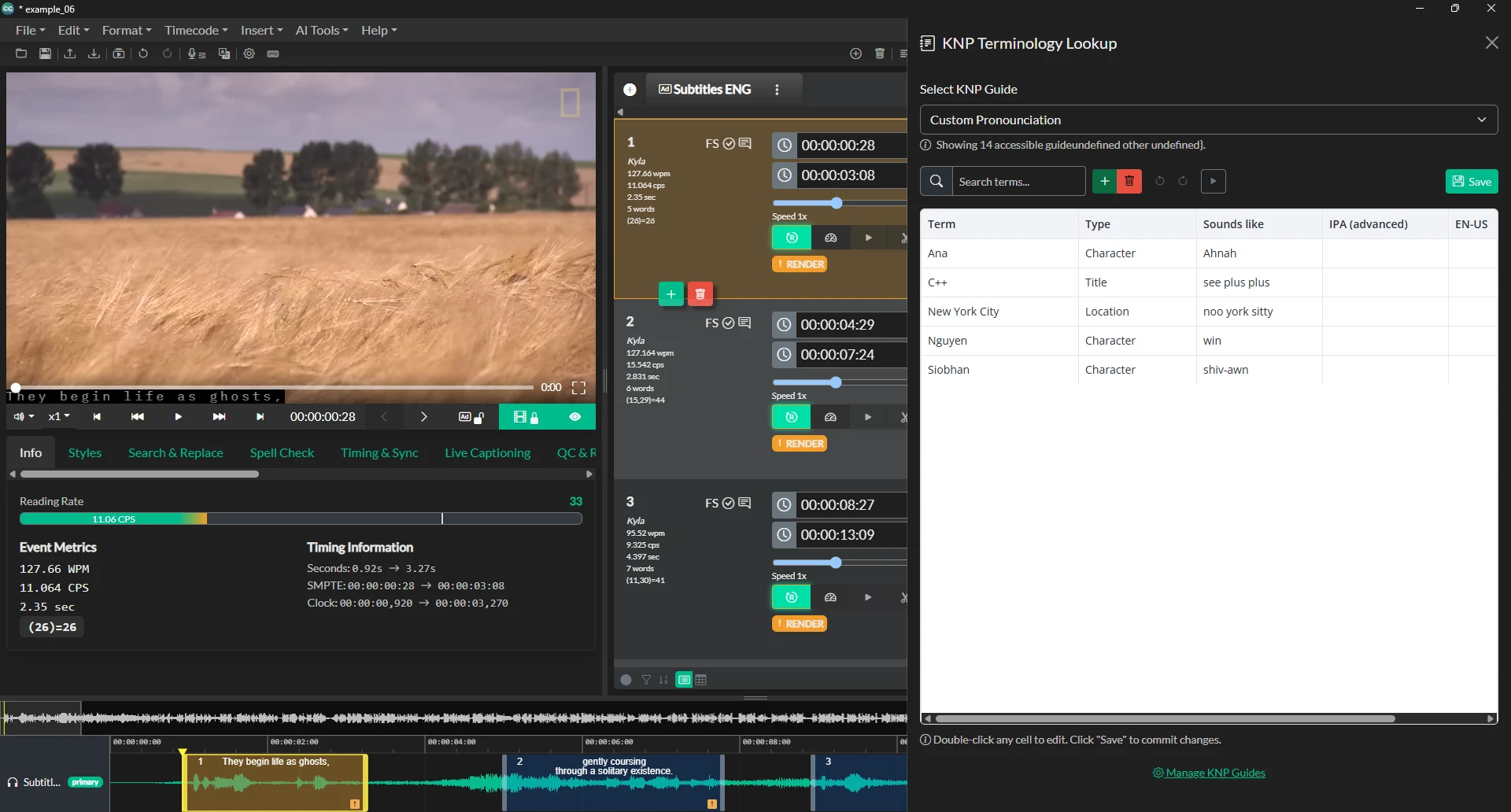
You can also add pronunciations in bulk with CSV import. See CSV import and export.
Previewing a pronunciation
You can hear a pronunciation before you save it, and previews are free.
- Select a term's row in the grid. The preview uses the Sounds like value currently in the grid, so you can try changes before saving.
- Click the ▶ button in the toolbar.
- In the preview panel, choose a Voice. The list contains the current audio description track's voice followed by your pinned voices.
- Check the Sample sentence. It is filled with a line from the current track that uses the term, or the term on its own if no line does. You can type your own sentence.
- Click Original to hear the voice's own pronunciation, then With pronunciation to hear your Sounds like spelling. Compare the two and adjust the spelling until it sounds right.
Each clip is kept for the rest of the session, so replaying it is instant. If the voice list is empty, pin a voice in the Voice Manager first. ElevenLabs voices render with your own ElevenLabs key, as they do elsewhere in the app.
Which words are replaced
A term is replaced wherever it appears in an event as a whole word:
- Matching ignores case, so a
Siobhanentry also matchesSIOBHAN. - Only whole words match. An
Anaentry changes "Ana" but not "banana". - When terms overlap, the longest one wins. With both
New York CityandYorkin the guide, "New York City" uses the first and "York" on its own uses the second. - Multi-word terms still match when the words are split across a line break.
- Accented letters and symbols are matched exactly as written, so
ZoëandAT&Twork as terms.
One spelling is used for every voice. If a particular voice still says a term poorly, preview it with that voice and adjust the spelling until it works for the voices your team uses.
Re-rendering after a change
Closed Caption Creator tracks which pronunciations each event's audio was rendered with:
- Editing a term's Sounds like spelling marks only the events that contain that term as needing a render. Other events keep their audio.
- Assigning a different guide to a track marks the events that use its terms as needing a render, and a notification tells you so.
- Events that don't contain any guide terms are never affected.
Render the marked events as usual, for example with AI Tools → Force Render Audio…, before you export. Changes made in the KNP Terminology Manager are picked up when the Manager closes. Changes saved in the KNP Terminology Lookup panel are picked up as soon as you save.
Billing
Text-to-speech usage is counted on the event text as written, not on the substituted Sounds like spelling, so pronunciations never cost extra. Previews are not charged.
Tips for writing a good "Sounds like" spelling
- Write it the way you would explain it to a colleague:
win,KUH-tar,jif. - Split long or unusual words into syllables with hyphens. Capitals can help some voices stress a syllable.
- Spell out acronyms that should be read letter by letter, for example
A T and T. - Avoid adding punctuation such as commas or full stops, which can make the voice pause.
- Always preview with the voices your team uses. Voices read respellings differently, so a spelling that works for one may need a small change for another.