Solution Use Case · New in v1.8.50
Multilingual Audio Dubbing Software
Turn one program into many languages. Closed Caption Creator transcribes the dialogue, translates it, and voices every target language with lifelike AI voices, timed to the original lines and mixed over your music-and-effects stem.
Audio Dubbing is included with the Audio Description Plugin.
Dub with voices from:





How does Closed Caption Creator create dubbed audio tracks?
Closed Caption Creator creates dubbed audio tracks by rendering text-to-speech from a translated script that stays locked to the original dialogue timing. You transcribe the program, translate it with Automatic Translation, assign a synthetic or ElevenLabs voice to each speaker, then export a voice-over track and a mix over your music-and-effects stem.
Who It’s For
One application for the whole dubbing workflow
Skip the hand-off between a transcription tool, a translation tool, a voice generator and an audio editor.
Broadcasters & Streamers
Add secondary-language audio to catalog titles and new programming, with loudness profiles for EBU R 128 and ATSC A/85 built into the export.
Localization & Post Teams
Keep captions, translations, audio description and dubs in a single project, then hand voice-over stems to Premiere Pro or DaVinci Resolve for final mixing.
Training, Marketing & Creators
Publish multi-language audio tracks to YouTube, Brightcove or Mux without booking voice talent for every language and every revision.
How It Works
How do you dub a video with AI voices?
Six steps take you from the original program to a finished dubbed track. The video walkthrough covers each one in under five minutes.
STEP 1
Transcribe or import
Generate subtitles with Automatic Transcription, or import an existing subtitle or transcript file. Speaker IDs come in with the AI transcript.
STEP 2
Translate
Run Automatic Translation into one or more target languages, or import your own translated subtitle file for each language.
STEP 3
Create the dub
Create an Audio Dubbing Event Group linked to the translation. Source text sits on the left, the dubbed script on the right.
STEP 4
Assign voices
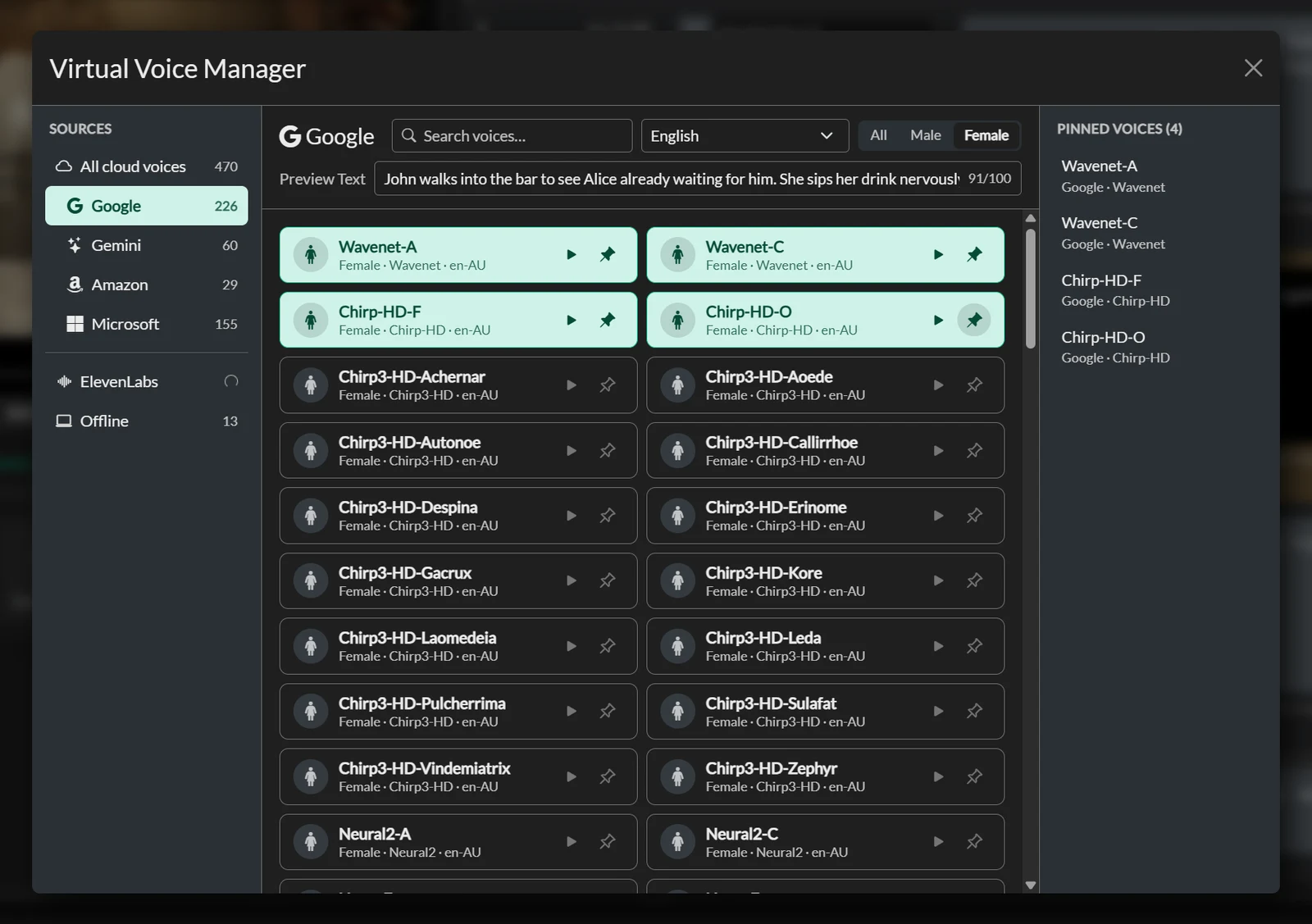
Pin voices in the Virtual Voice Manager, filter events by speaker, and click a voice. Repeat until every speaker has one.
STEP 5
Render and fit
Run Force Render ALL Audio with Fit to Event duration for a timed first pass, then fine-tune speed per line.
STEP 6
Export
Export the voice-over, a mixdown over your music-and-effects stem, SRT files, and video from one window.
Source and Dubbed Script, Side by Side
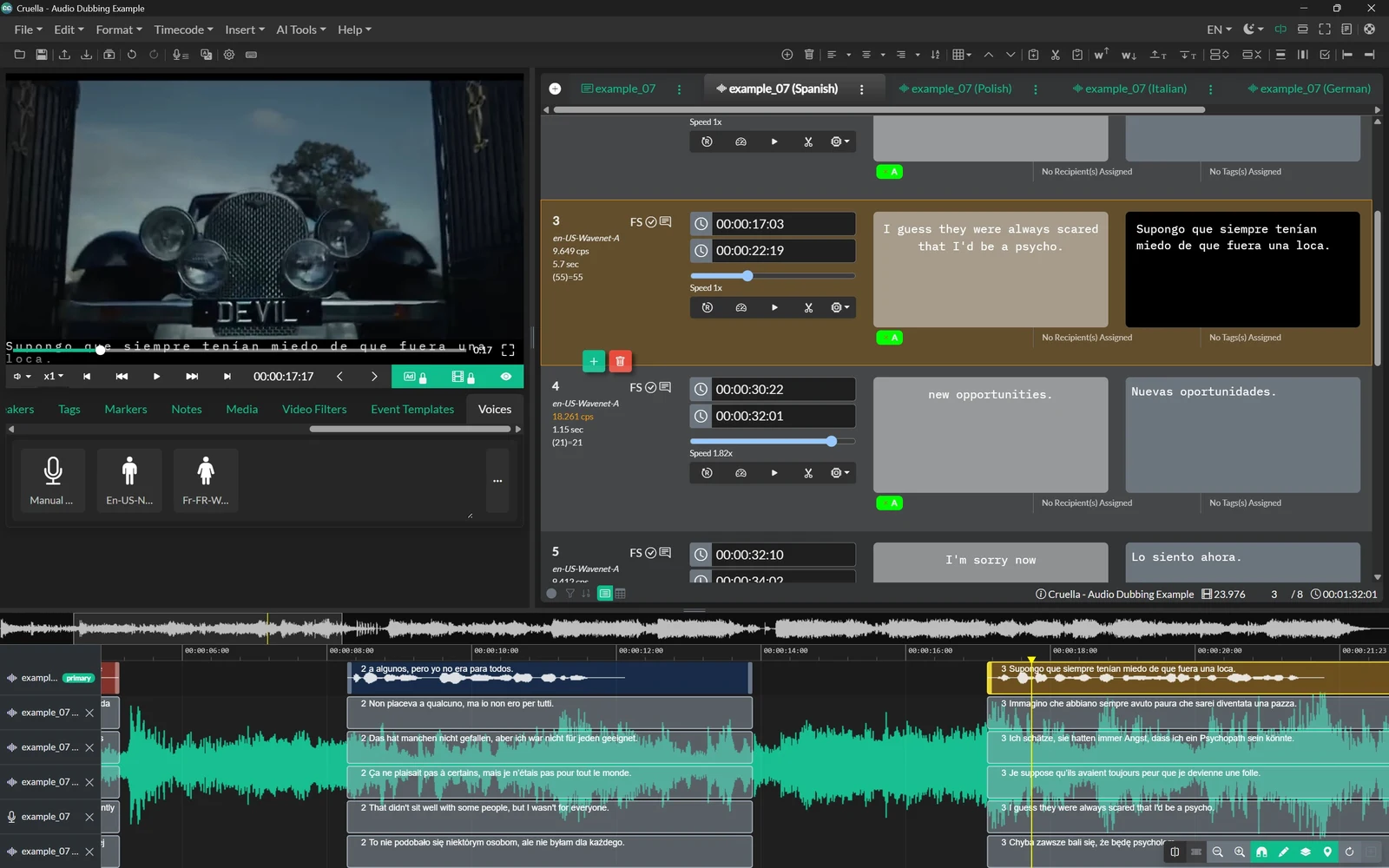
Every Audio Dubbing Event shows the original language on the left and the dubbed script on the right, with in and out times, reading speed and voice controls on the same row.
Each language gets its own tab and its own track on the timeline, so you can check the Spanish, Polish, Italian and German dubs against the program audio in one project.
Hundreds of Voices, Plus Your ElevenLabs Library
The updated Virtual Voice Manager organizes voices by provider, including Google, Gemini, Amazon and Microsoft. Filter by language and gender, type your own preview text, and pin the voices you want in the Voices panel.
Connect your ElevenLabs account to add Voice Library voices, generated voices and your own voice clones. ElevenLabs voices are multilingual, so one voice can carry a character across every target language.
Dubbed Lines That Fit the Original Timing
Translated dialogue rarely matches the length of the source. Closed Caption Creator gives you per-line control so the dub lands where the original actor speaks.
- Fit to Event duration sets each line’s speed so the speech fits its slot
- Speed slider per Event for fine-tuning, no re-render needed
- RENDER and DURATION badges flag lines that still need work
- Trim or extend an Event to match the rendered audio
- AI Authoring Tools rephrase a long line so it reads naturally
- Manual Record to voice any line yourself
Preview With Audio Stems
Load a background (music and effects) stem and a foreground (dialogue) stem from the Media tab to hear the dub the way your audience will. Set each level independently, and use the isolated dialogue to check that every dubbed line lands on time.
Supply an M&E stem for a clean dub. The export mixes the voice-over over the background stem. Without one, the mixdown uses the project media, which still contains the original dialogue.
Audio Dubbing Export
A dedicated export window, separate from Audio Description export, writes everything a dubbed deliverable needs to one folder. Choose a background stem, apply automatic ducking with a mix preset, and normalize loudness on the voice-over, program audio or mixdown.
Read the Audio Dubbing Export guide for every setting.
- Voice-over track with every dubbed Event
- Mixdown over the background stem
- SRT files for the dubbed language
- Video with the mixdown muxed in
- WAV (48k/24-bit, 44.1k/16-bit), FLAC or MP3 up to 320 kbps
- Loudness profiles: -23 LUFS EBU R 128, -24 LUFS ATSC A/85, -16 and -13 LUFS
- BWF metadata on WAV exports
Audio Dubbing at a Glance
What each stage of the workflow uses inside Closed Caption Creator.
| Stage | What you use |
|---|---|
| Source script | Automatic Transcription with speaker IDs, or an imported subtitle or transcript file |
| Translation | Automatic Translation into 70+ languages, or your own translated files |
| Dub script | Audio Dubbing Event Group with source and dubbed text side by side |
| Voices | Google, Gemini, Amazon, Microsoft, ElevenLabs, or your own recording |
| Timing | Force Render with Fit to Event duration, per-line speed, trim and extend |
| Preview | Background and foreground audio stems with separate levels |
| Delivery | Voice-over, mixdown, SRT and video; WAV, FLAC or MP3 with loudness normalization |
| Requirement | Audio Description Plugin; export runs in the desktop app while online |
Dubbing and described video, one subscription
Audio Dubbing is available to every Closed Caption Creator user who subscribes to the Audio Description Plugin. The same voices, rendering and export stack power both workflows.
$40 per month per user plus usage, with 750,000 text-to-speech characters included each month. See full pricing.
Explore the Audio Description PluginStart dubbing in your next project
Sign up for Closed Caption Creator, add the Audio Description Plugin, and produce your first dubbed track today.
Planning dubbing at scale, or want to see the workflow on your own content first? Our team will walk you through it in a live demo.
Audio dubbing questions
Answers about plugin requirements, pricing, translation, voices, timing and export for Audio Dubbing.
Yes. Audio Dubbing is part of the Audio Description Plugin, so your Closed Caption Creator subscription must include that plugin. The plugin unlocks the Audio Dubbing Event Group type, the Virtual Voice Manager, Force Render, and the Audio Dubbing Export window. Exporting the finished dub uses the desktop application while you are online.
Audio Dubbing is included with the Audio Description Plugin, which costs $40 per month per user plus usage. Each licence includes up to 750,000 characters of text-to-speech per month, and additional usage is $50 per million characters. ElevenLabs voices run on your own ElevenLabs API key, so that usage appears in your ElevenLabs account.
Yes, as a separate step before you dub. Run AI Tools, then Automatic Translation, to translate the transcript into one or more target languages, and import each result as a Translation group. An Audio Dubbing group linked to that translation copies the source text into the left column and the translated script into the right, ready to voice.
Yes. Paste your ElevenLabs API key under Edit, Options, Integrations, and your ElevenLabs voices appear as a source in the Virtual Voice Manager. That includes Voice Library voices, generated voices, and your own Instant or Professional Voice Clones. ElevenLabs voices are multilingual, so one voice can speak each target language.
You can dub into any language that has a voice available, and Automatic Translation covers more than 70 target languages. Google, Gemini, Amazon and Microsoft voices are filtered by language in the Virtual Voice Manager, while ElevenLabs voices are multilingual and speak whatever language the dubbed script is written in.
No. Audio Dubbing renders text-to-speech from the dubbed script, so it does not convert or clone the original performance automatically. The original dialogue is only removed from the mix when you supply a background music-and-effects stem. To keep a recognizable voice, use an ElevenLabs voice clone you have the rights to, or record the lines yourself.
Each dubbed line lives in an Event timed to the original dialogue, and Force Render ALL Audio with Fit to Event duration adjusts every Event's speed so the speech fits its slot. You can then fine-tune the speed slider, trim or extend an Event, or rephrase long lines with the AI Authoring Tools.
The Audio Dubbing export produces a voice-over track, an optional mixdown over your background stem, optional SRT files, and an optional video with the mixdown muxed in. Audio can be written as WAV, FLAC or MP3, with loudness normalization to EBU R 128 or ATSC A/85 and BWF metadata on WAV files.